Gaussian Splat
OctaneRender® supports Gaussian Splat files which provide a representation of 3D scenes using a collection of Gaussians that approximate the geomtery and lighting of a captured scene (figure 1). Gaussian splats can capture complex lighting effects such as reflections and refraction that change depending on the viewing angle. Octane supports loading .PLY and .SPZ files that contain Gaussian splatting data produced from a set of images in software such as NeRF Studio, Polycam, or LumaLabs AI services being added to the Render Network. The Gaussian Splat node can be found under the Geometry category in the Node Graph Editor window
|
|
Gaussian Splat
|
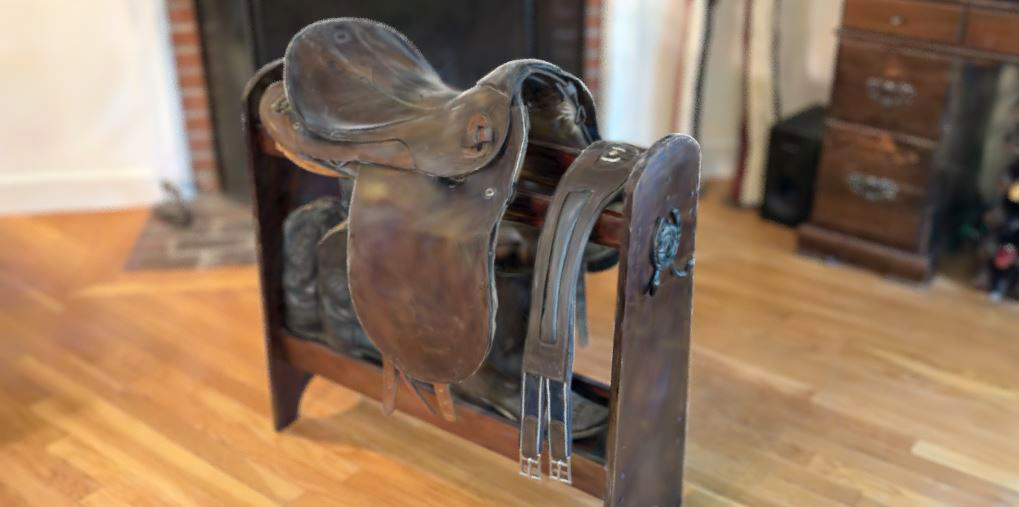
Figure 1: An example of a Gaussian Splat file imported into Octane
Performance of ray-traced Gaussian splatting is slower than rasterization based approaches, however it comes with all the benefits of ray-tracing e.g. Gaussian splats are visible in reflections and refraction and can illuminate scene objects and cast shadows on them. They also fully support all camera Depth-of-Field and raytraced lens effects. To improve rendering time consider making use of adaptive sampling and enabling sub-sampling in the viewport navigation tools.
Gaussian splats can interact with other scene elements in various ways. In figure 2. a pineapple Gaussian splat is clipped using 4 different objects that utilize the Clipping Material.
|
|
Gaussian Splat
|
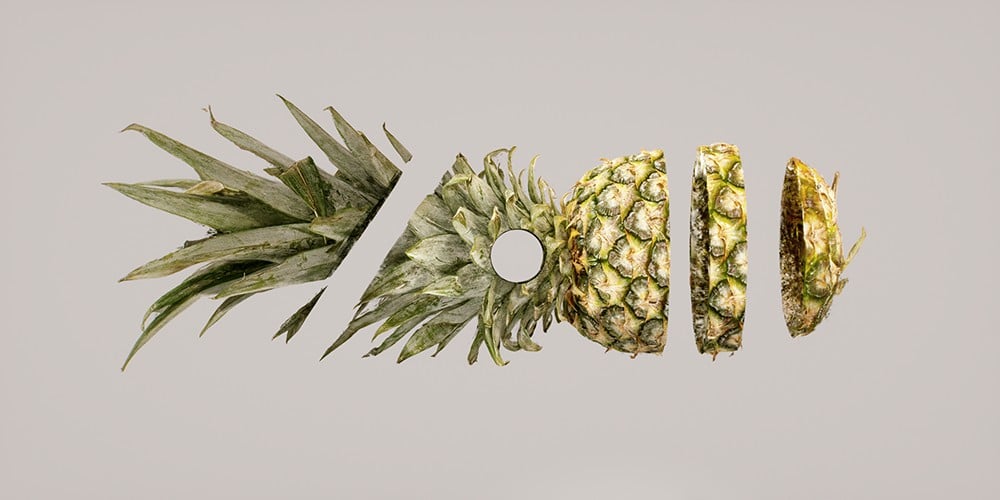
Figure 2: A Gaussian splat clipped by scene objects
Current Limitations:
- Gaussian splats are always rendered on top of volumes.
- Gaussian splats cannot receive shadows from the regular scene geometry (but regular scene geometry can receive shadows from gaussian splats).
- Render layers are not fully supported.
- Network rendering is not supported.
Gaussian Splat Parameters
Tint Color - Adds an overall color tint to the scene.
Alpha Min - Regions of the gaussian splat with alpha values smaller than this value will be invisible. Setting this value higher will produce better performance but worse visual quality.
Covariance Bias - Bias added to the Gaussian splat scale. Increasing this value to make thin lines such as text more clearly visible but could negatively affect rendering performance.
Covariance Scale - Determines the physical size and stretch of the Gaussian blobs.
Intensity - Adjusts the overall light intensity of the scene.
Color Space - Defines the color space of the Gaussian splat data. Storing the splat data in a linear color space is recommended.
Flip Axes - Inverts the gaussian splat's x and y axes.
Shadow Strength - When set to non-zero, the Gaussian splats will simulate shadows from the light sources. Larger values will produce darker shadows. Setting this value to 0 effectively disables shadows.
Shadow Ray Offset - An offset that is added to the shadow ray position when tracing Gaussian splat shadows. This parameter can be used to adjust the look of self-shadowing Gaussian splats.
Lighting Mode - Determines the way Gaussian splats interact with lights.
- None - The Gaussian splat brightness will not be scaled by the emitter power. Shadows from mesh emitters are not supported in this mode.
- Power - The Gaussian splat brightness will be scaled by the emitter power and dimmed with increased distance from light sources.
- Power and Color - The Gaussian splat brightness will be scaled by the emitter power and dimmed with distance from light sources. Additionally, the Gaussian splat will be tinted by the light color.
Light Pass ID - The ID of the light pass that captures the contribution of the Gaussian splat cloud.
Object Layer - See the section on the Object Layer node for more details.