Material Glossy
The Glossy material is used to simulate any shiny object, such as plastics, glossy paint, etc (figure 1). It is possible to simulate metals with the Glossy material; however, the Metal material is preferable to render physically accurate metals. For physically accurate reflections, you can set the BRDF function to either Beckmann, GGX or Ward. These models simulate real surface properties such as the physical precision of the specular lobes, the fresnel effect, the law of conservation of energy, and anisotropy. The original Octane BRDF is not physically accurate, but it is useful when rules need to be broken.
|
|
Material Glossy
|

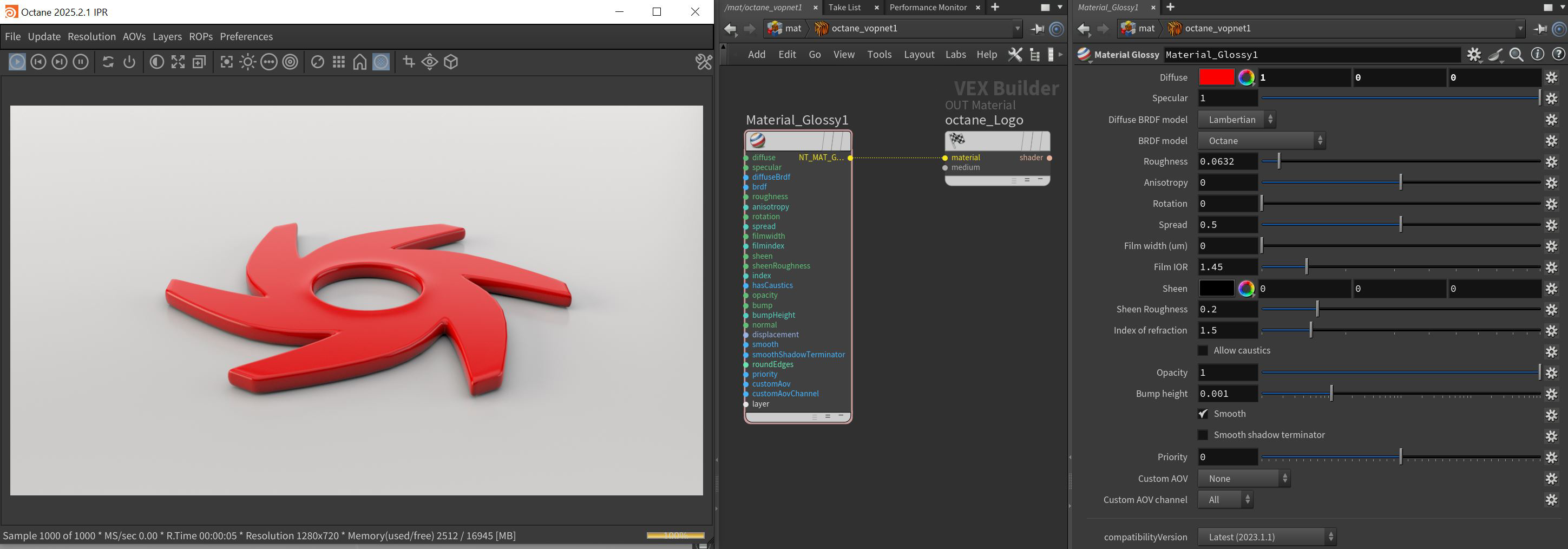
Figure 1: Glossy material
Glossy Material Parameters
Diffuse - Gives material its color. This parameter also accepts a value or an image-based texture.
Specular - The value determines the amount of specularity on the mesh. Specular captures the reflective attributes of light sources on the material. It accepts a value, color, or image-based texture.
Diffuse BRDF Model - Provides three models for diffuse light reflectance. Lambertian reflects light equally in all directions and does not support roughness. The Octane option creates a sheen effect much like velvet. And, the Oren-Nayar option behaves more like clay.
BRDF Model - The BRDF (Bidirectional Reflectance Distribution Function) determines the amount of light that a material reflects when light falls on it. For glossy materials, you can choose from six BRDF models. Specific geometric properties (the micro-facet distribution) of the surface affects each BRDF, which describes the surface's microscopic shape (i.e. micro-facet normals) and scales the brightness of the BRDF's reflections.
|
|
BRDF Models
|


Figure 3: Examples of the BRDF types
Roughness - Determines how much the specular reflection spreads across the surface. In CG terminology, this is also referred to as reflection blur. A value of 0 simulates a smooth reflective surface, such as a mirror. Increasing the value simulates microfacets in the surface, which causes the reflective highlights to spread. For example, to create the look of worn plastic, you would increase the Roughness value. This parameter accepts a value or texture map (Procedural or Image-based).
Anisotropy - This attribute adjusts the amount of change a surface's reflectance will have, depending on viewing direction.
Rotation - This attribute controls the orientation of the Anisotropy effect.
Spread - Determines the tail spread for the specualr BSDF (Bidirectional Scattering Distribution Function) model of the specular layer.
Film Width - Simulates the look of a thin film of material on the surface. This is useful when you want to create effects like rainbow colors on the surface of an oil slick. Larger values increase the strength of the effect.
Film IOR - Controls the Index Of Refraction of the thin film. Use this option to adjust the colors visible in the film.
Sheen - This attribute provides control for applying a soft luster to a surface.
Sheen Roughness - Determines how much the sheen spreads across the surface, similar to the roughness control for the specular characteristics.
Index of Refraction - Refers to the Index Of Refraction for glossy materials that determines the strength of reflections on the surface based on the Fresnel law. The Fresnel law describes the physical properties of light as it is reflected off of a surface at grazing angles. If Index Of Refraction is set to a value higher than 1, the reflection is strongest on the part of the surface that turns away from the viewer’s angle (grazing angles), while the reflection appears weaker or less apparent on the parts of the surface that are perpendicular to the viewing angle. Since this is a physically-based phenomena, the result is a more realistic looking surface. If Index Of Refraction is set to a value lower than 1, then the Fresnel effect is disabled, and the reflection color appears as a uniform color across the highlight. The color of the reflective highlight itself is determined by the color connected to the Specular channel.
In the following examples, the six balls have Roughness values of 0, 0.2, 0.4, 0.6, 0.8, and 1.0 (left to right), and the Specular and Index Of Refraction values have been modified for each rendered image (Figure 3).
|
|
IOR & Specular Examples
|

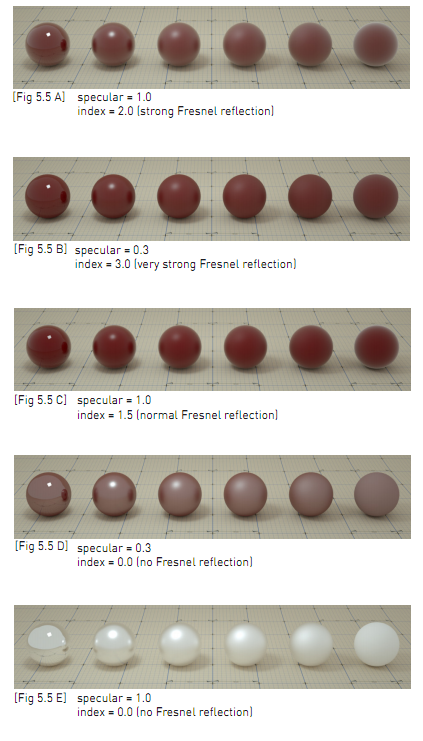
Figure 3: Spheres rendered using different settings for Specular and Index
Allow Caustics - If enabled, the photon tracing kernel will create caustics for light reflecting or transmitting through the object.
Opacity - Determines what parts of the surface are visible in the render. Dark values indicate transparent areas, and light values determine opaque areas. Values in between light and dark create the look of semi-transparent areas. You can lower the Opacity value to fade the overall visibility of an object, or use a texture map to vary the opacity across the surface. For example, to make a simple polygon plane look like a leaf, connect a black-and-white image of the leaf’s silhouette to the Opacity channel.
Bump Pin - Creates fine details on the material’s surface using a Procedural or Image texture. When you connect a grayscale texture to this parameter, light areas of the texture give the appearance of protruding bumps, and dark areas create the appearance of indentation. You can adjust the bump map strength by setting the Power or Gamma values on the Image texture node. These attributes are covered in more detail under the Texture Overview section.
Normal Pin - Creates the look of fine detail on the surface. A normal map is a special type of image texture that uses red, green, and blue color values to perturb the normals of the surface at render time, thus giving the appearance of added detail. They can be more accurate than Bump maps, but require specific software such as ZBrush®, Mudbox®, Substance Designer, XnormalTM, or others to generate.
Displacement Input - Adjusts the height of the vertices of a surface at render time using a texture map. Displacement maps differs from bump or normal maps in that the geometry is altered by the texture as opposed to just creating the appearance of detail. Displacement mapping is more complex than using a bump or normal map, and the results are more realistic along the surface's silhouette. Displacement mapping is covered in more detail under the Displacement Overview section.
Smooth - The Smooth parameter smooths the transition between surface normals. If you disable this option, the edges between the surface's polygons are sharp, giving the surface a faceted look.
Smooth Shadow Terminator - If enabled, self-intersecting shadows for low polygon objects is smoothed according to the polygon's curvature.
Round Edges Pin - This creates a shader effect at render time that rounds the sharp edges of objects without modifying and reloading the geometry. Higher values will round the edges more. This is useful to bevel hard edges during render time, like when using low-polygon models. See the Round Edges section for more information.
Priority - Used to resolve the ambiguity in overlapping surfaces, the surface priority control allows artists to control the order of preference for surfaces. A higher number suggests a higher priority for the surface material, which means it is preferred over a lower priority surface material if a ray enters a higher priority surface and then intersects a lower priority surface while inside the higher priority surface medium.
Custom AOV - Writes a mask to the specified custom AOV.
Custom AOV Channel - Determines whether the custom AOV is written to a specific color channel (R, G, or B) or to all the color channels.
Layer Input - Adds a Material Layer above the base material. See the Material Layers section in this manual for more details.
Compatibility Version The Octane version that the behavior of this node should match.
- Latest (2023.1.1) - Default.
- 2023.1 - The slope of bump maps is calculated slightly differently, making it more sensitive to the orientation of the UV mapping.
- 2022.1 - Legacy behavior for bump map strength is active and bump map height is ignored. This applies in addition to 2023.1 compatibility mode behavior.