Textures Overview
Textures help create flexible materials. Material design typically has a heavy reliance on image textures and procedural (generated) textures. These textures may be straight forward, such as a diffuse texture, or used to drive aspects of the material, such as a normal map, roughness map, or emission map. Layered materials can be created using textures as masks between layers, or to blend between Mix or Composite materials. OctaneRender® offers many different tools to work with textures. Transform and projection nodes assist with position, scaling and placing textures. Color correction, compositing, building up layers of gunk and grime, fingerprints, and more are possible with the use of the Texture nodes. This topic details all the nodes related to textures and texture modifications available in OctaneRender for Houdini®. You can find these nodes by right-clicking or pressing the Tab button in the work area of an Octane VOP network (figure 1).
|
|
Texture Overview
|
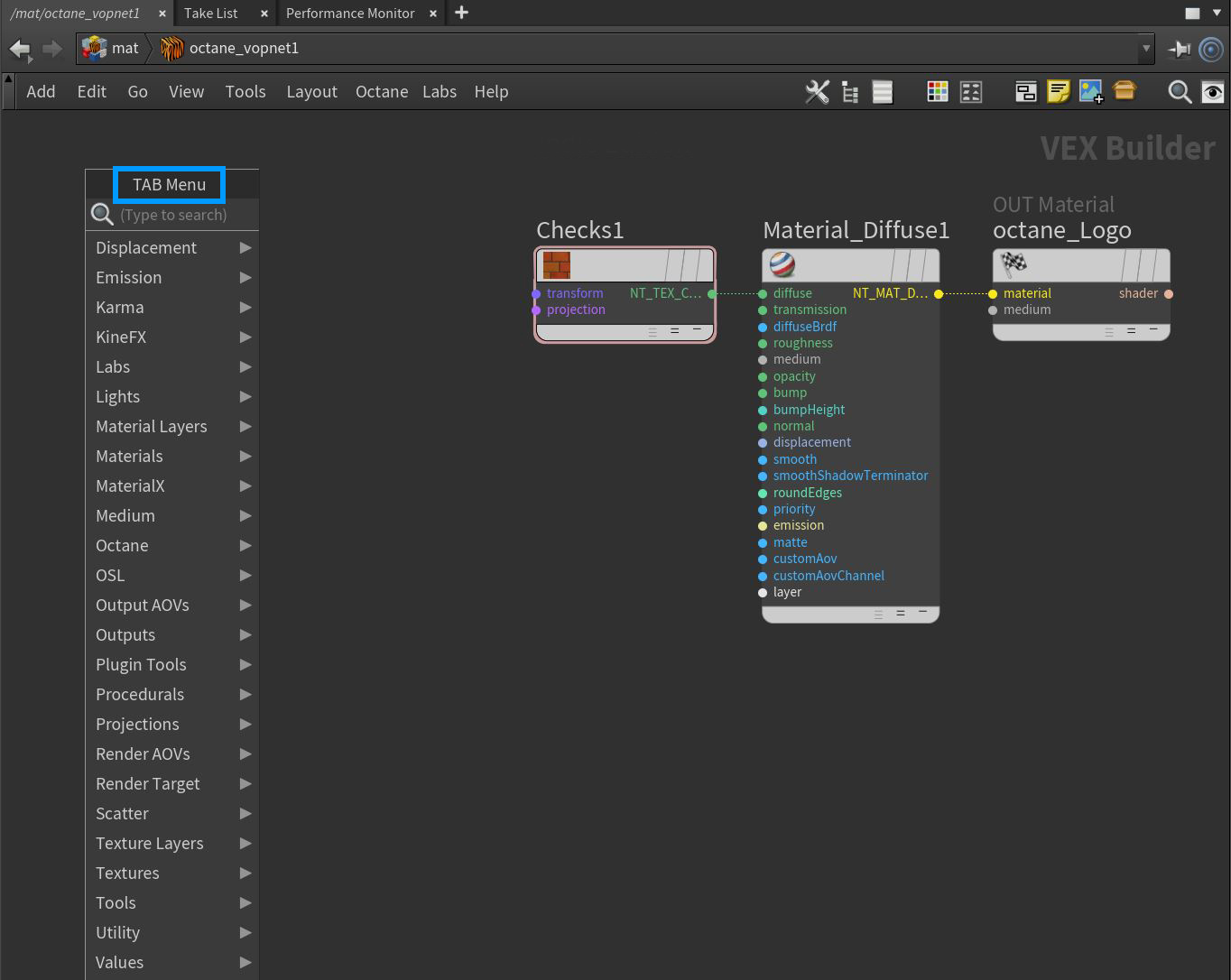
Figure 1: Right-clicking or pressing the Tab key in an Octane VOP network provides access to the Octane texture nodes