Volumetric Spotlight
The Spectron Volumetric Spotlight is an efficient lighting system for creating realistic light beams, fog volumes, and god rays by emitting light and interacting with volumetric mediums (figure 1).
|
|
Volumetric Spotlight
|

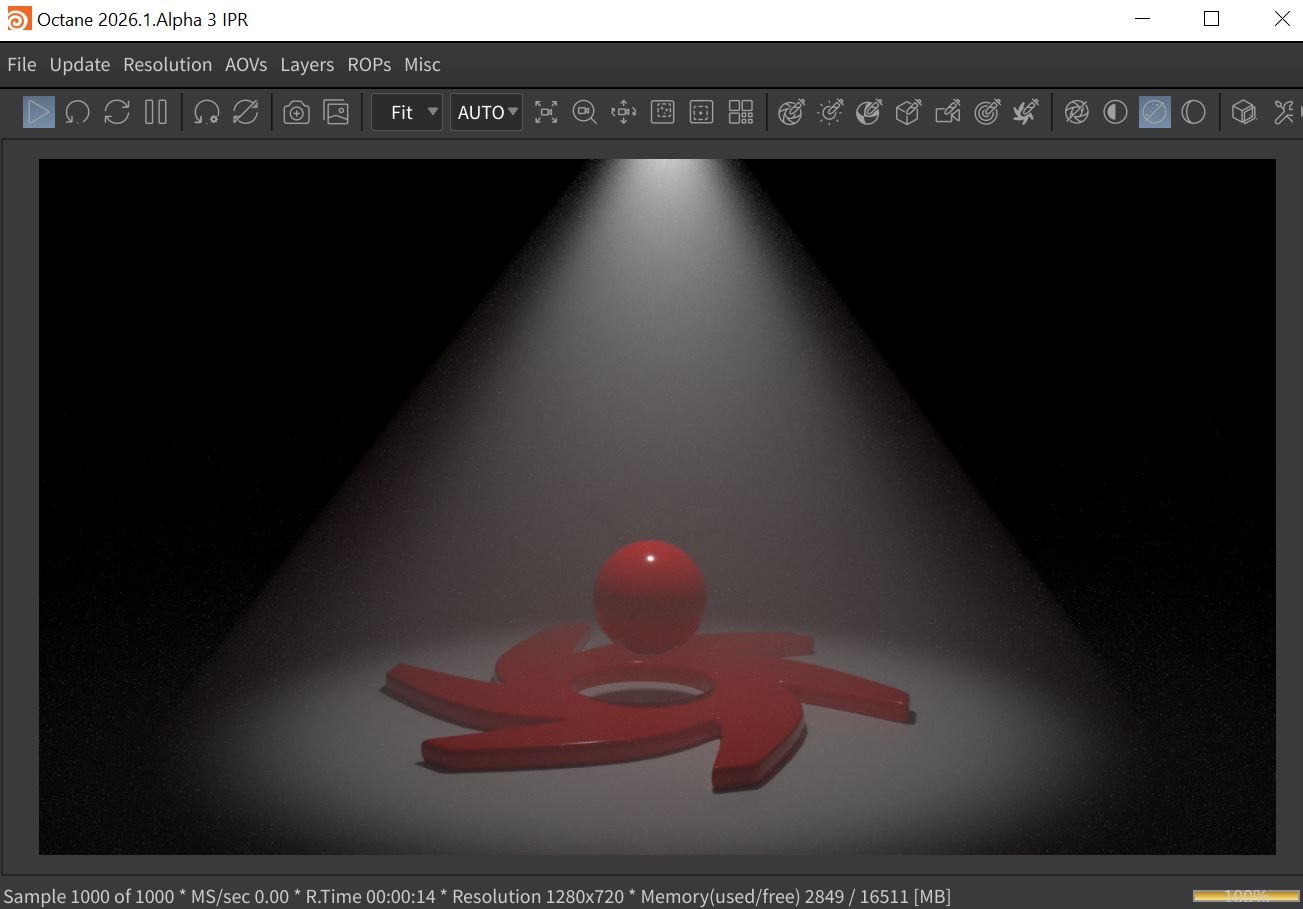
Figure 1: The Volumetric Spotlight
Transform Tab Parameters
The Transform parameters are common to all five Spectron light types.
Translate/Rotate/Scale - These parameters determine the position and orientation of the light source in the scene.
Viewing/Look At/Path Options - These tabs contain parameters for constraining a light source via a script, a path, or another object.
Light Tab Parameters
On - Turns the lioght source on or off.
Enabled in Viewports - Determines whether the lgiht source illuminates objects in the viewports.
Light Types - Determines the shape of the light source.
Shader Path - The path to the shader used for the Spectron light.
Object Layer ID - Specifies a number to be used with the Layers to Render setting in the Octane ROP node.
Object Layer Color - Specifies a color to be used with the Object Layer Color Info AOV.
Object Baking Group - This specifies what baking group the object belongs to. The value provided assigns the object to the corresponding baking. This is the first baking group by default.
General Visibility - This controls the level of visibility for both the object and its shadow.
Camera Visibility - Takes a boolean value to specify if the object is visible to the camera. This is enabled by default.
Shadow Visibility - Takes a boolean value to specify whether the shadow cast by the object is visible to the camera. This is enabled by default.
Spotlight Tab Parameters
Throw Distance - Determines the volumetric distance of the light source. Larger Throw Distances with narrow the beam of light.
Cone Width - Sets the radius of the volumetric code of illumination.
Barn Doors - Various parameters are available here to set the shape of the barn door effect.
Scattering Tab Parameters
Density - Increases the absorption density.
Volume Step Percent - Depending on the surface, you may need to adjust this parameter as it is specified as a percentage of the voxel size. The default value is 100%, but if the volume is smaller than this, you need to decrease the value. Decreasing this value decreases render speed, and increasing the value causes the ray marching algorithm to take longer steps. If the Volume Step % exceeds the volume's dimensions, then the ray marching algorithm takes a single step through the whole volume. To get the most accurate results, keep Volume Step % as small as possible.
Volume Shadow Ray Step Percent - Step length that is used by the shadow ray for marching through volumes.
Use Volume Step Length for Volume Shadow Ray Step Length - Check box for using the Volume Step Percent for the Volume Shadow Ray Step Percent as well.
Absorption - Assigns a grayscale or color texture to the material to determine its absorption value. When using greyscale values, 0 (black) means there is no absorption. Values greater than 0 determine how fast the medium absorbs white light.
Invert Absorption - Inverts the absorption value allowing the specified absorbed color to be the actual color that is visible.
Scattering - Determines how fast light scatters as it moves through the surface. High values scatter light faster as it enters the surface, and low values pass light deeper into the surface before it scatters. A value of 0 disables scattering. When using a float or grayscale texture, values greater than 0 determine how fast the light scatters.
Emission Material Tab Parameters
Diffuse - Determines the surface color of the light source.
Opacity - Specifies the transparency of the light surface.
Shadow Catcher - Makes the entire lighting system a shadow catcher object.
Double Sided - Displays the lighting surface on both sides of the light.
Light Color - Determine the color of the light source.
Surface Brightness - If enabled, the surface area of the light source affects the brightness of the light.
Power - The overall brightness of the light source.
Sampling Rate - Indicates how often the light source should be sampled.
Light Pass ID - This is the ID of the light pass that captures the emitter's contribution. It works in conjunction with the Light Pass ID Render Element.
Visible on Diffuse - Enables light source visibility on diffuse surfaces. Black Body or Texture emission light sources can cast illumination or shadows on diffuse objects. Disabling this option disables emission - it's invisible in diffuse reflections, but is still visible on specular reflections. It's also excluded from the Direct light calculation. This option is enabled by default.
Visible on Specular - Enables the light source's visibility on specular surfaces, and hides emitters on specular reflections/refractions. This is enabled by default.
Cast Shadows - Enables light sources to cast light and shadows on diffuse surfaces, letting you disable direct light shadows for Mesh emitters. To make this option work, the Direct light calculation must include the emitter (the sampling rate must be greater than 0). This option is enabled by default.
Transparent Emission - Light sources cast illuminations on diffuse objects, even if the light source is on transparent material.
Barn Door Material Tab Parameters
Diffuse - Determines the color of the barn doors.
Opacity - Specifies the barn door tansparencies.
Shadow Catcher - Makes the barn door surfaces a shadow catcher object.