Absorption
When light hits a translucent object or a medium, energy from that light is transferred to that medium, and can also be transformed into some other forms of energy (such as heat); this process is called absorption, and its wavelength dependent. All surfaces absorb certain wavelengths of the light. This is due to energy exchanges of electron configurations depending on the surface. The absorption phenomenon is tightly bound to the light, wavelength, surface characteristics and surface thickness. The absorbed light will not continue through the surface and it's absorbed energy is converted to the opposed color from the color specified in the Absorption attribute (figure 1).
|
|
Absorption
|
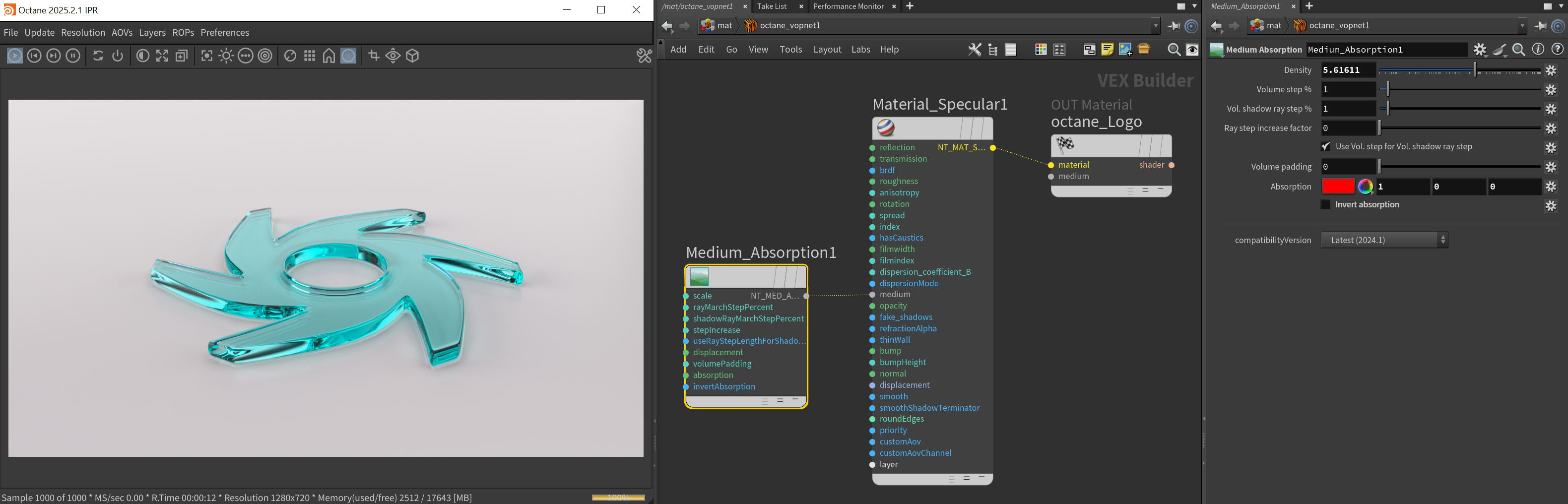
Figure 1: The Absorption parameter is set to red resulting in the red color being converted to green since the Invert Absorption parameter is deselected
Absorption Parameters
Density - Controls the overall density of the medium. Higher values absorb and scatter more light and will result in more of the specified absorption and scatter color being visible. In figure 2, Invert Absorption is active and the Absorption color is set to red to compare two varying densities.
|
|
Absorption
|

Figure 2: Increasing the Density parameter
Volume Step % - Depending on the surface, you may need to adjust this parameter as it is specified as a percentage of the voxel size. The default value is 100%, but if the volume is smaller than this, you need to decrease the value. Decreasing this value decreases render speed, and increasing the value causes the ray marching algorithm to take longer steps. If the Volume Step % exceeds the volume's dimensions, then the ray marching algorithm takes a single step through the whole volume. To get the most accurate results, keep Volume Step % as small as possible.
Volume Shadow Ray Step % - Step length that is used by the shadow ray for marching through volumes.
Ray Step Increase Factor - Determines how fast the volume ray step will increase.
Use Volume Step Length for Volume Shadow Ray Step Length - Check box for using the Volume Step Length for the Volume Shadow Ray Step Length as well.
Absorption - By default, the absorption attribute is controlled by a value slide ranging from 0 - 1 where 0 is no absorption and 1 is full absorption. A color or texture can be added to replace the value slider. The color's value and saturation can be used to further determine the absorption amount. Note: If the Invert Absorption attribute is active, these values will be behave in the opposite fashion, for example: 0 will be full absorption and 1 will be no absorption (figure 3).
|
|
Absorption
|

Figure 3: With Invert Absorption activated, white or a value of 1 (left) has no absorption and black or a value of 0 (right) has full absorption
Invert Absorption - Inverts the absorption characteristics so that the absorption color specified is the same color seen in the surface. For example: Red results in red, otherwise, red would result in green (if this check box is inactive).
Compatibility Version The Octane version that the behavior of this node should match.
- Latest (2024.1) - Default.
- 2023.1 - The volume ray marching step length is an absolute length and the voxel size is ignored.