Render Node Daemon
The Network Render Node needs to be installed in order to run the Daemon program. It can be downloaded from the Downloads section on the OTOY website (figure 1).
|
|
Network Render Node
|

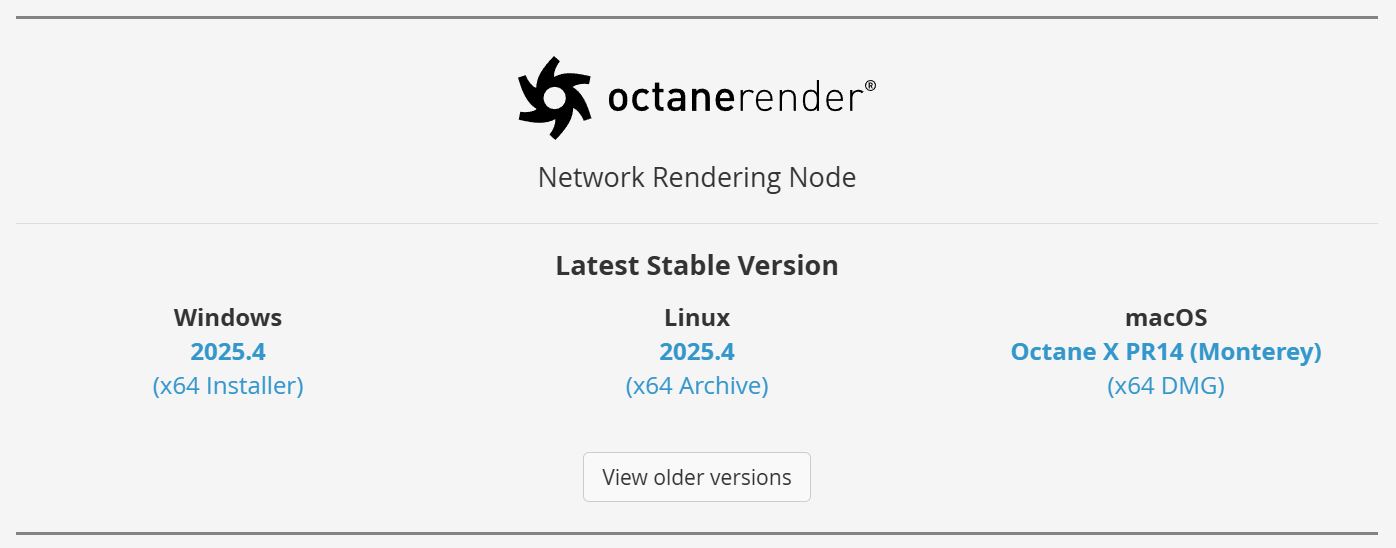
Figure 1: Downloading the Octane Network Rendering Node
Daemons
Daemons are programs that launch after logging in, and it runs all the time unless you shut it down. It fulfills various roles:
- Primary node can locate it in the local network.
- It determines the Render Node's version number and GPU configuration.
- It starts/stops a Render Node on request by a Primary Node and makes sure that only one Primary Node at a time uses the Render Node.
- It monitors the health of a running Render Node process and kills it if necessary.
To set up the daemon, run Install Octane 202x Daemon on the Render Node computer (figure 2).
|
|
Daemon
|

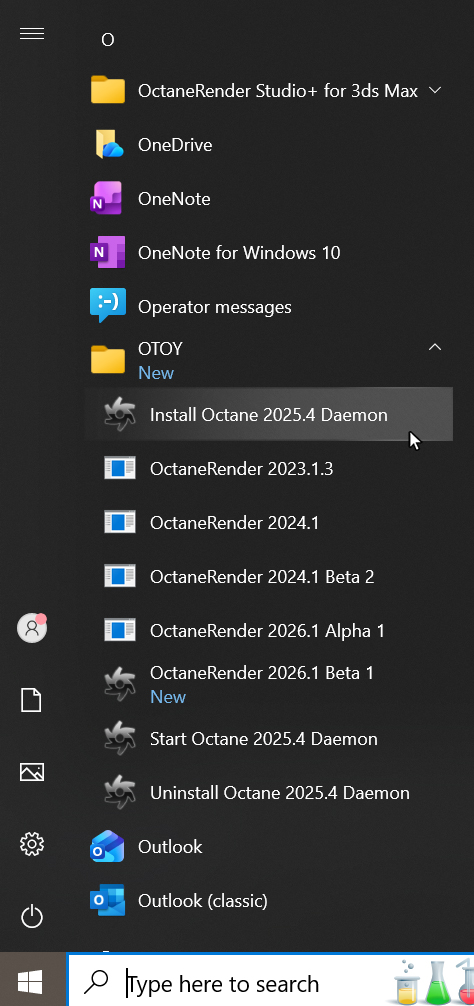
Figure 2: Installing the daemon
Octane asks a series of command line prompts during the installation process. If you want to keep the default settings in the brackets, press Enter (figure 3).
|
|
Daemon Install
|

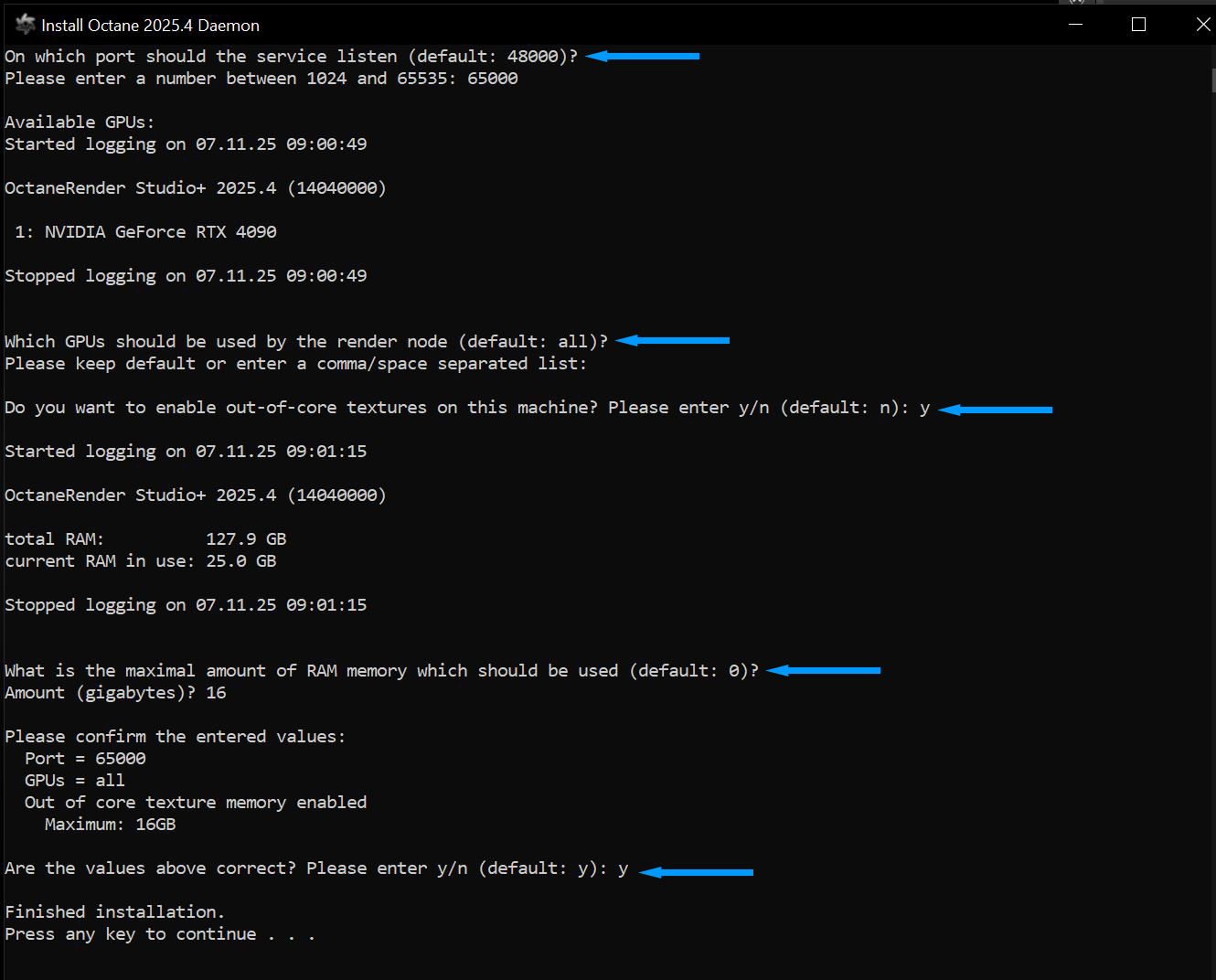
Figure 3: Installing the Octane Daemon
After installing the Octane Daemon, the Render Node Daemon can be run from the Startup folder (figure 4). It launches the next time you log into your Windows® account. A new terminal window appears in your task bar. When you open it, you can see the daemon starting up. At first it tries to launch the render process to gather some information, then it displays that information (figure 5).
|
|
Daemon
|

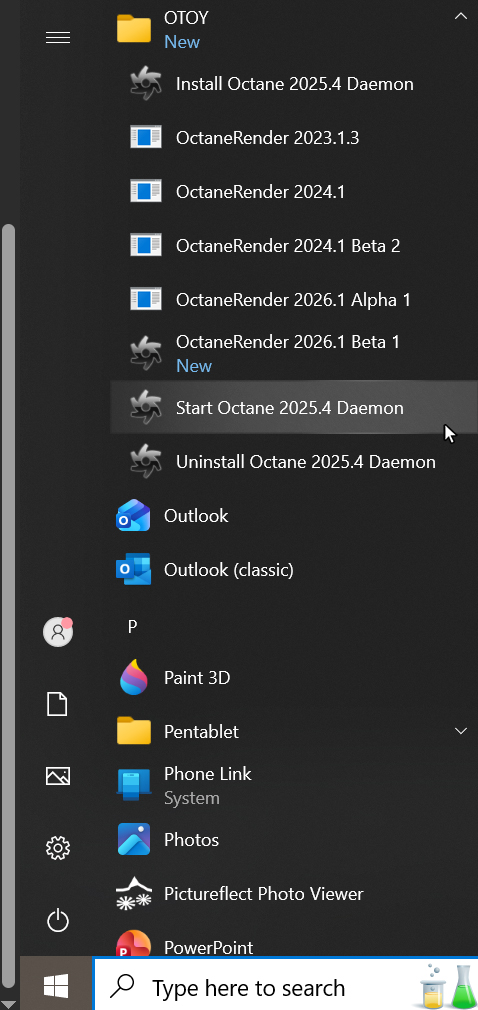
Figure 4: Launching the Render Node Daemon
|
|
Daemon
|

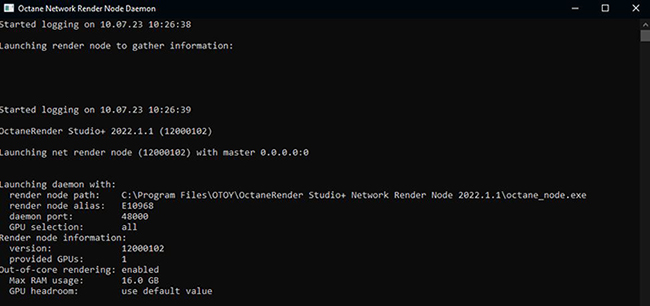
Figure 5: The Octane Network Render Node Daemon command line information
Daemon Installation for MacOS®
On macOS, the concepts are the same as on Windows. Open the Standalone.dmg file and double-click Install Daemon (figure 6).
|
|
Daemon for Mac
|

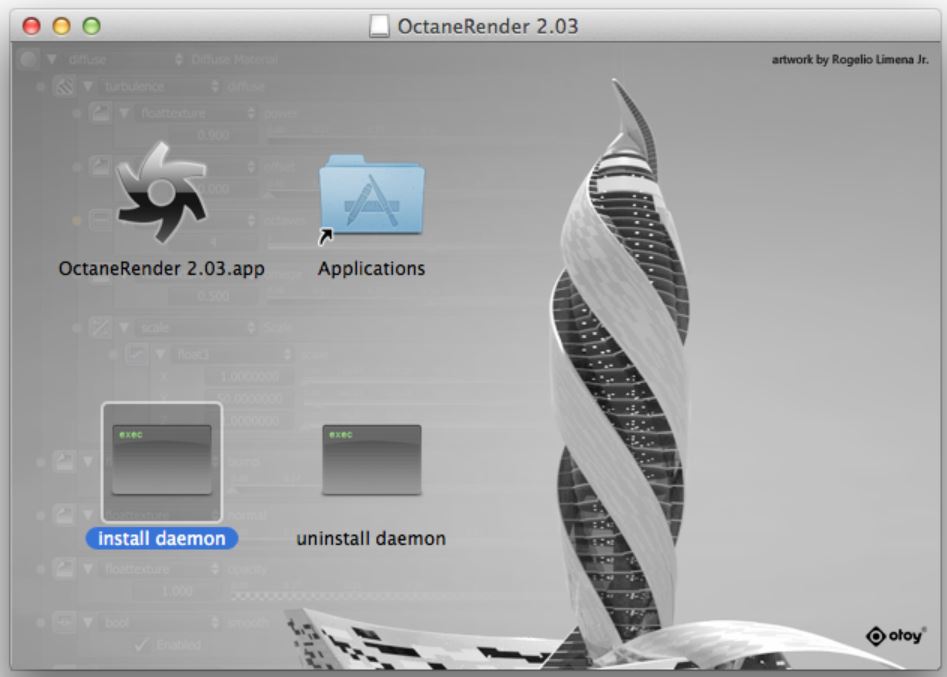
Figure 6: Install Daemon command
When the terminal window pops up, enter the daemon port and the IDs of the GPUs you are using for rendering (figure 7). You can also confirm the default values by pressing the Enter key.
|
|
Daemon For Mac
|

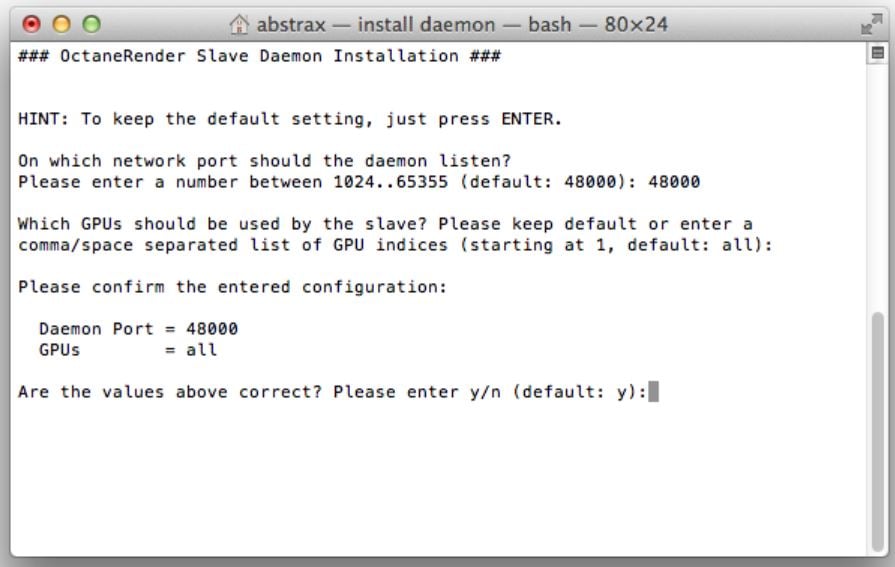
Figure 7: Terminal window
After confirming the settings, enter your administrator password. Octane copies the daemon and render node to the Applications folder and sets up a launch agent, which launches the daemon automatically the next time you log in.
|
|
Daemon For Mac
|

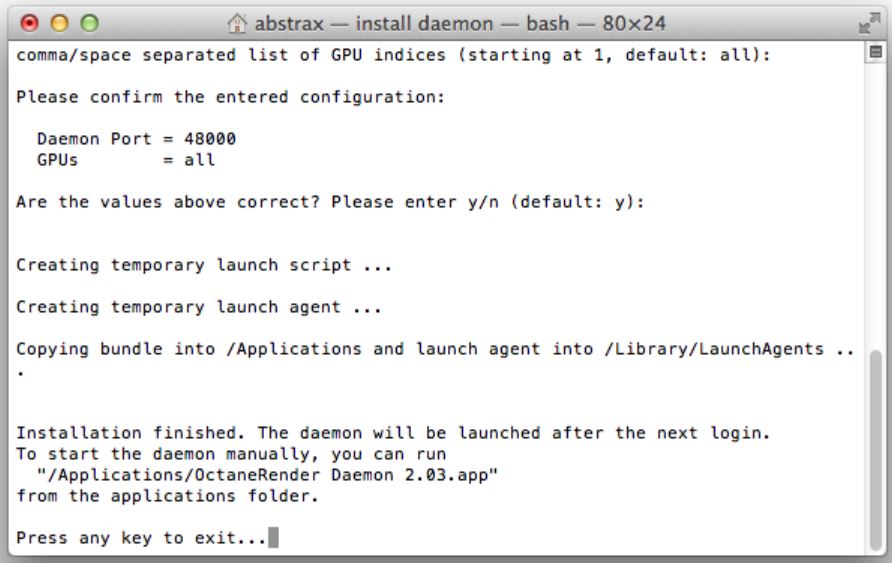
Figure 8: Finished installation from the terminal
To run the daemon without logging out and logging in, go into the Applications folder and click on the OctaneRender Daemon application.
|
|
Launching Daemon
|

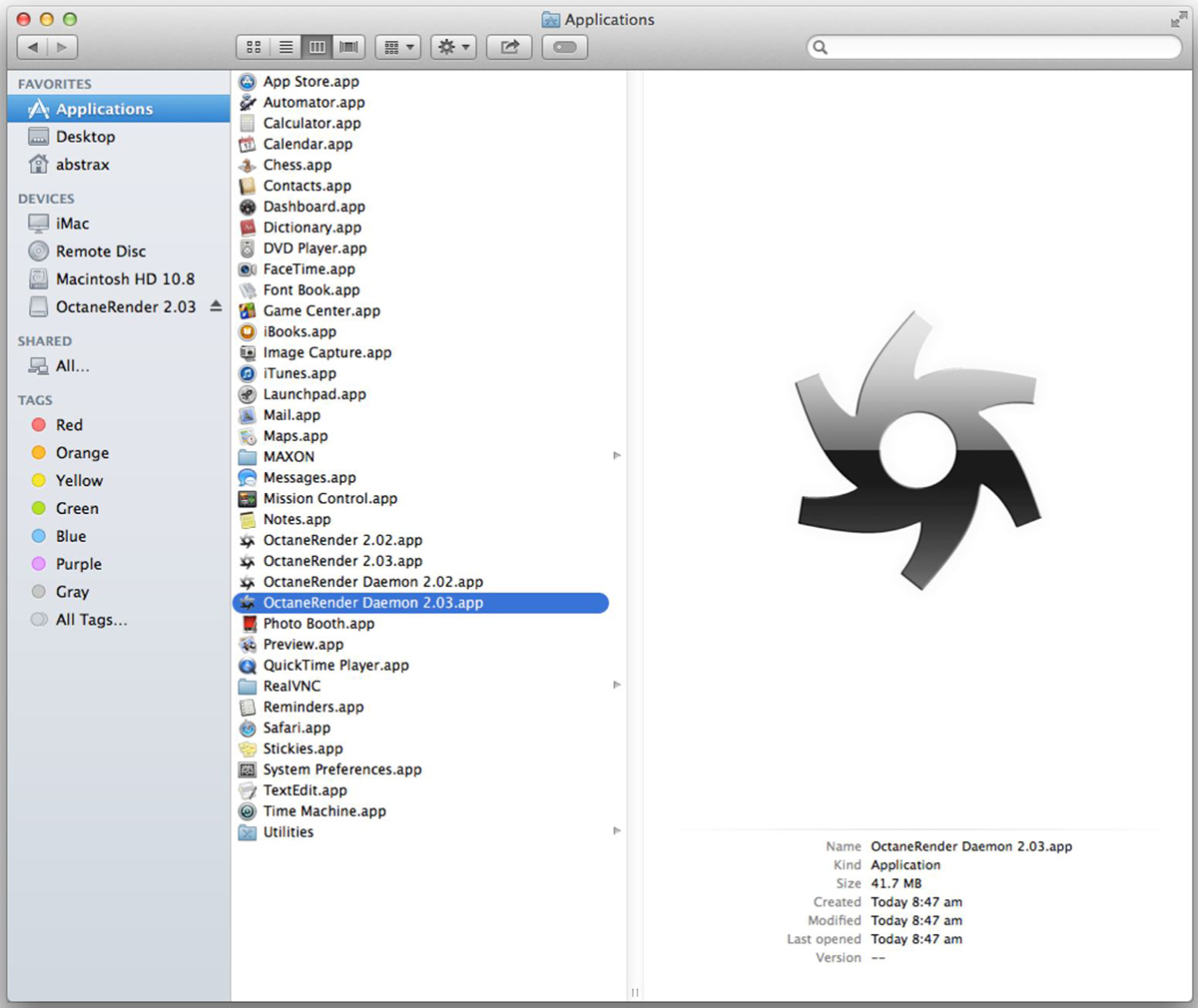
Figure 9: Launching the Octane Daemon application
This creates a minimized terminal window in the dock. Select the window from the dock to bring the window up on your desktop.
|
|
Daemon Terminal
|

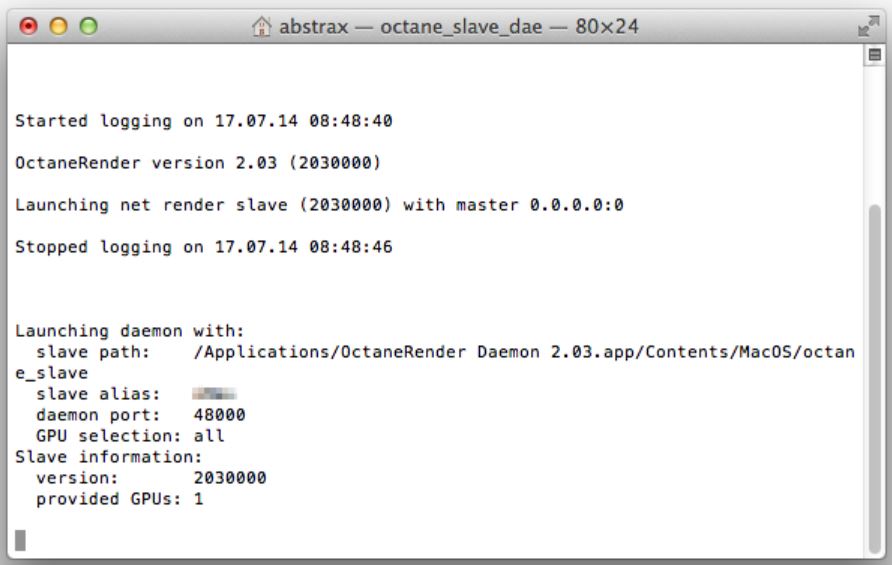
Figure 10: The daemon terminal