Info Channel Kernel
The Info Channel kernel evaluates scene data and renders the data as color images that can be used in post processes for compositing. Figure 1 shows the parameters for the Info Channel kernel.
|
|
Info Channel KErnel
|
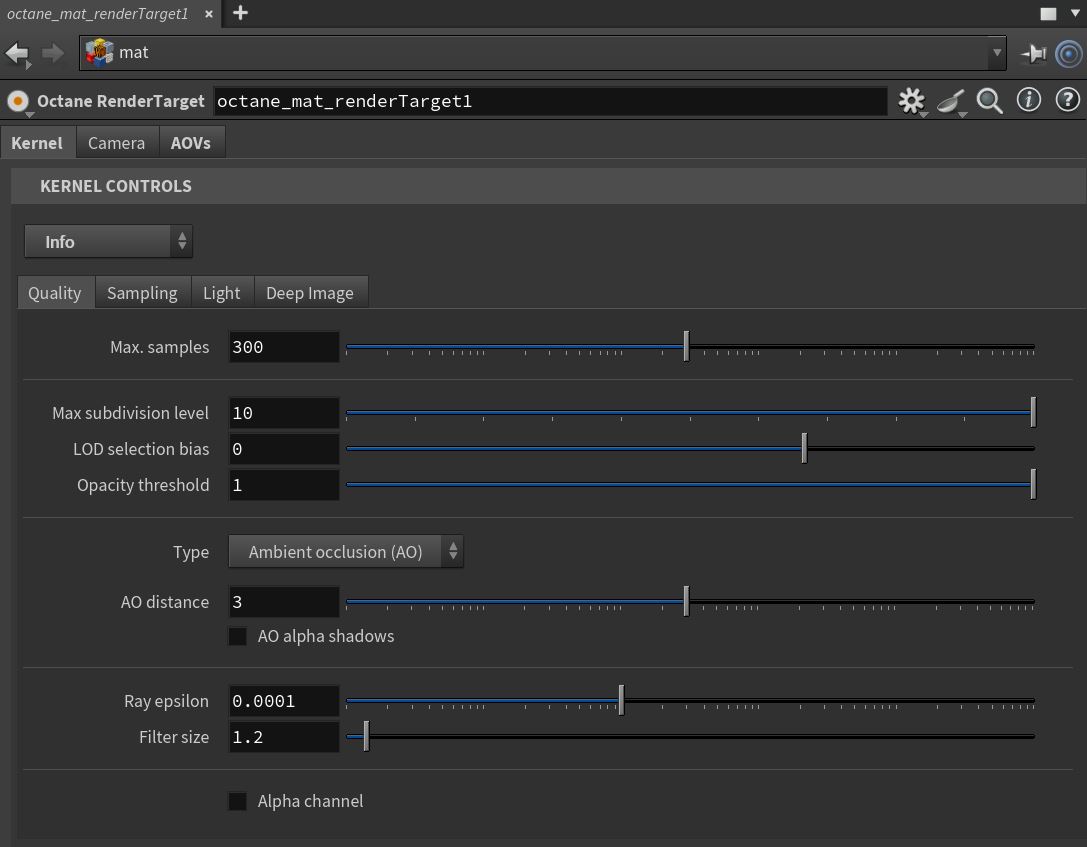
Figure 1: The Info Channel kernel parameters
Info Channel Kernel Parameters
Quality Tab
Max Samples - This sets the maximum number of samples per pixel before the rendering process stops. Higher values result in cleaner renders. There is no rule as to how many samples per pixel are required for a good render - it depends on the scene.
Max Subdivision Level - The maximum subdivision level that should be applied on the geometry in the scene. A value of 0 disables subdivision.
LOD Selection Bias - Used in conjunction with Meshlets. This setting influences the LOD data selection. Decreasing this value will make the loaded LOD data cruder and increasing this value will make the loaded LOD data finer.
Opacity Threshold - Geometry with material Opacity values greater than or equal to this value are treated as fully opaque.
Type - This parameter specifies the various passes that can be rendered and used in the compositing process.
- Geometric Normals - The vectors perpendicular to the Mesh's triangle faces.
- Shading Normals - The interpolated normals used for shading. This does not take into account the object's Bump map. The result is less faceted and smoother than Geometric Normals.
- Tangent (Local) Normals - A color shows the Tangent (Local) Normal in tangent space at the position hit by the camera ray.
- Z-Depth - An image that's shaded based on the distance between the objects in the scene and the rendering camera's position.
- Position - A color-coded image that shows the position of the objects in the scene, often used in compositing to help position 3D-rendered images from different renders.
- Texture Coordinates - A color-coded image showing a Gradient map based on the direction of the object’s UV texture coordinates.
- Texture Tangent - The first tangent vector. This determines the Normal map distortion's orientation.
- Motion Vector - This renders the 2D motion vector in screen space. The X-coordinate shows pixels set in motion to the right (stored in the Red channel), while the Y-coordinate shows pixels in the up motion (stored in the Green channel).
- Material ID - Every Material assigned in the scene is represented as a separate color.
- Object Layer ID - A color-coded image, each object is colored based on their Object Layer ID settings. The Layer ID setting is found in the Octane Attributes section in the Object’s Shape node tab.
- Object Layer Color - Shows the color specified in the Object Layer node.
- Baking Group ID - Every Baking Group ID assigned in the scene is represented as a separate color.
- Light Pass ID - Every Light Pass ID assigned in the scene is represented as a separate color.
- Render Layer ID - A color-coded image, each object is colored based on their Object Layer ID settings. The Layer ID setting is found in the Octane Attributes section in the Object’s Shape node tab. For more information, see the Layer Passes topic in this manual.
- Render Layer Mask - A mask that's rendered based on an Object’s Layer ID and render layer membership. For more information, see the Layer Passes topic in this manual.
- Wireframe - Triangles outlined in black represent the mesh.
- Ambient Occlusion (AO) - A render that's shaded using ambient occlusion calculations. Recessed areas of the surfaces are shaded darker than their surroundings.
- Opacity - An Opacity render mask that's based on the object's Opacity map.
- Roughness - Based on the Material roughness at the camera ray's hit point.
- Index Of Refraction (IOR) - Based on the material IOR at the camera ray's hit point.
- Diffuse Filter - Shows the Diffuse texture color of the scene's Diffuse and Glossy materials.
- Reflection Filter - Shows the Reflection texture color of the scene's Specular and Glossy materials.
- Refraction Filter - Shows the Refraction texture color of the scene's Specular materials.
- Transmission Filter - Shows the Transmission texture color of the scene's Diffuse materials.
AO distance - Specifies the ambient occlusion distance.
AO Alpha Shadows - Enabling this option results in the AO calculation taking Opacity into account. Render passes can use this to specify if shadows cast by Ambient Occlusion should render as transparent (zero alpha). This can help you composite the render over another image without the AO shadows being present.
Ray Epsilon - The distance to offset new rays so they don’t intersect with the originating geometry. This value should be left at the default setting.
Filter Size - This sets the pixel size for the render filter. This can improve aliasing artifacts in the render. If the value is set too high, the image becomes blurry.
Alpha Channel - Removes the background and renders it as transparent (zero alpha). This can can help you composite the render over another image without the background being present.
Sampling Tab
Sampling Mode - Enables motion blur and depth of field, and sets pixel filtering modes.
- Distributed Rays - Enables motion blur and DOF, and also enables pixel filtering.
- Non-Distributed with Pixel Filtering - Disables motion blur and DOF, but leaves pixel filtering enabled.
- Non-Distributed without Pixel Filtering - Disables motion blur and DOF, and disables pixel filtering for all AOVs except for render layer mask and ambient occlusion.
Parallel Samples - This controls how many samples OctaneRender® calculates in parallel. If this is set it to a small value, OctaneRender® requires less memory to store the sample's state, but rendering slows down. High values require more graphics memory, but rendering becomes faster. The change in performance depends on the scene, the GPU architecture, and the number of shader processors in the GPU.
Max Tile Samples - This controls the number of samples per pixel that OctaneRender® will render until it takes the result and stores it in the film buffer. Higher values mean that results arrive less often at the film buffer.
Minimize Net Traffic - If enabled, OctaneRender® distributes the same tile to the net Render Nodes until the tile reaches the max samples/pixel, and then it distributes the next tile to Render Nodes. This option doesn't affect work done by local GPUs. This way, a Render Node can merge all of its results into the same cached tile until the Primary Render Node switches to a different tile.
Static Noise - If enabled, the noise patterns are kept stable between frames.
Light Tab
White Light Spectrum - Controls the appearance of colors produced by spectral emitters (daylight, environment, black body).This determines the spectrum that will produce white (before white balance) in the final image.
- D65 - Adapts to a reasonable daylight "white" color.
- Legacy/Flat - Preserves the appearance of old projects (spectral emitters will appear more blue)
Deep Image Rollout
Deep Image - Enables rendering deep pixel images used for deep image compositing.
Deep Render AOVs - Includes render passes for deep image pixels.
Maximum Depth Samples - Used when Deep Image Rendering is enabled. It sets the maximum number of depth samples per pixel. For more details, read the Deep Image Rendering topic in this manual.
Depth Tolerance - Used when Deep Image Rendering is enabled. OctaneRender merges depth samples whose relative depth difference falls below this tolerance value. For more information, see the Deep Image Rendering topic in this manual.