Environment - Planetary
The Planetary environment type is a flexible Nishita Sky model. It is most useful when rendering scenes, as they are seen from outer space. For its effects to be visible, the camera has to have a very high altitude value, as it moves out into outer space to view the expansive horizon of the planetary body. It takes into account the conditions within and beyond the atmosphere of a planetary body and its surroundings in space. Instead of a single ground color and a sky/sunset color, there is a planetary surface that reflects and emits light. This node serves an important role to extend the environment's medium (volume rendering and subsurface scattering) with an atmospheric scattering through the planetary body's atmosphere. Here, the atmosphere is perceived as a layer of gas surrounding a planetary mass, and it is held in place because of gravity, so as the light travels into atmosphere either from the outer layer to the ground or from a light source within the atmosphere, then the atmosphere's density is sampled along the ray at regular intervals, resulting in an amount of scattering based on the atmosphere's density (Figure 1).
|
|
Environment Planetary
|
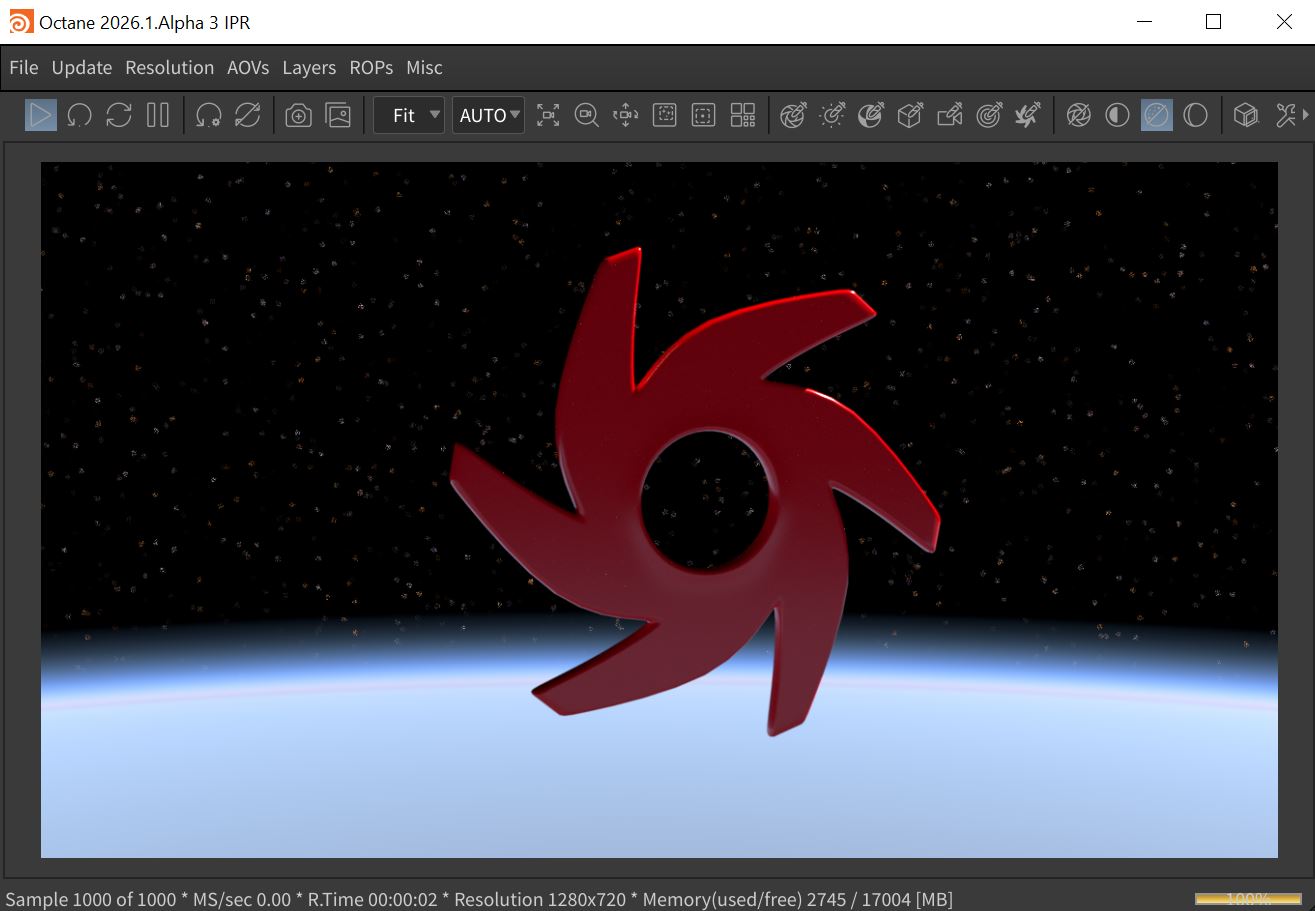
Figure 1: A scene rendered using the Planetary environment
The Planetary system is found in the Environment tab of the Render Target parameters window (Figure 2). The Planetary system can also be found in the Octane Render Setup node located in the Object window (figure 3).
|
|
Environment Planetary
|
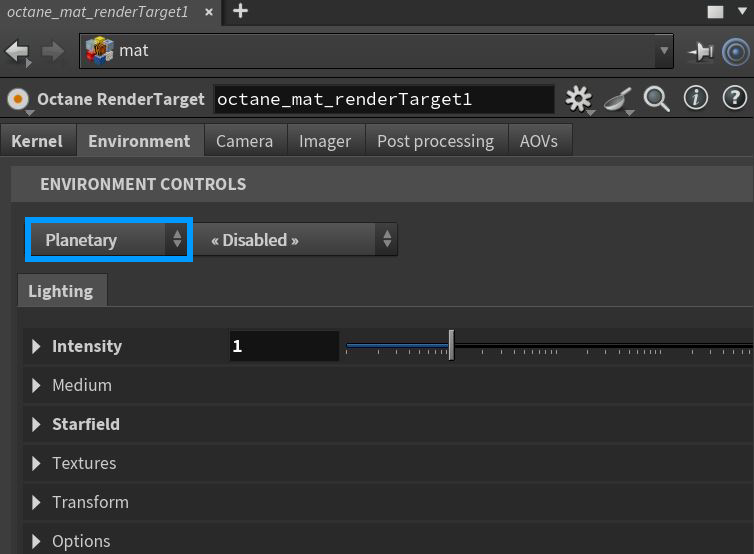
Figure 2: Accessing the Planetary environment node from an Octane Render Target.
|
|
Environment Planetary
|
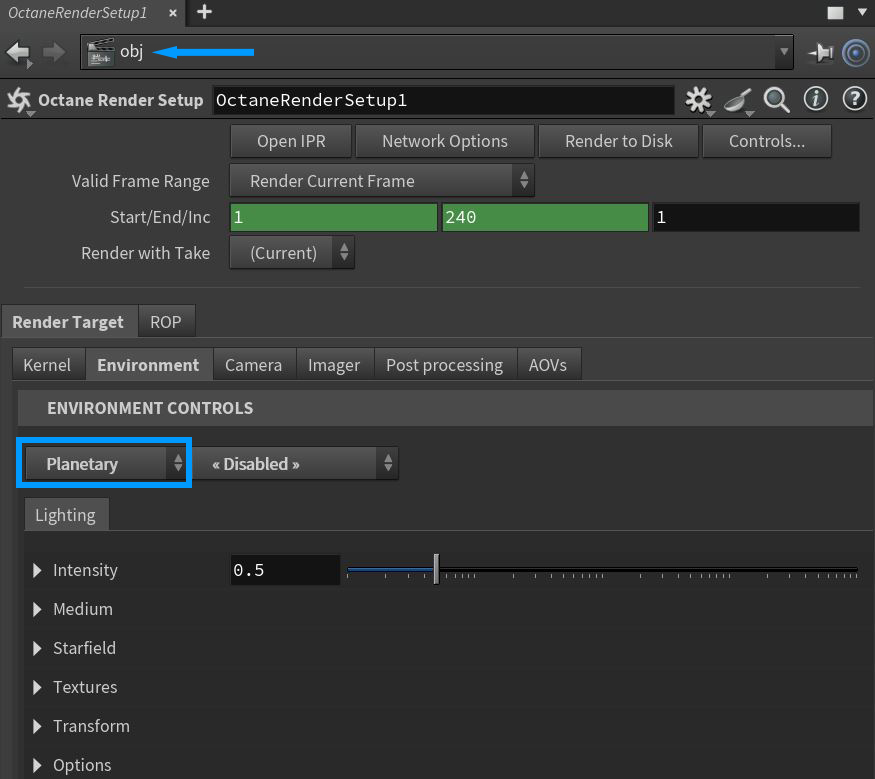
Figure 3: Accessing the Planetary parameters in the Octane Render Setup node
Parameters specific to the Planetary system are found in the Intensity, Medium, Starfield, Textures, Transform, and Options rollouts.There is a Backplate tab available to further control the options for displaying backplate elements (figure 4). If the Backplate is set to anything other than Disabled, such as Backplate Planetary, the Backplate parameters will override any duplicate background elements available in the Planetary tab. Note that the Backplate parameters do not affect the physical lighting on scene objects.
|
|
Environment Backplate
|
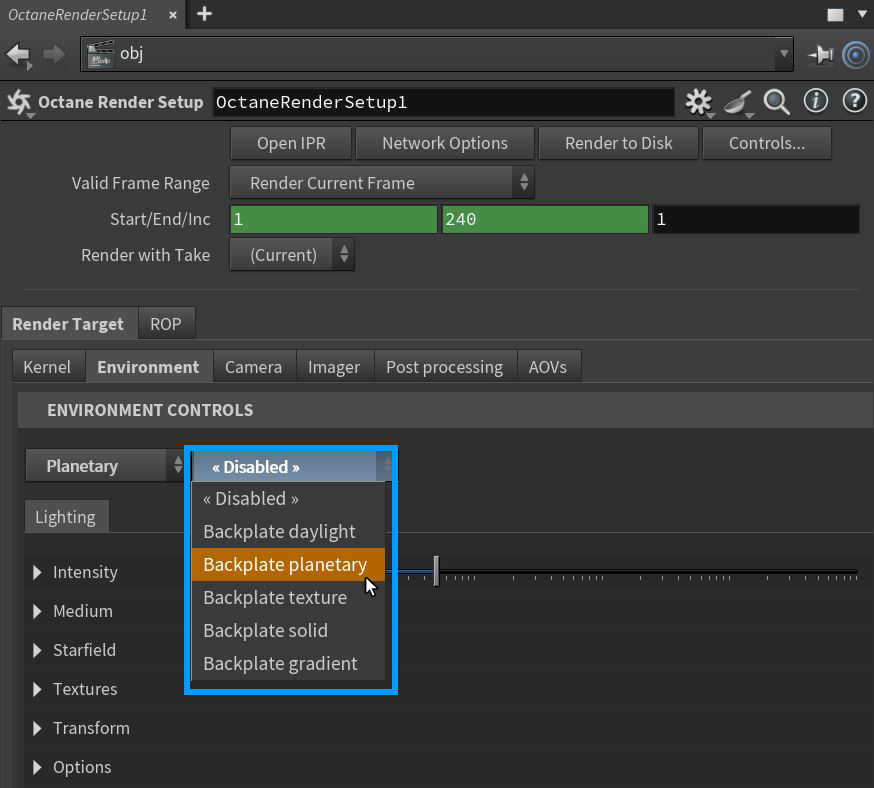
Figure 4: Accessing the Environment Backplate parameters
Planetary Environment Lighting Tab Parameters
Intensity Rollout
Power - Adjusts the light strength. This affects the image's overall contrast and exposure level.
Sun Intensity - The scale factor that is applied to the sun only. Use this to adjust the relative power of the sun compared to the sky.
Sun Size - Controls the sun radius in the Daylight environment.
Sun Direction - Set the direction/angle of the sun in the sky.
North Offset - Adjusts the scene's North direction. This is useful for architecture visualization to ensure the sun's direction in the scene is accurate.
Sky Turbidity - The Turbidity can adjust the sharpness of the sun light's shadows. A low value creates sharp shadows like a sunny day, and a higher value diffuses the shadows like a cloudy day.
Altitude - The camera's altitude. Set this to a high value in order to view the expansive horizon of the planetary body.
Medium Rollout
Offers control of a medium used to give aerial density and fog to the Planetary system. This is an actual volume medium effect, not a cheat. It interacts directly with any lighting in the scene.
Starfield Rollout
Density - Controls the amount of stars displayed in the background.
Falloff - Determines how quickly the star brightness diminishes which affects the apparent size of the stars.
Intensity - Controls the brightness of the stars.
Spectral - Shifts the color of more distant stars towards the red spectrum.
Temperature (min/max) - Determines the minium and maximum temperature in Kelvin used to set the color range when Spectral is activated.
Textures Rollout
The parameters in this section control the look of the planetary surface. The additional Falloff (Diffuse) parameters control the atmospheric falloff of the planetary surface on top of any textures applied here in the Textures rollout.
Transform Rollout
Rotation - Controls the orientation of textures applied in the Textures rollout.
Scale - Controls the size of textures applied in the Textures rollout.
Options Rollout
Importance Sampling - This toggles the importance sampling of the Sky texture – similar to the importance sampling in the Texture environment.
Cast Photons - If photon mapping is used, this option casts photons from the bright areas of the scene.
Backplate Planetary Tab Parameters
These parameters will override their conterparts in the Lighting tab.
|
NOTE The Backplate parameters do not affect the physical lighting on scene objects. |
Intensity Rollout
Power - Adjusts the light strength of the backplate elements. This affects the image's overall contrast and exposure level.
Sun Intensity - The scale factor that is applied to the sun only. Use this to adjust the relative power of the sun compared to the sky.
Sun Size - Controls the sun radius in the Daylight environment.
Sun Direction - Set the direction/angle of the sun in the sky.
North Offset - Adjusts the scene's North direction. This is useful for architecture visualization to ensure the sun's direction in the scene is accurate.
Sky Turbidity - The Turbidity can adjust the sharpness of the sun light's shadows. A low value creates sharp shadows like a sunny day, and a higher value diffuses the shadows like a cloudy day.
Altitude - The camera's altitude. Set this to a high value in order to view the expansive horizon of the planetary body.
Starfield Rollout
Density - Controls the amount of stars displayed in the background.
Falloff - Determines how quickly the star brightness diminishes which affects the apparent size of the stars.
Intensity - Controls the brightness of the stars.
Spectral - Shifts the color of more distant stars towards the red spectrum.
Temperature (min/max) - Determines the minium and maximum temperature in Kelvin used to set the color range when Spectral is activated.
Textures Rollout
The parameters in this section control the look of the planetary surface. The additional Falloff (Diffuse) parameters control the atmospheric falloff of the planetary surface on top of any textures applied here in the Textures rollout.
Transform Rollout
Rotation - Controls the orientation of textures applied in the Textures rollout.
Scale - Controls the size of textures applied in the Textures rollout.
Options Rollout
Backplate - Makes the Background Plate environment visible in the background.
Reflections - Makes the Background Plate environment visible in reflections..
Refractions - Makes the Background Plate environment visible in refractions.