Curvature
The Curvature texture node maps the local curvature of a geometry to the range of [0 - 1], where no curvature results in 0 (black) and high curvature in 1 (white). In comparison to the Dirt texture, explained here, you can limit the curvature detection to convex or concave curves or include both of them. The calculated curvature is also more consistent at small sample counts. You can then use a gradient map node to convert the curvature texture value to into something more complex, as in the example below (figure 1).
|
|
Curvature
|
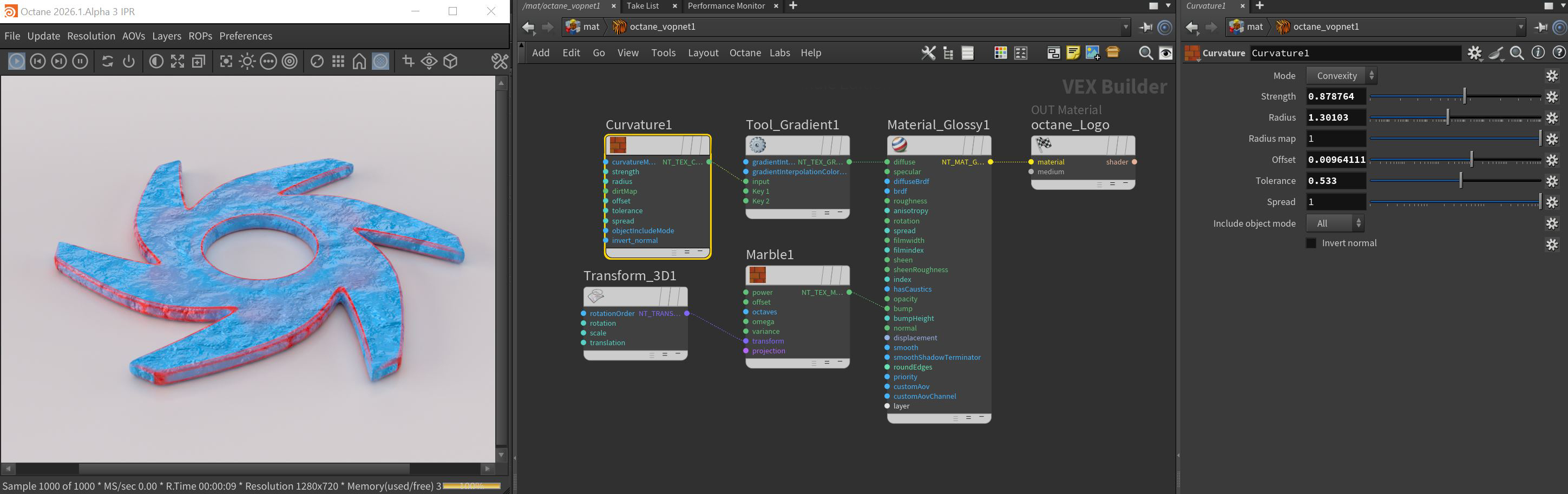
Figure 1: The Curvature node used with a Tool Gradient node connected to the Diffure channel
Curvature Parameters
Mode - Determines the type of curvature to sample.
- All - All surface conditions will be considered for the Curvature node result.
- Concavity - Only the surfaces with an inward curvature will be considered for the Curvature node result.
- Convexity - Only the surfaces with an outward curvature will be considered for the Curvature node result.
Strength - Determines the overall strength of the curvature effect.
Radius - Specifies the maximum area affects by the curvature effect.
Radius Map - Determines the proportion of the maximum area affected by the curvature effect.
Offset - Specifies the offset from the surface used to sample the neighboring geometry.
Tolerance - Determines the tolerance for small curvature and small angles between polygons
Spread - Controls the ray direction with respect to the normal of the surface where 0 means the curvature is sampled straight in the direction of the surface normal, and 1 means the sampling rays are shot perpendicular to the surface normal.
Include Object Mode - Determines which objects should be included in calculating the curvature value.
Invert Normal - Inverts the normal direction when calculating the curvature value.