Render Job
The Render Job node take a Render Target and renders it according to a routine set instructions from pre-built scripts or even a user-customized script. Some specific Render Job nodes also feed render output data back into the Octane scene graph. The output data may come from plugins running on specific third-party modeling and rendering applications. There are a number of pre-built Render Job nodes available for use (figure 1).
|
|
Render Job Nodes
|

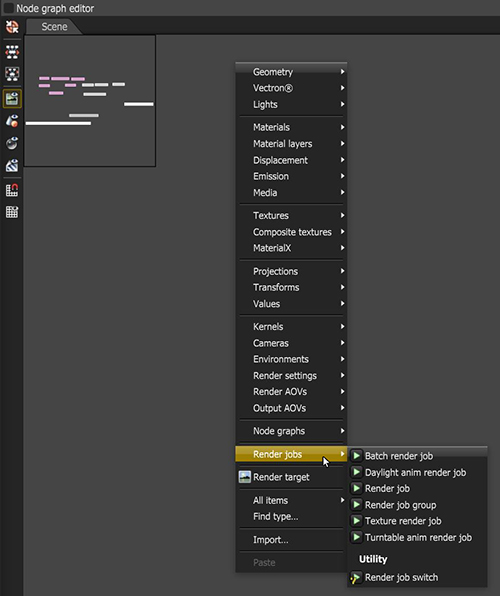
Figure 1: The Render Job options selected from the Nodegraph Editor context menu
Types of Render Job Nodes
Batch Render Job - Used to render animation sequences.More information on batch rendering can be found under the Batch Rendering Animations topic.
Daylight Anim Render Job - Renders a day cycle animation.
Render Job - An empty Render Job node for writing customized scripts.
Render Job Group - Used to render multiple render jobs in in a linear sequence starting with Input 1.
Texture Render Job - Renders a Render Target into an image that can be used by other Render Targets. This is a workaround for the limitation that Octane can render only one Render Target at a time, and there is no system in place to render Render Targets as inputs of other Render Targets.
Turntable Anim Render Job - Used to render a turntable animation of a Render Target.
Render Job Switch - Provides a was to switch between two or more input Render Job nodes via the Input index value.
A Render Job node can be executed by right-clicking on the node and selecting Start Render Job (figure 2).
|
|
Render JOb
|

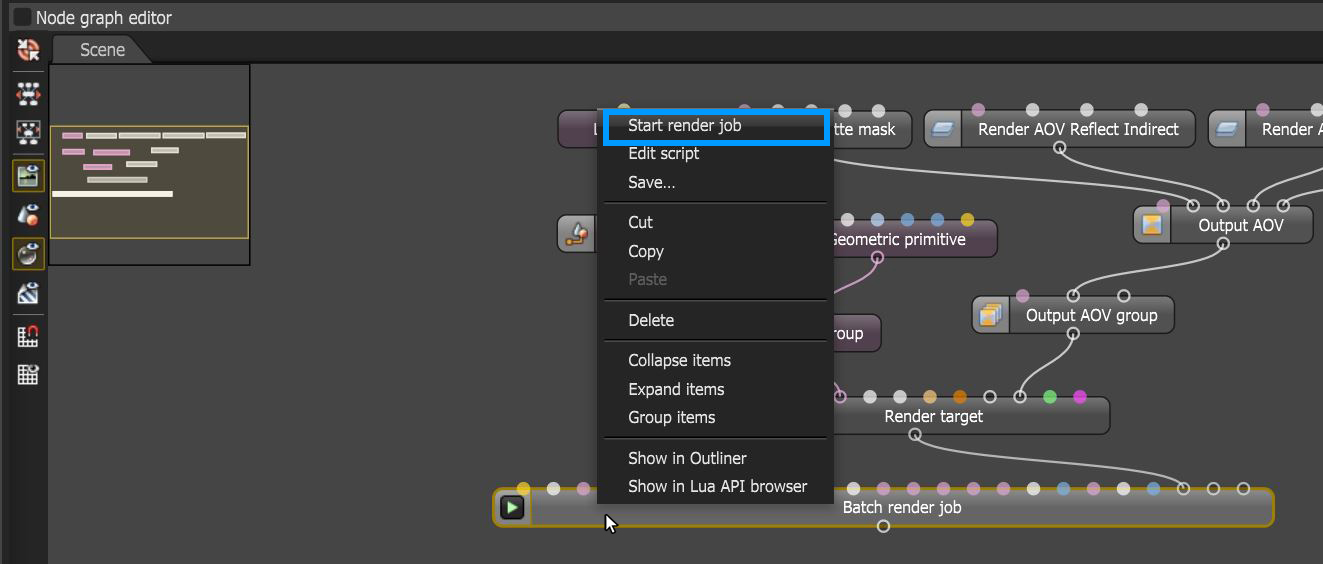
Figure 2: Executing a Render Job node