Batch Rendering Animations
Rendering animations can be accomplished using the Batch Rendering script found in the Script menu (figure 1). Animations can also be rendered using the Batch Render Job node located in the Render Job category of the Node Graph Editor window. Rendering animations from OctaneRender® is referred to as batch rendering because Octane only renders to image sequences (batches) not digital movie formats.
|
|
Batch Rendering
|
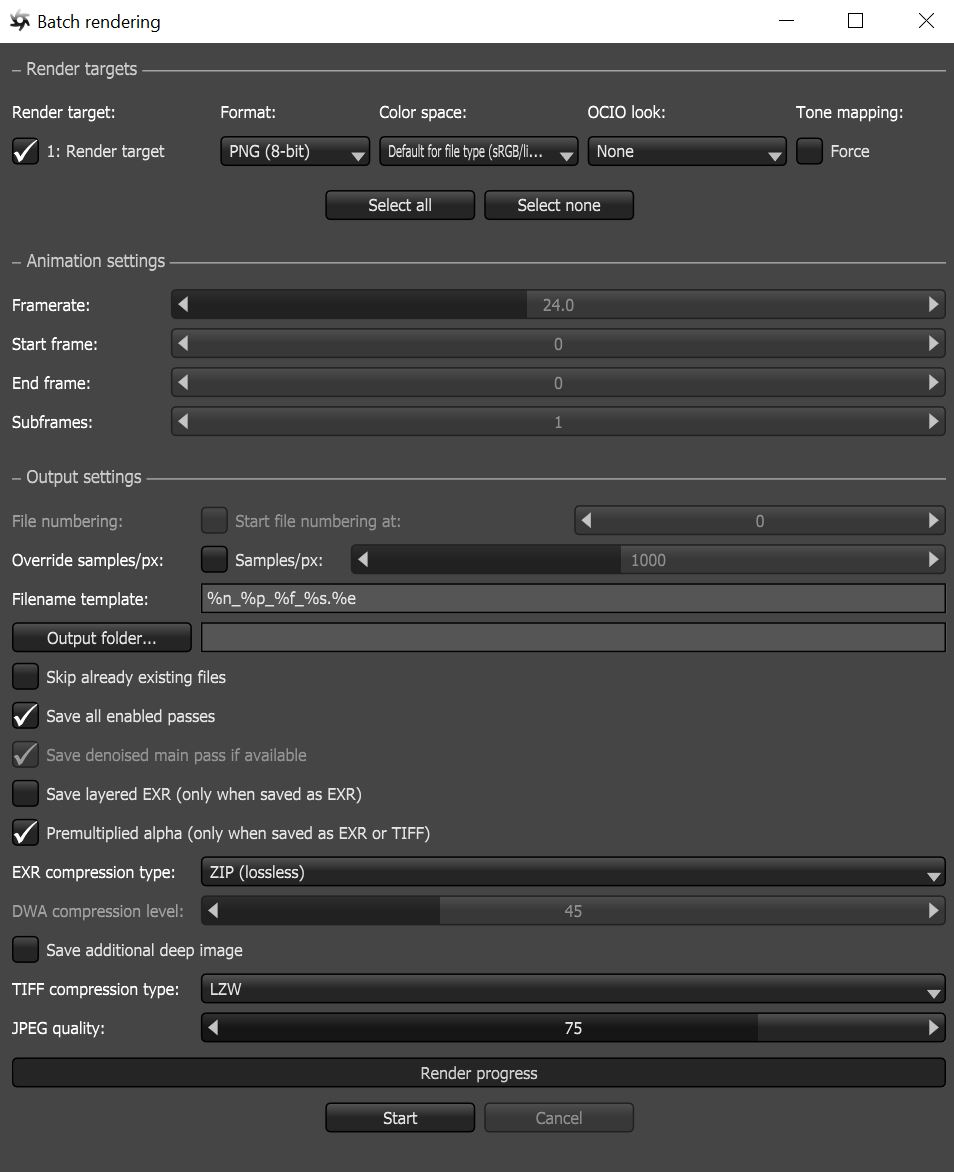
Figure 1: Animation settings in the Batch Rendering window
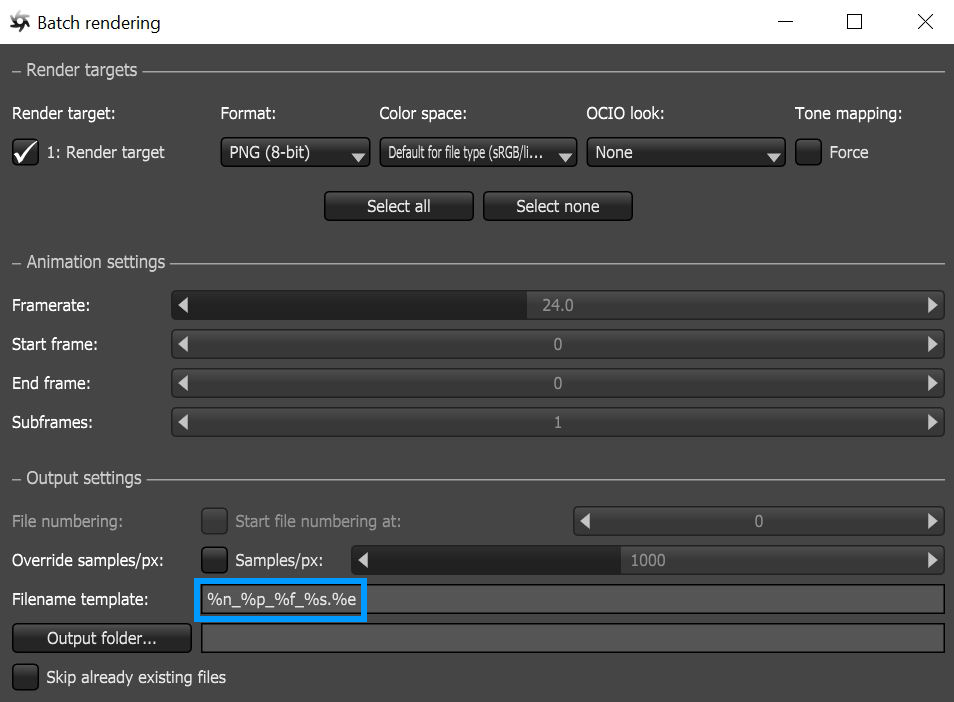
Most of the parameters for batch rendering an animation sequence are self-explanatory. However the Filename Template parameters are worth noting (figure 2). These can add any number of additional information to the name of each image file rendered. The %s is added by default. This parameter adds sub frame numbers to the file names and this can confuse numerical numbering of image sequences when importing into compositing applications. Unless needed for some reason, it is recommended to remove the %s from the file naming convention. Below is a list of the available Filename Template parameters:
- %i - Render Target Index
- %n - Render Target Node Name
- %e - File Extension.
- %t - Timestamp
- %f - Frame Number (always prefixed with 0s)
- %s - Sub Frame Number
- %p - Render Pass Name
|
|
File Extension Templates
|
Additionally, the Animation Settings node controls the shutter interval for applying motion blur in a scene.The value is relative to the frame time, which you set in the time slider from the FPS option. The Animation Settings parameters are accessible from the Node Inspector window (figure 2) or by adding and connecting a specific Animation Settings node to the scene.
|
|
Animation Settings
|
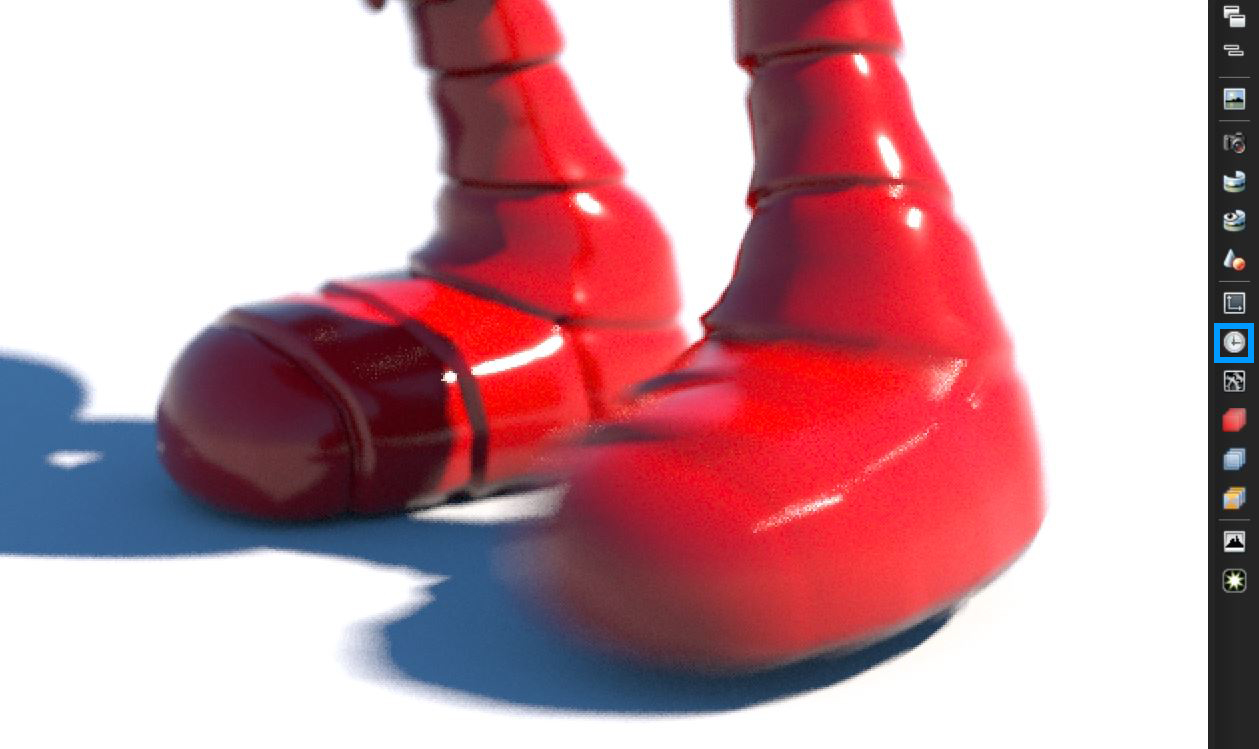
Figure 2: The Animation Settings button
Animation Settings Parameters
Shutter Alignment - Specifies how the shutter interval aligns to the current time, which determines when the camera shutter is triggered. The options are Before, Symmetrical, or After, and they apply to each frame thereafter relative to the given frame rate.
Shutter Time - The shutter time percentage relative to the duration of a single frame, which controls how much time the shutter stays open. The higher the value, the more motion blur is present and the frame motion will squeeze.
Subframe Start/Subframe End - Specifies the approach, in terms of proportion (%) to simulate the camera’s shutter speed for that particular frame. Octane uses Subframe Start and End percentages to render only a portion of a particular frame. If the scene has a lot of motion blur, Octane uses these parameters to render a piece of that motion blur. The default Start and End values of 0% and 100%, respectively, render the whole frame.
|
NOTE Motion Blur with Texture Displacement is currently not supported. However, Vertex Displacement is supported. |