Shadow Catcher
OctaneRender® improves realism by implementing the Shadow Catcher to create shadows cast by objects onto its surroundings (Figure 1). The shadows cast are not limited to simply a ground plane, but can be cast onto walls and other objects in the scene that represent objects in the 2D environment map.
|
|
Shadow Catcher with HDRI Background
|

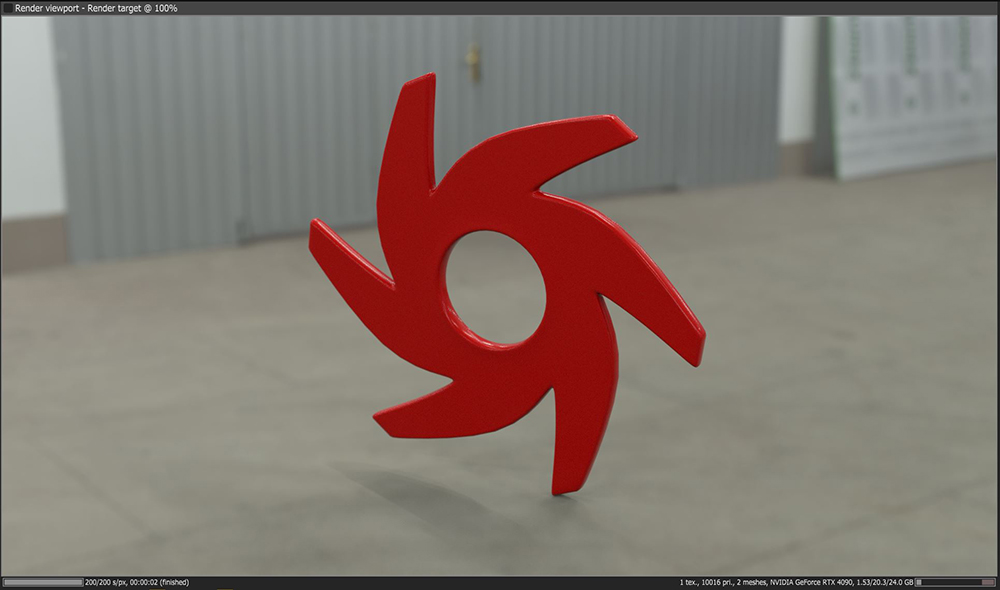
Figure 1 : Shadows appear in the transparent parts of the image where the shadow catcher objects were placed
To use the Shadow Catcher:
- Make sure there is a light source in the scene. This can be a direct light source, or an emission map connected to a scene object.
- Add the Shadow Catcher material to the shadow catching objects in the scene
- Alternatively, a Diffuse or Universal material can be placed on the shadow catching objects in the scene and enable the Shadow Catcher option at the bottom of the material parameters.
- In the Kernel Settings, activate Alpha Channel and make sure Keep Environment is disabled.
Shadow Catcher Parameters
Enabled - The material is transparent unless there is some direct shadow cast onto the material, which makes it less transparent depending on the shadow strength.
Opacity - Controls the transparency of the shadows via a greyscale information.
Custom AOV - Writes a mask to the specified custom AOV.
Custom AOV Channel - Determines whether the custom AOV is written to a specific color channel (R, G, or B) or to all the color channels.