Octane Menu And Octane Shelves
The OctaneRender® plugin provides a top menu in Houdini® with useful links and information about OctaneRender (Figure 1).
- Plugin Manual - A link to this manual.
- Plugin Tutorials - A link to the tutorials available in the manual.
- Check For Update - A link to the OctaneRender for Houdini release subforum, where all the plugin builds are available.
- Support Forum - A link to the OctaneRender for Houdini support forum.
- OctaneRender Site - A link to the main OTOY® OctaneRender web page.
- Facebook Group - A link to the Facebook page, where the plugin developers post useful information about OctaneRender for Houdini.
|
|
Octane Menu
|

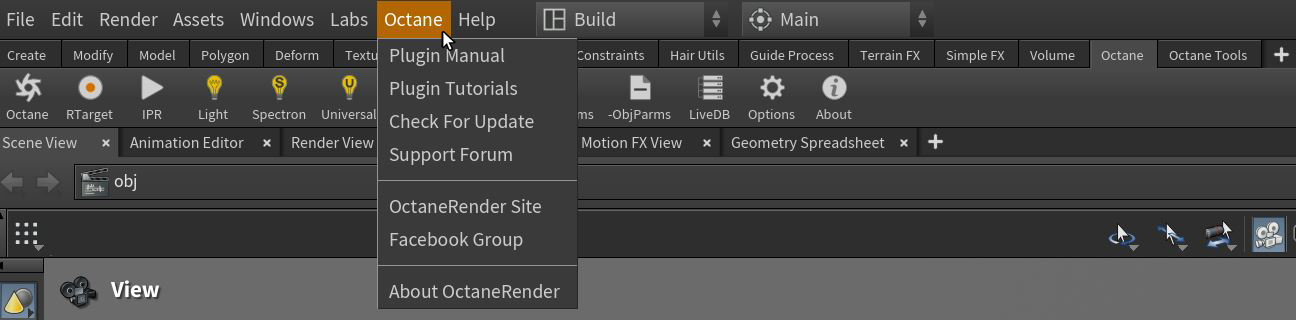
Figure 1: Accessing the Octane menu
Octane Shelves
There are two Octane shelves. The main shelf includes all the basic tools to work with the plugin, like adding the Octane ROP node or the RenderTarget MAT node, Octane lights, etc. (Figure 2). The Octane Tools tab provides additional features for scene design (Figure 3).
|
|
Octane Shelf
|


Figure 2: The Octane Shelf
|
|
Octane Tools Shelf
|


Figure 3: The Octane Tools shelf
To add the Octane shelves, click on the + icon at the end of the shelf tabs, then click Shelves and select Octane (Figure 4).
|
|
OCtane Shelves
|

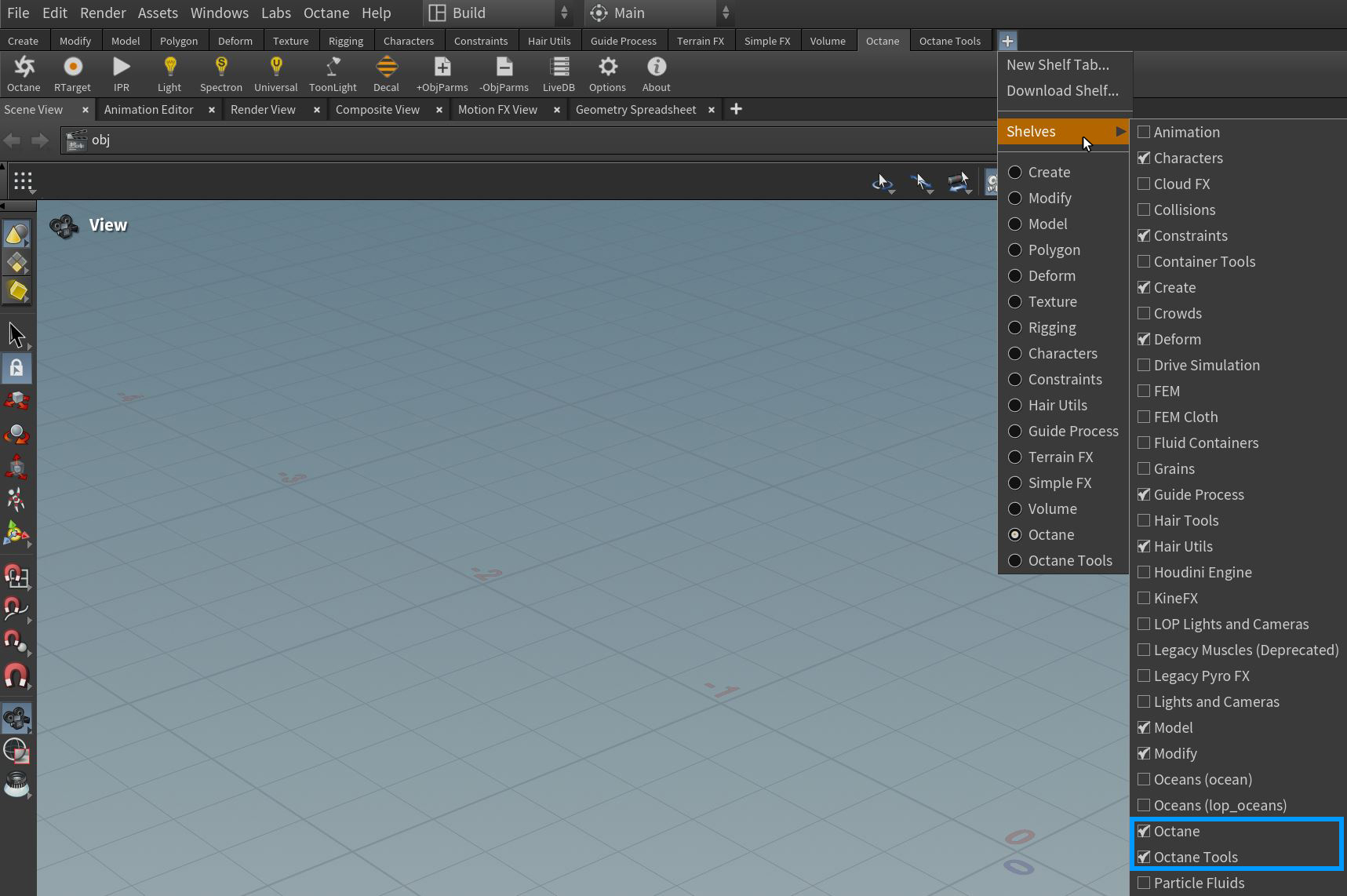
Figure 4: Adding the Octane shelves to the Shelf window