Imager
The Imager tab is used to control the output behavior of the Octane Camera when rendering frames (exposure, camera response curve, gamma, LUT, white point and so on) as well as providing useful parameters for post-rendering adjustments. The Imager parameters are accessible in the Octane Render Target node under the Imager tab (Figure 1).
|
|
Imager
|
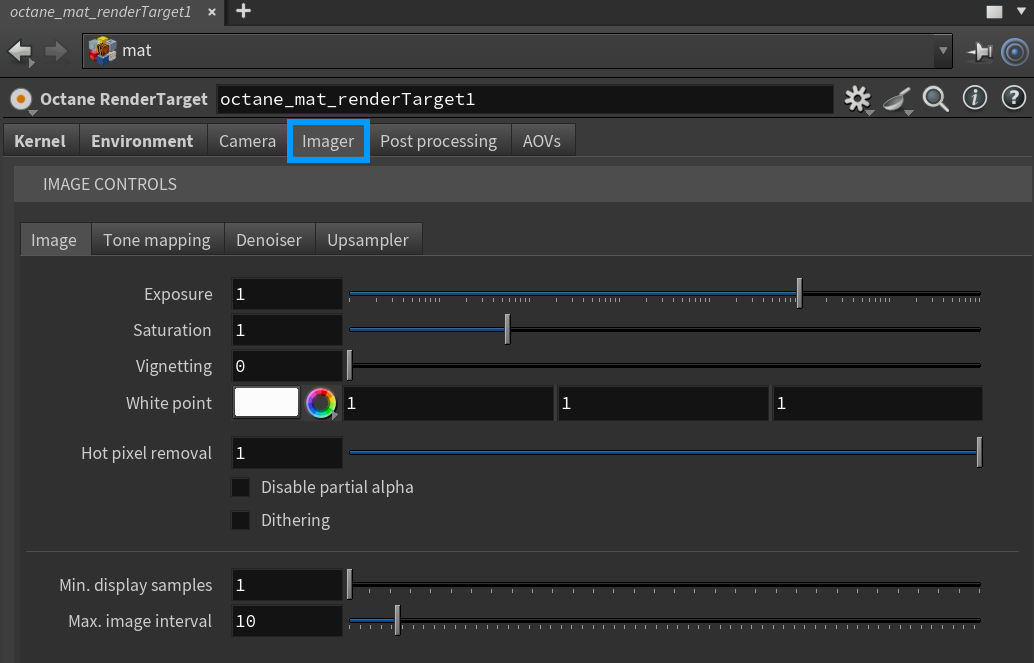
Figure 1: Octane Imager parameters
Octane Imager Parameters
Image Tab
Exposure - Controls the scene exposure. Low values darken a scene, while high values brighten a scene. Exposure has no effect on any of the render layer passes.
Saturation - Adjusts the amount of color saturation for the render.
Vignetting - Darkens the corners of the render. Occasional use can increase the render's realism. Vignetting is not applied to any of the beauty passes except the main pass.
White Point - Specifies the color for adjusting the tint to produce and simulate the relative temperature cast throughout the image by different light sources. The white point is white by default, acting as a white balance to achieve the most accurate colors possible.
Hot Pixel Removal - Removes the bright pixels (fireflies) during the rendering process. While many of the pixels can disappear if the render is allowed to progress, the Hot Pixel Removal feature removes bright pixels at a much lower sample per pixel.
Disable Partial Alpha - Makes transparent pixels opaque.
Dithering - Adds random noise, which removes banding in very clean images.
Minimum Display Samples - This is the minimum amount of samples that are calculated before the image displays. This feature can reduce the noise when navigating, and is useful for real-time walkthroughs. When using multiple GPUs, we recommend setting this value as a multiple of the number of available GPUs for rendering - if you’re rendering with 4 GPUs, set this value to 4 or 8.
Max. Image Interval - The maximum interval between image operations, measured in seconds.
Tone Mapping Tab
ACES Tone Mapping -This is a hard coded ACES transform from Octane spectral → XYZ → BT.709 → ACES RRT (responsible for the "ACES Look") + sRGB ODT. As of Octane 2026 alpha3 this is using ACES1.3. This should give you the same result as using OCIO view: sRGB - Display: ACES 1.0 - SDR Video with OCIO Look: ACES 1.3 Reference Gamut Compression.
OCIO View - The OCIO view to use when displaying in the render viewport.
OCIO Look - The OCIO look to apply when displaying in the render viewport, if using an OCIO view.
Force Tone Mapping - Before applying any OCIO looks, this toggles whether to apply OctaneRender's built-in tone mapping when using an OCIO view.
Response Curve - Select various measured camera response curves that provide pre-defined color grades to a rendering.
Order - The order that the camera response curve, gamma, and custom LUTs are applied.
Highlight Compression - Reduces burned-out highlights by compressing them and reducing their contrast.
Clip To White - When the sun is too bright, it creates multi-colored reflections. Increasing this value changes the colors to white. This also applies to all light sources. You can push saturated parts of the render towards pure white with this option. This helps avoid large patches of fully saturated colors caused by over-bright light sources such as bright colored emitters or reflected sunlight off colored surfaces.
Gamma - Adjusts the render gamma and controls the image's overall brightness. Images that are not properly corrected can look bleached out or too dark. Varying the amount of Gamma correction changes the brightness and the ratios of red to green to blue.
Neutral Response - If enabled, the camera response curve doesn't tint the render result. In Figure 3, the left image is the material ball rendered with no response curve and Gamma set to 2.2.
LUT Filename - Allows for the importing of a custom Look Up Table.
LUT Strength - Determines the strength of the custom LUT.
Denoiser Tab
Enable Denoising - Enables the spectral AI denoiser. This applies denoise to some beauty passes, including the main beauty pass, and writes the outputs into separate denoiser render passes.
Denoiser - Determines the denoiser type.
Denoise Volumes - The spectral AI denoiser denoises volumes in the scene.
Denoise On Completion - Beauty passes are denoised once at the end of a render. Disable this option if you're rendering with the interactive region tool.
Min. Denoiser Samples - Sets the minimum number of samples per pixel until the denoiser begins processing.
Max. Denoiser Interval - Maximum interval between denoiser runs in seconds.
Blend - Accepts a value between 0 and 1 to blend the original image with the denoise results. A value of 0 results in a denoised image, and a value of 1 results in an image without any denoising.
Upsampler Tab
Upsampler Mode - Selects the upsampler mode for rendering. The image renders at a lower resolution divided by the sampling mode, then it upscales to the final resolution.
Enable AI Upsampling - Enables the Spectral AI Denoiser, which denoises some beauty passes - including the main beauty pass - and writes the outputs into separate render passes.
Upsample on Completion - If Enabled, beauty passes are denoised once at the end of a render. Disable this option if you're rendering with an interactive region.
Min. Upsampler Samples - The minimum number of samples per pixel until the denoiser kicks in. This is only valid when Denoise On Completion is disabled.