Environment - Preview
The Preview environment provides a quick studio lighting setup with key, fill, rim, and overhead light parameters (figure 1).
|
|
Environment Preview
|

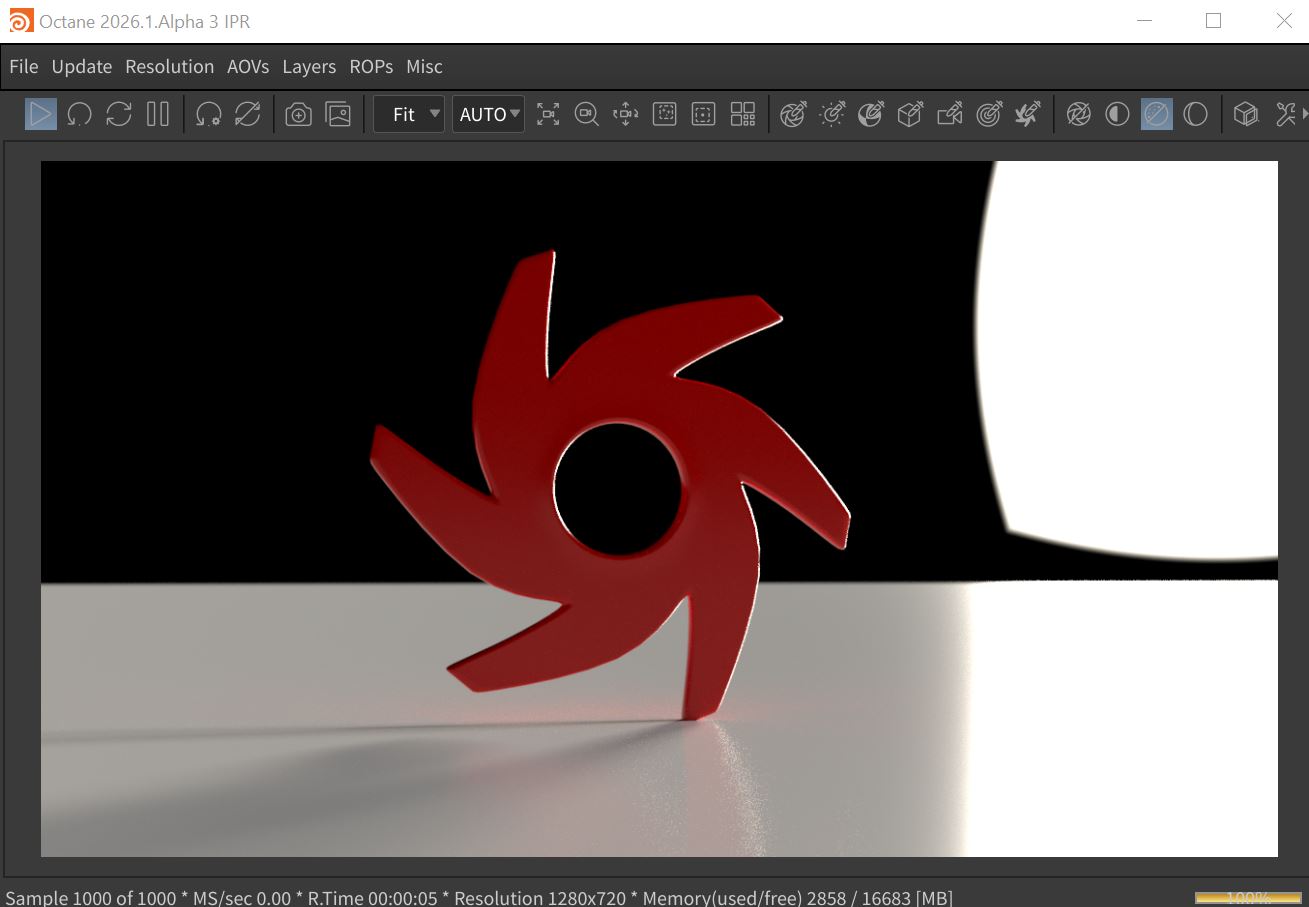
Figure 1: A scene rendered using the Preview environment
The Preview system is found in the Environment tab of the Render Target parameters window (Figure 2). The Preview system can also be found in the Octane Render Setup node located in the Object window (figure 3).
|
|
Environment Preview
|

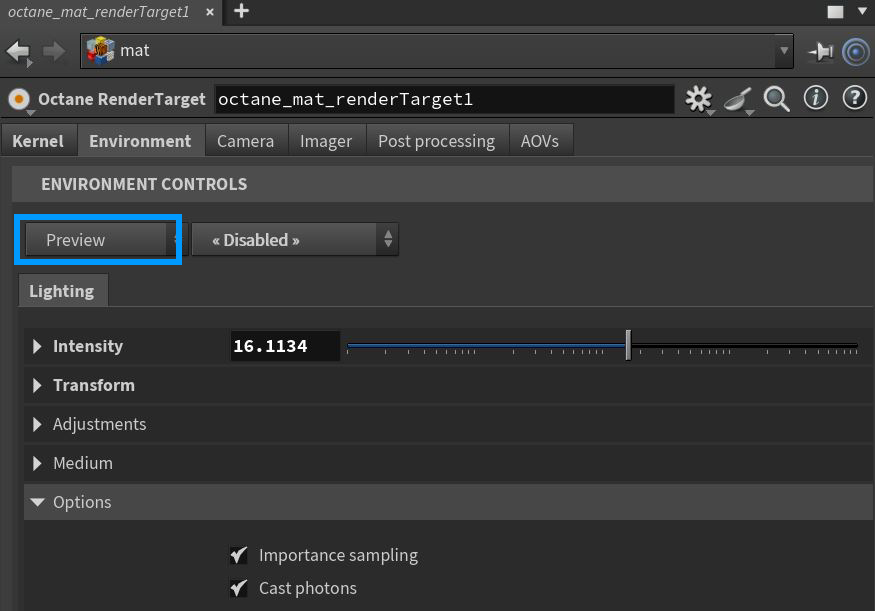
Figure 2: Accessing the Preivew parameters node from an Octane Render Target node
|
|
Environment Preview
|

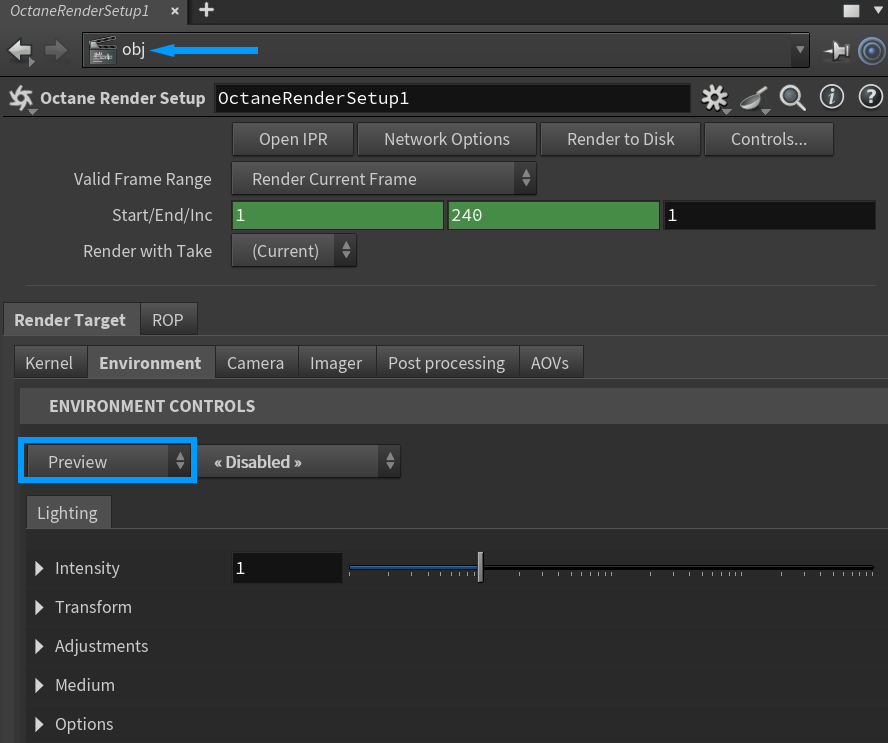
Figure 3: Accessing the Preview parameters in the Octane Render Setup node
Parameters specific to the Preview system are found in the Intensity, Transform, Adjustments, Medium, and Options rollouts.There is a Backplate tab available to further control the options for displaying backplate elements (figure 4). Any of the Backplate options can be used with the Environment Preview type, however, there is no Preview-specific Backplate option.
|
|
Environment Backplate
|

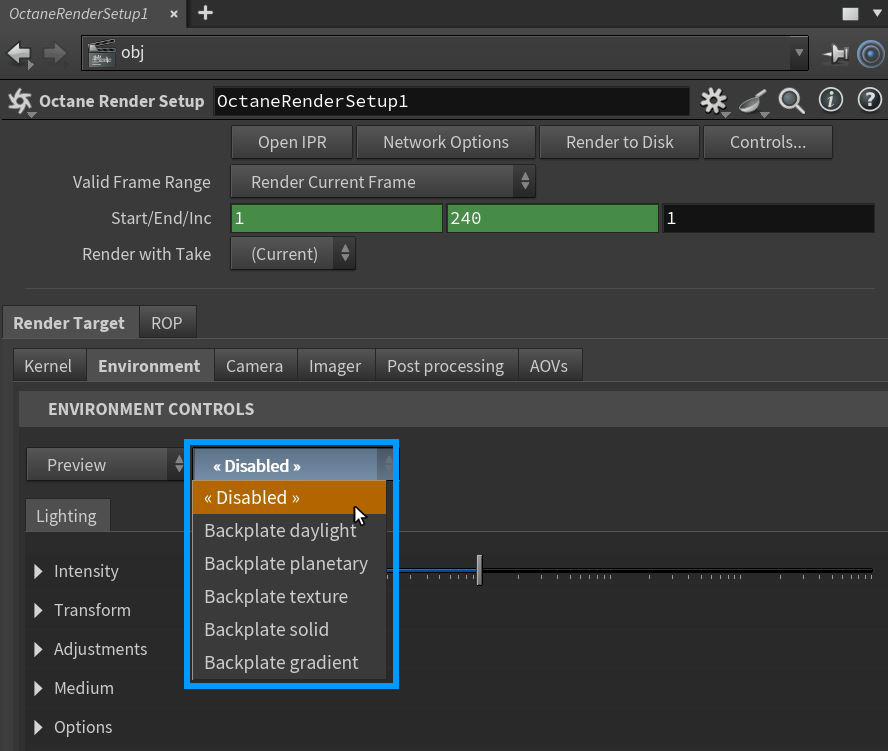
Figure 4: Accessing the Environment Backplate parameters
Preview Environment Lighting Tab Parameters
Intensity Rollout
Power - Controls the brightness of the ligh sources.
Preset - Provides various studio lighting setup presets.
Key, Fill, Rim, Overhead - Controls the intensities of the four studio lights present in this system.
Orbit Set - Rotates the four light types around the scene.
Overhead Height - Adjusts the height of the overhead light.
Edge Softness - Softens the edges of the studio lights.
Edge Rounding - Rounds the edges of the studio lights.
Flip Light Positions - Swaps the positions of the key and fill lights.
Invert - Flips the lights to dark and the dark areas of the studio background become lights.
Clamp - Prevents colors from exceeding 1.
Transform Rollout
Light Scale - Controls the size of the studio lights.
Over Rotate - Controls the rotation of the overhead light.
Over Scale - Controls the scale of the overhead light.
Adjustments Rollout
Offers control over image adjustments such as brightness, contrast, hue, etc.
Medium Rollout
Offers control of a medium used to give aerial density and fog to the Preview system. This is an actual volume medium effect, not a cheat. It interacts directly with any lighting in the scene.
Options Rollout
Importance Sampling - This toggles the Sky texture's importance sampling, similar to the Texture environment's importance sampling.
Cast Photons - If photon mapping is used, this option casts photons from the bright areas of the scene.