Direct Lighting Kernel
The Direct Lighting kernel is used for faster preview rendering. Direct Lighting is not unbiased, and should not be used when you aim for photorealism. This kernel is good for creating quick animations or renders.
|
|
Direct Lighting KErnel
|
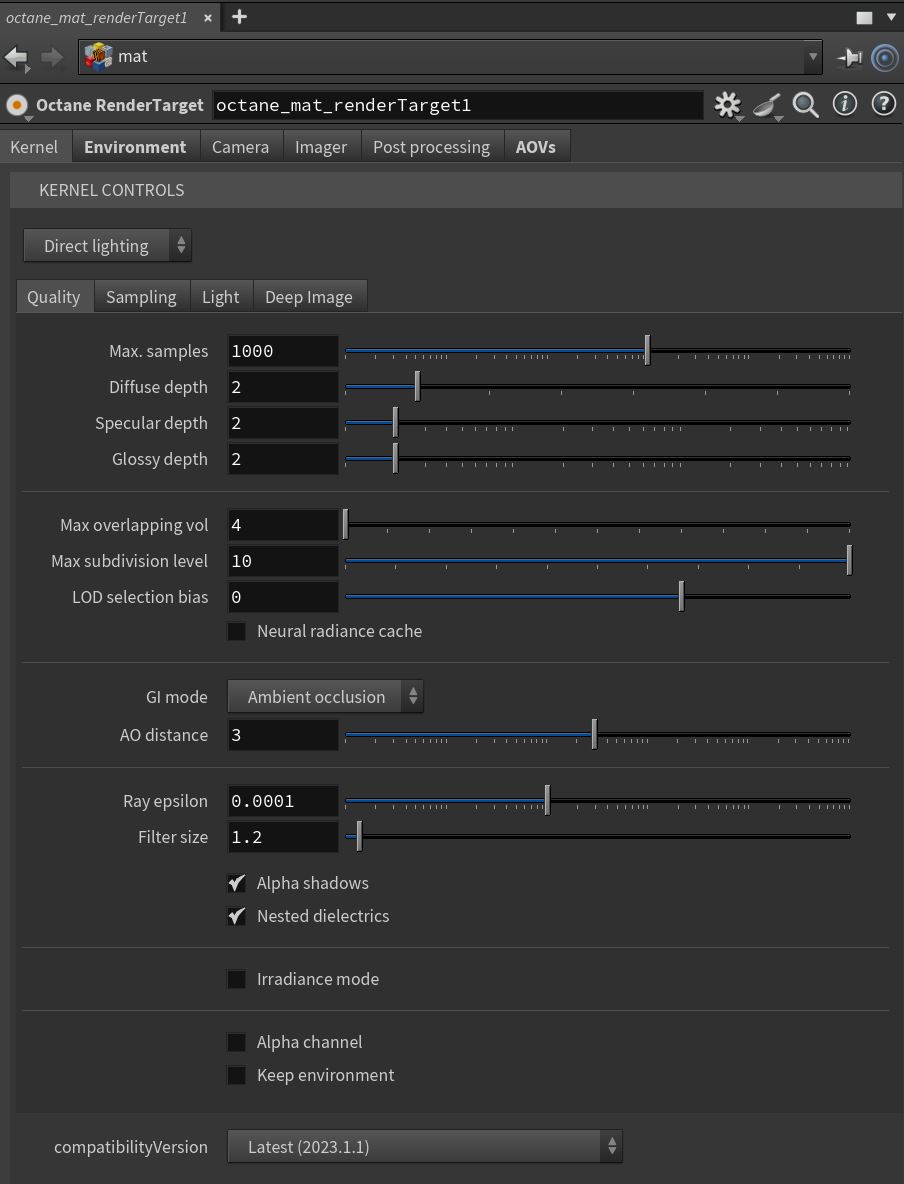
Figure 1: The Direct Lighting kernel parameters
Direct Lighting Kernel Parameters
Quality Tab
Max Samples - This sets the maximum number of samples per pixel before the rendering process stops. Higher values result in cleaner renders. The number of samples per pixel required for a good render depends on the scene.
Diffuse Depth - Gives the maximum number of diffuse reflections if Global Illumination Mode is set to Diffuse.
Specular Depth - Controls the number of times a ray refracts before dying. High values mean slower render times, but more color bleeding and more details in transparent materials. Low values introduce artifacts or turn some refractions into pure black.
Glossy Depth - Controls the number of times a ray reflects before dying. Higher values mean slower render times. Values lower than 4 introduce artifacts or turn some reflections into pure black.
Max Overlapping Volumes - Determines how much space to allocate for overlapping volumes. Ray marching is faster with lo values but it can cause artifacts where many volumes intersect.
Max Subdivision Level - Sets the maximum subdivision level that should be applied on the geometries in the scene. A setting of 0 will disable the subdivision.
LOD Selection Bias - Used in conjunction with Meshlets. This setting influences the LOD data selection. Decreasing this value will make the loaded LOD data cruder and increasing this value will make the loaded LOD data finer.
Neural Radiance Cache - Enables neural radiance cache which activates the adaptive neural network at runtime significantly reducing noise on first pixel.
GI Mode - There are three different Global Illumination modes in the Direct Lighting kernel.
- Disabled - Includes just the direct lighting from area lights. Indirectly-lit areas of the scene receive no contribution, and are black.
- Ambient Occlusion - Standard ambient occlusion. This mode provides realistic images, but offers no color bleeding.
- Diffuse - Indirect diffuse, with a configuration to set the number of indirect diffuse bounces.This gives a GI quality that is in between Direct/AO and Pathtracing - without caustics and a decent realistic quality compared to AO, but much faster than Pathtracing/PMC. It is good for quick finals and animations. It is similar in some ways to brute force indirect GI in other engines.
AO Distance - The distance of the ambient occlusion in units. Always check if the amount is correct relative to the scene scale. For example, you don’t need a value of 3 if your object is a small toy. However, if your model is a house or something large, increase the value.
Ray Epsilon - The distance to offset new rays so they don’t intersect with the originating geometry. This value should be left at the default value.
Filter Size - This sets the pixel size for the render filter. This can improve aliasing artifacts in the render. If the filter is set too high, the image becomes blurry.
Alpha Shadow - This setting allows any object with transparency (specular materials, materials with opacity settings and alpha channels) to cast a shadow instead of behaving as a solid object.
Nested Dielectrics - If disabled, the surface IORs are not tracked and surface priorities are ignored.
Irradiance Mode - This setting works similar to Clay Mode, but is applied to the first bounce, disables Bump, and makes samples that are blocked by back faces transparent.
Alpha Channel - This option removes the background and renders it as transparent (zero alpha). This can be useful if you want to composite the render over another image and don't want the background to be present.
Keep Environment - This option works in conjunction with the Alpha Channel setting. It allows the background to render with zero alpha, but is still visible in the final render. This allows even further flexibility in compositing images.
Sampling Tab
Adaptive Sampling - When enabled, the kernel stops rendering clean areas of the image and focuses on noisy areas.
If Adaptive Sampling is activated, the follow parameters are available:
- Noise Threshold - Specifies the smallest relative noise level. When the noise estimate of a pixel is less than this value, sampling switches off for this pixel. Good values are in the range of 0.01 - 0.03. The default is 0.02, which is pretty clean.
- Min. Adaptive Samples - Specifies the minimum number of samples to calculate before adaptive sampling kicks in. A pixel's noise estimate has a large initial error. The higher you set the noise threshold, the higher you should also set this parameter to avoid artifacts.
- Expected Exposure - This value should be close to the same value as the image's exposure, or 0 (the default value) to ignore these settings. Adaptive sampling uses this parameter to determine what pixels are bright and dark, which depends on the Octane Imager's exposure setting. If the value is not 0, adaptive sampling adjusts the noise estimate of the image's very dark areas. It also increases the Min. Adaptive Samples limit for very dark areas, because very dark areas tend to find irregular paths to light sources, resulting in over-optimistic noise estimates.
- Pixel Grouping - Specifies the number of pixels handled together. When all of the pixels in a group reach the noise level, sampling stops for all of these pixels.
Path Termination Power - High values increase render speed, but also increase noise in dark areas.
Direct Light Rays - Specifies the number of direct light rays traced for every sample. This amount is used after camera rays and after smooth specular reflections or transmission.
Coherent Ratio - Increasing this value increases the render speed, but it also introduces low-frequency noise (aka blotches), which requires a few hundred or a few thousand samples per pixel to go away, depending on the scene.
Static Noise - When enabled, the noise is static, so it doesn’t change between frames.
Parallel Samples - This controls how many samples are calculated in parallel. If this is set to a small value, OctaneRender® requires less memory to store the sample's state, but rendering is slower. If this is set to a high value, then OctaneRender requires more graphics memory, and rendering becomes faster. The change in performance depends on the scene and the GPU architecture.
Max Tile Samples - This controls the number of samples per pixel that OctaneRender will render until it takes the result and stores it in the film buffer. Higher values mean that results arrive less often in the film buffer.
Minimize Net Traffic - If enabled, OctaneRender distributes the same tile to the net Render Nodes until the tile reaches the max samples/pixel, and then OctaneRender distributes the next tile to Render Nodes. This option doesn't affect work done by local GPUs. A Render Node can merge all of its results into the same cached tile until the Primary Render Node switches to a different tile.
Light Tab
AI Light - Enables AI Lights. AI Light functionality learns from the scene, and the rendering becomes more efficient as more samples are rendered. When used with Adaptive Sampling, AI Light becomes even more effective, as it learns pixel and light importance in a scene and no longer samples some pixels.
AI Light Update - Available when AI Light is activated, enables dynamic light update.
Light IDs Action - This parameter determines whether the Light ID's action enables or disables lights with matching Light Pass ID numbers.
Light IDs - This is the ID of the light pass that captures the emitter's contribution. For more information about the Light IDs and their attributes, see the Light Passes topic in this manual.
Light Linking Invert - This option inverts the light linking behavior for selected light IDs.
White Light Spectrum - Controls the appearance of colors produced by spectral emitters (daylight, environment, black body).This determines the spectrum that will produce white (before white balance) in the final image.
- D65 - Adapts to a reasonable daylight "white" color.
- Legacy/Flat - Preserves the appearance of old projects (spectral emitters will appear more blue)
Toon Shadow Ambient - This is the ambient modifier of Toon Shadowing.
Deep Image Rollout
Deep Image - Enables rendering deep pixel images used for deep image compositing.
Deep Render AOVs - Includes render passes for deep image pixels.
Maximum Depth Samples - Used when Deep Image Rendering is enabled. It sets the maximum number of depth samples per pixel. For more details, read the Deep Image Rendering topic in this manual.
Depth Tolerance - Used when Deep Image Rendering is enabled. OctaneRender merges depth samples whose relative depth difference falls below this tolerance value. For more information, see the Deep Image Rendering topic in this manual.