Open PBR Surface Material
The Open PBR Surface Material is an open-source, physically-based (PBR) shading model. It is an uber shader designed to standardize material design across different render engines (figure 1).
|
|
Open PBR Material
|
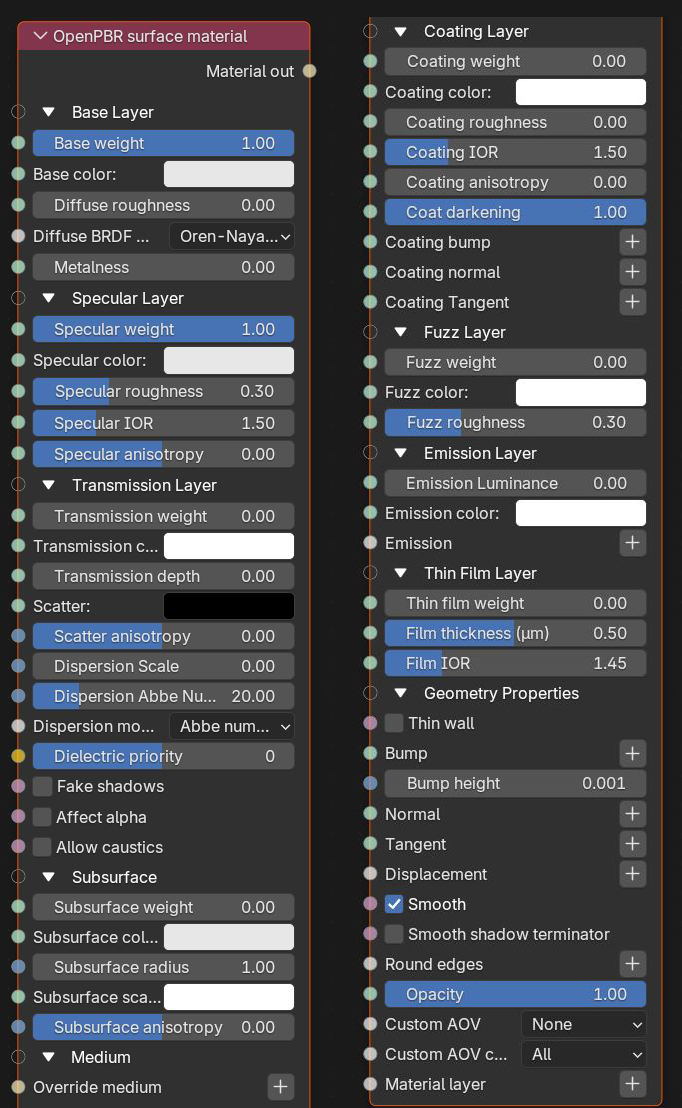
Figure 1: The Open PBR Material parameters
Open PBR Surface Material Parameters
Base Layer
Base Weight - Determines the contribution of the base layer to the shader results.
Base Color - Determines the base color.
Diffuse Roughness - Higher values result in a micro-level of roughness being applied to the base layer.
BRDF model - From Wikipedia: "The bidirectional reflectance distribution function (BRDF), is a function of four real variables that defines how light from a source is reflected off an opaque surface." Lambertian reflects light equally in all directions and does not support roughness. The Octane option creates a sheen effect much like velvet. And, the Oren-Nayar option behaves more like clay.
Metalness - Determines whether the material behaves in a dielectric (value of 0) fashion or a metallic (value of 1) fashion.
Specular Layer
Specular Weight - Determines the contribution of the specular layer to the shader results
Specular Color - Determines the specular color, however, leaving this parameter at white produces the most physically accurate result.
Specular Roughness - Higher values will introduce roughness to the specular reflection and transmission channels.
Specular IOR - The index of refraction controlling the Fresnel effect of the specular reflection and Transmission, if activated.
Specular Anisotropy - Controls the shape/direction of the specular and transmission characteristics, -1 is horizontal and 1 is vertical.
Transmission Layer
Transmission Weight - Controls the amount of light scattering through the surface.
Transmission Color - Determines the color accumulated as light rays travel deeper inside the surface. For instance, red glass becomes a deeper red where light rays travel through thicker parts of the surface.
Transmission Depth - Determines the depth rays have to travel inside the surface for the transmission color to be realized.
Scatter - Determines the scattering of the transmission color inside the surface, not to be confused with subsurface scattering which affects the propagation and decay of light in different directions under the surface.
Scatter Anisotropy - Controls the directional bias of the scattering effect. A value of 0 scatters evenly in all directions.
Dispersion Scale - Increasing this value increases the coloration amount and dispersion in the object's transmission and in caustics.
Dispersion Abbe Number - Determines the Abbe number for the dispersion. The Abbe number is a measure of a transparent material's dispersion.
Dispersion Mode - Determines how the IOR and dispersion coefficients are interpreted.
Dielectric Priority - When nested dielectric surfaces overlap, only surfaces with the highest priority contribute.
Fake Shadows - If enabled, light will be traced directly through the material during the shadow calculation, ignoring refraction.
Affect Alpha - If enabled, refractions will be added to the alpha channel data.
Allow Caustics - If enabled, the photon tracing kernel will create caustics for light reflecting or transmitting through the object.
Subsurface
Subsurface Weight - Blends between the diffuse and subsurface scattering. When set to 1, there is only subsurface scattering. When set to 0, there is only diffuse characteristics.
Subsurface Color - Determines the color that is scattered under the surface of the object.
Subsurface Radius - Determines the distance light can scatter below the surface before scattering back out.
Subsurface Scale - Controls the distance the light travels under the surface. It scales the subsurface radius data and multiplies against the subsurface color.
Subsurface Anisotropy - Controls the direction of the subsurface characteristics, a value of 0 scatters evenly in all directions.
Medium
Override medium - Allows you to override the built-in Standard surface material medium with a specific Octane Medium from the node menu.
Coating Layer
Coating Weight - Controls the amount of coat that is added on top of the base layer and other material characteristics. The coating is reflective and considered to be dielectric.
Coating Color - Determines the color of the coating on top of all colors and characteristics from layers below the coating layer.
Coating Roughness - Controls the glossiness of the coating's specular reflections.
Coating IOR - The index of refraction that defines the Fresnel reflectivity of the coating layer.
Coating Darkening - Determines how much the coating darkens the substrate layers below it.
Coating Rotation - Controls the orientation of the coating's anisotropy effect.
Coating Bump - Allows for a bump texture to be applied to the coating layer.
Coating Normal - Allows for a normal map to be applied to the coating layer.
Coating Tangent - Distorts tangents and controls anisotropy direction of the coating.
Fuzz Layer
Fuzz Weight - Determines the strength or density of the fuzz layer. Fuzz provides options for controlling the reflection from micro-fibers on a surface such as dust grains, peach fuzz, textile strands, etc.
Fuzz Color - The color of the fuzz.
Fuzz Roughness - Determines the roughness or shape of the fuzz.
Emission Layer
Emission Luminance - Controls the amount of emitted light.
Emission Color - Determines the color of the emitted light.
Emission - Allows for either the Blackbody or Texture Emission nodes to be connected to the material.
Thin Film Layer
Thin Film Weight - Determines the strength of the thin film effect.
Film Thickness - The film coating's thickness, mainly used to simulate to look of a thin layer of additional surface material.
Film IOR - The film coating's IOR.
Geometry Properties
Thin Wall - When enabled, this parameter provides the effect that the surface is translucent. This option should only be used with objects that are single sided.
Bump - Creates fine details on the material’s surface using a Procedural or Image texture. Often a Greyscale image texture connects to this parameter - light areas of the texture indicate protruding bumps, and dark areas indicate indentation. You can adjust the Bump map's strength by adjusting the Power or Gamma values on the Image texture node.
Bump height - The height represented by a normalized value of 1.0 in the bump texture. 0 disables bump mapping, negative values will invert the bump map.
Normal - Used to distort the normals of the surface using a normal map generated in texturing applications.
Tangent - The tangent channel to distort tangents and control anisotropy direction.
Displacement - Used to distort the actual surface of the object using a greyscale image.
Smooth - If enabled, the mesh's triangles will be smoothed. If disabled, the mesh's surface will appear facetted.
Smooth Shadow Terminator - If enabled, the self-intersecting shadow terminator for low polygon objects is smoothed according to the polygon's curvature.
Round Edges - Rounds the geometry edges by using a shading effect instead of creating additional geometry. See the Round Edges topic in this manual for more information.
Opacity - Controls the transparencey of the surface.
Material Layer - Adds a Material Layer above the base material. See the Material Layers topic in this manual for more details.