Saving & Loading Scenes
ORBX and OCS are the file formats that are native to OctaneRender®. OCS stores all of the settings relevant to the scene file for future editing. The OCS file format does not store the geometry, image textures, or other external files referenced by the scene. Instead, the nodes in an OCS file store the paths to these scene elements. This means that files stored in the OCS format are small in terms of file size, and easy to store and manage. It also means that links to files referenced by the OCS file can break if you move, rename, or delete the referenced files. ORBX packages all of the referenced geometry, image textures, and other scene elements into a single file format that can move the entire scene without worrying about breaking links to external files. It can also contain animation data.
Each ORBX package can then be stored locally in the LocalDB as a shared resource for other Octane users to access. The ORBX file format can also be exported from applications such as Maya, Cinema 4D, or 3ds Max that have the Octane plugin installed and licensed. This makes it possible to move scenes and materials from host applications to Octane Standalone and the Render Network®.
A scene can be saved two ways. The Save As option will save the scene in OCS format. The Save as Package option will save the scene in ORBX format (figure 1).
|
|
save as
|


Figure 1: Using the Save As... option
|
NOTE Once a scene has been saved and re-opened in Octane Standalone using the ORBX format, the Save as Package file option will be grayed out and Save As will only save in ORBX format. |
The Save as Reference Package option provides an additional feature when importing an ORBX file using the Reference node. It allows for unloading the referenced file in a scene while providing a bounding box to display the location of the unloaded file (figure 2).
|
|
Save Reference
|


Figure 2: Deselecting the Load Reference option while maintaining a bounding box reference
To load or reload a scene, click on Open, use the File dialog to navigate to the location of the file on disc, and select the ORBX or OCS file to open. You can also drag and drop the ORBX or OCS file from the folder window straight to OctaneRender while it is open. When the scene loads, it's nodes will appear in the Graph Editor. Clicking a Render Target node (if available) starts the rendering in the Render Viewport.
Reloading Textures, Images, And Objects
While working on a scene, you may need to reload or replace some textures or objects. At the top of any object or image node is the active path to that image or object. Click on the Load icon to the left of the path to choose a different file while keeping the rest of the scene intact. Click on the Reload icon to reload the object or image (Figure 3).
|
|
load & reload
|

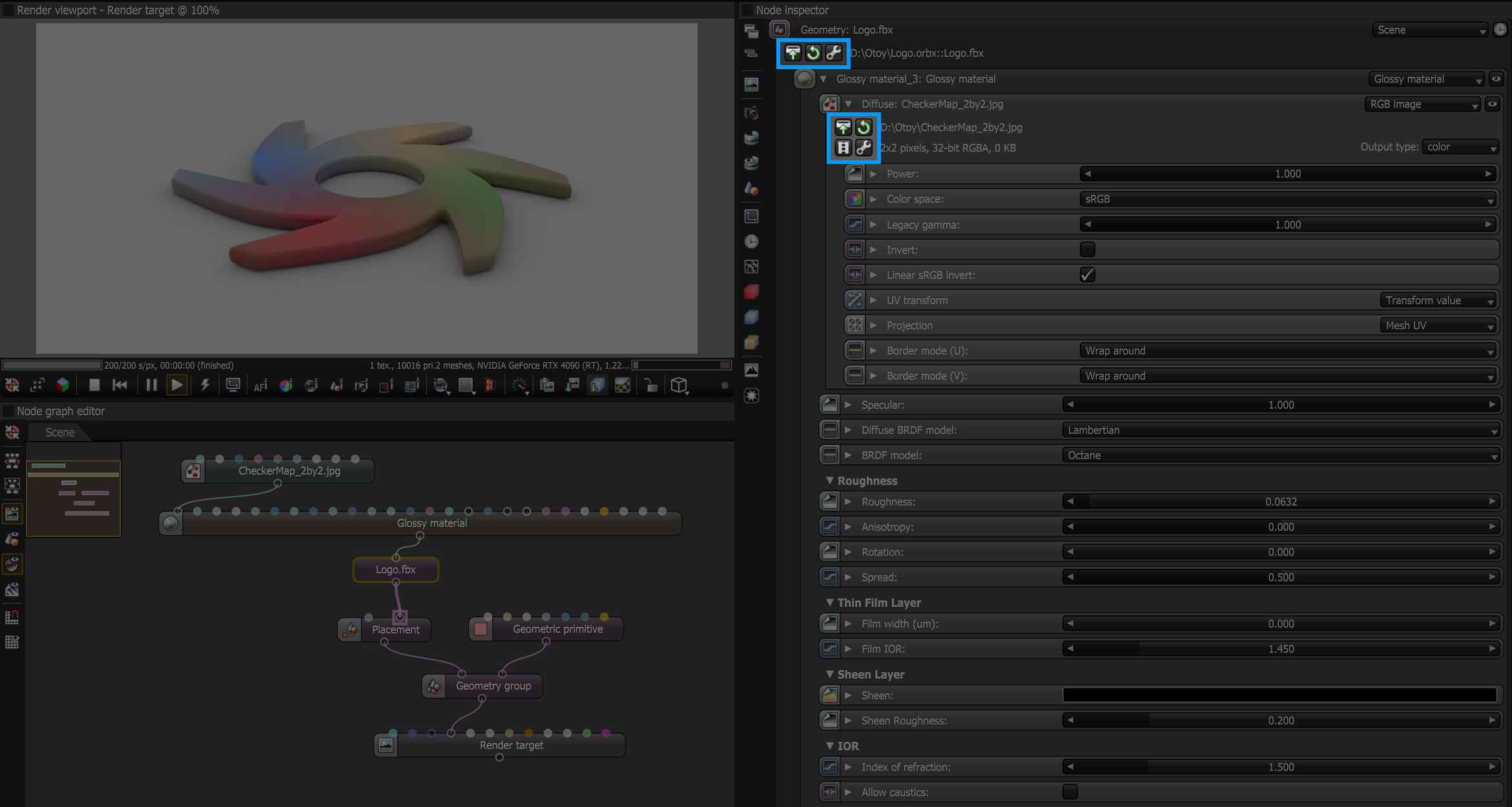
Figure 3: Load and Reload icons