Application Settings
Settings related the user interface, default material previews, file locations, and file associations are managed in the Application tab of Preferences. OctaneRender® uploads the saved settings to your online account, and the settings are available if you log into another copy of OctaneRender. More details pertaining to these options can be found in the Interface Layout section.
|
|
Application settings
|

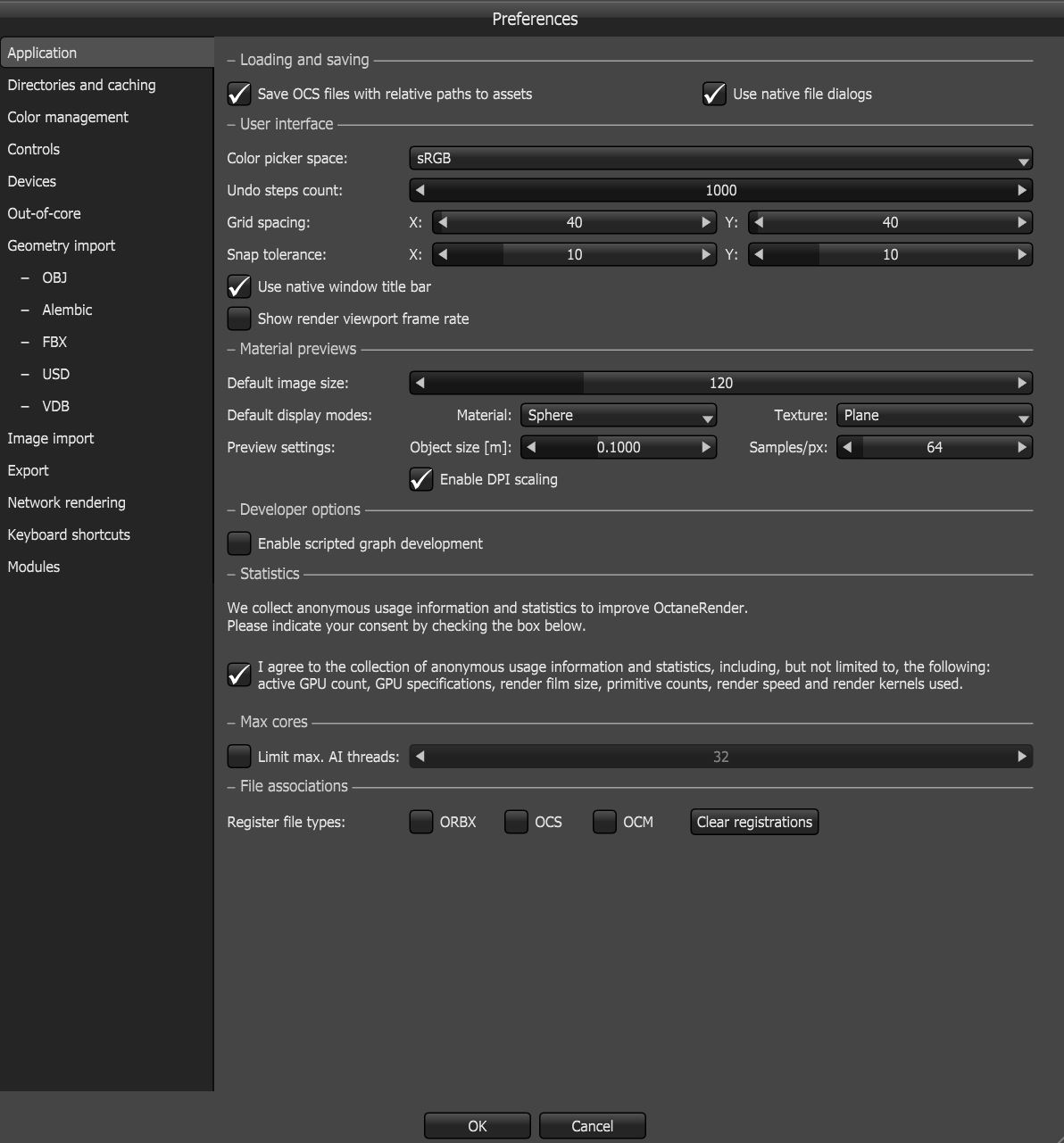
Figure 1: Application settings
Preferences
Loading and Saving
Save OCS Files with Relative Path to Assets - When saving projects, OctaneRender needs the specific location to store the project in a file system where these resources are represented by absolute or relative paths. An absolute, or full, path points to the same location in a file system, regardless of the current working directory. To do that, it includes the root directory. You can save projects using a relative path, which starts from some given working directory, thus avoiding the need to provide the full absolute path.
Use Native File Dialogs - Enables or disables the use of OS native file dialogs.
User Interface
Color Picker Space - Determines the color space for the color picker with options of sRGB or Linear sRGB.
Undo Steps Count - Specifies the number of undos available.
Grid Spacing - Determines the grid spacing for the Node Graph Editor window.
Snap Tolerance - Determines the snapping tolerance for moving nodes in the Node Graph Editor window.
Use Native Window Title Bar - Toggles the use of the operating system's native title bar.
Show Render Viewport Frame Rate - If enabled, shows the current viewport update frame rate in the render viewport toolbar.
Material Previews
Default Image Size - Determines the default size for the material image preview.
Default Display Modes - Determines the default shapes to use for the material and texture previews.
Preview Settings - Determines the object size in meters and the samples per pixel for the material preview.
Enable DPI Scaling - Renders higher resolution previews on high pixel density displays.
Developer Options
Enable Scripted Graph Development - Allows for inspecting the contents and the scripts inside scripted node graphs.
Statistics
OctaneRender sends statistical data to a server to understand how OctaneRender is used, which helps our development team make informed decisions for future developments. The statistics gathered are anonymous and independent of the OctaneRender LiveTM license server. These are the types of events sent in the statistical data:
- SessionStart and SessionEnd events, which indicate one OctaneRender session.
- Render events are sent if the rendering progresses more than 30 seconds or 1000 samples/pixel.
In addition to these events, statistical information like the geometry size, kernel, GPU count, and Render Node count is sent as well. The statistics are important, but this feature can be opted out of by deselecting the I agree statement.
Max Cores
Limit Max. AI Threads - This refers to the number of cores used to train OctaneRender. By default, the limit is off, and all threads are used. However, you can enable a limit of threads for the AI scene.
File Associations
Establishes the relationship between the specified file types to OctaneRender. It registers and defines OctaneRender as the default program to open files with these file extensions.