Volumes
The OctaneRender® for Houdini® plugin can render the Houdini Volume and VDB primitives, and it can also manage and render OpenVDB files.
|
|
Volumes
|
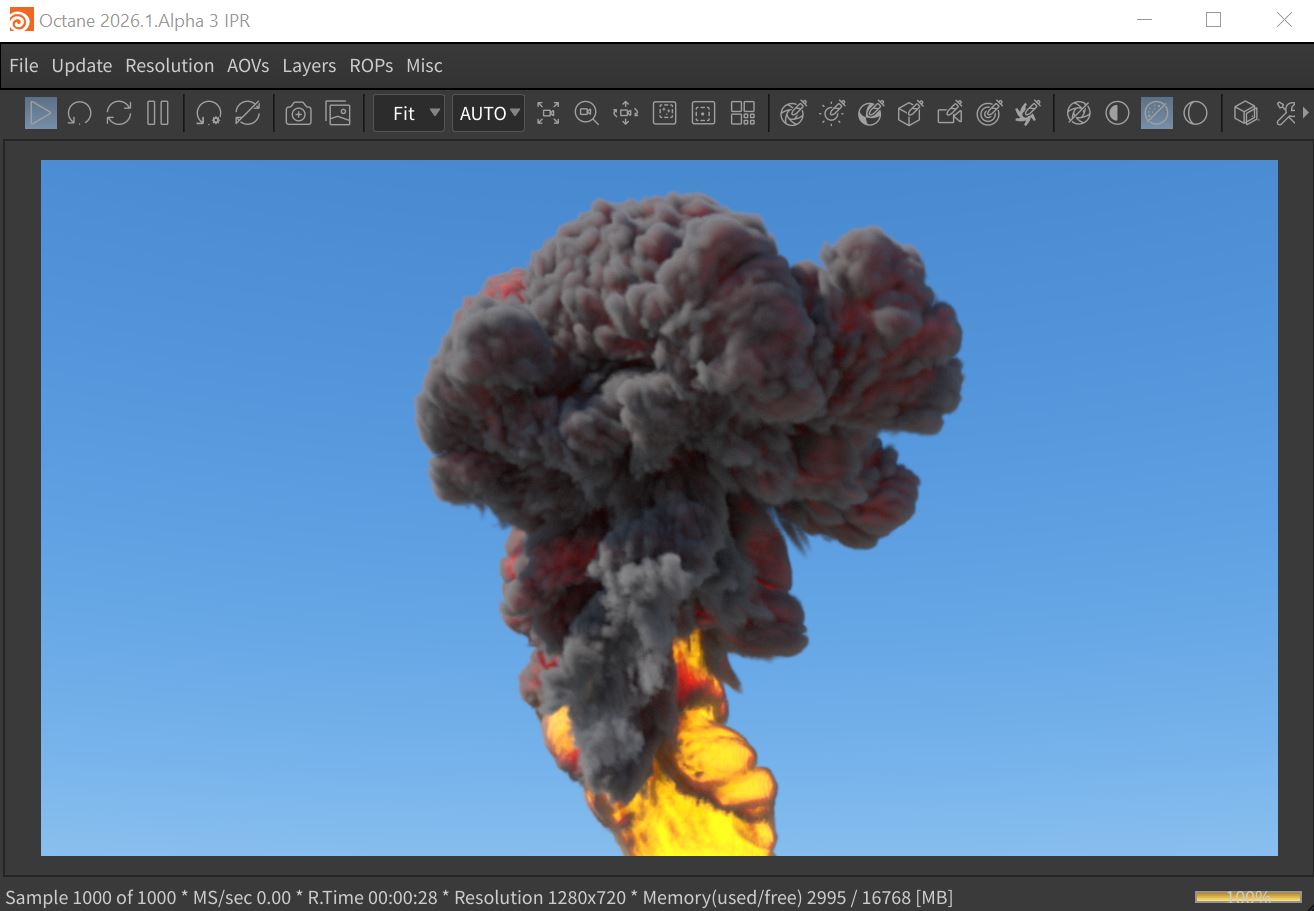
Figure 1: A Houdini volume rendered with OctaneRender®
To render the internal Houdini Volume or OpenVDB Primitives, The Octane +ObjParms needs to be added to the Pyro or Volume geometry node (Figure 2). In this tab, you can also configure the volume grids used for volume rendering and their scale. You can also configure the velocity grids used to render the volume motion blur in this tab. Additionally, the vector grids can be accessed and set to any of the Absorption, Scattering, or Emission volume grids.
|
|
Volumes
|
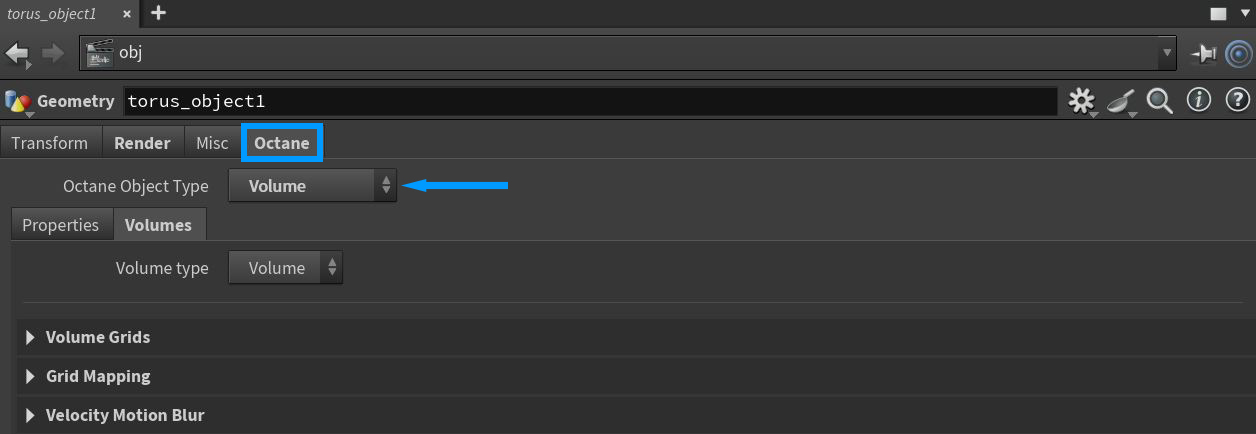
Figure 2: Configuring volume rendering in the Octane Object Spare Parameters tab
The same workflow can render external OpenVDB files. In this case, you must set the OpenVDB file and its parameters in the OpenVDB tab (Figure 3).
|
|
Open VDB
|
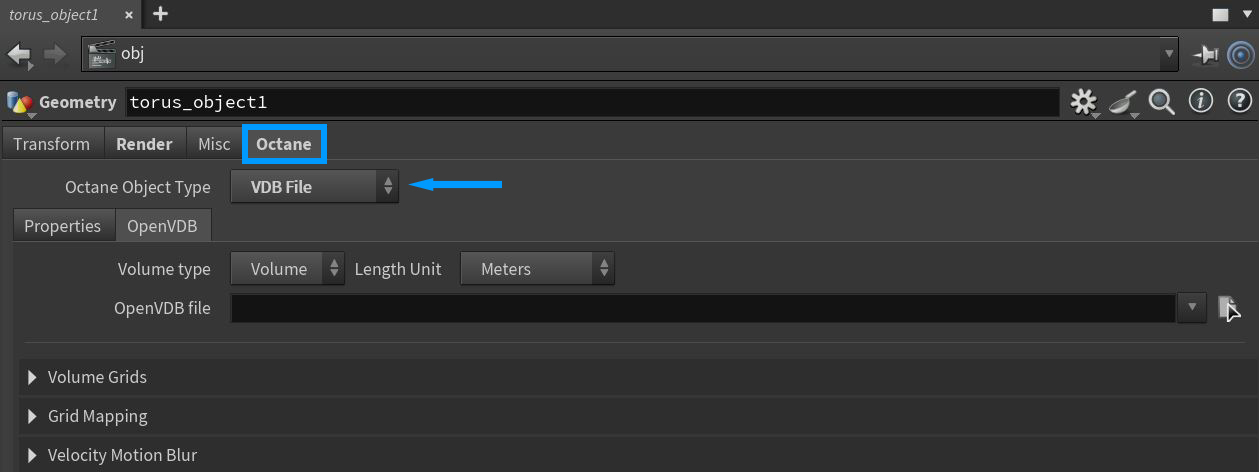
Figure 3: Configuring OpenVDB rendering in the Octane Object Spare Parameters tab
VDB files contain one or more volume datasets, or grids. For VDBs saved from a fire simulation, these include temperature and density grids. These correspond to the volume's absorption and emission characteristics in terms of rendering. You can edit the import preferences of your volume node to change what volume dataset or grid is applied to Scattering, Absorption, and Emission - similar to the mesh node. When you export the Volume VDB from your simulation software, you can name each grid. Enter these into the import preferences in OctaneRender as you desire.
Some volume datasets are known as level sets, and they are encodings to store a thin eggshell surface. OctaneRender supports loading these volumes as well. The Isovalue parameter lets you to set the surface thickness.
Volumetric Shading
You can add a material to the volume from the Render tab on the Pyro or volume import geometry node (Figure 4).
|
|
Volume Shading
|
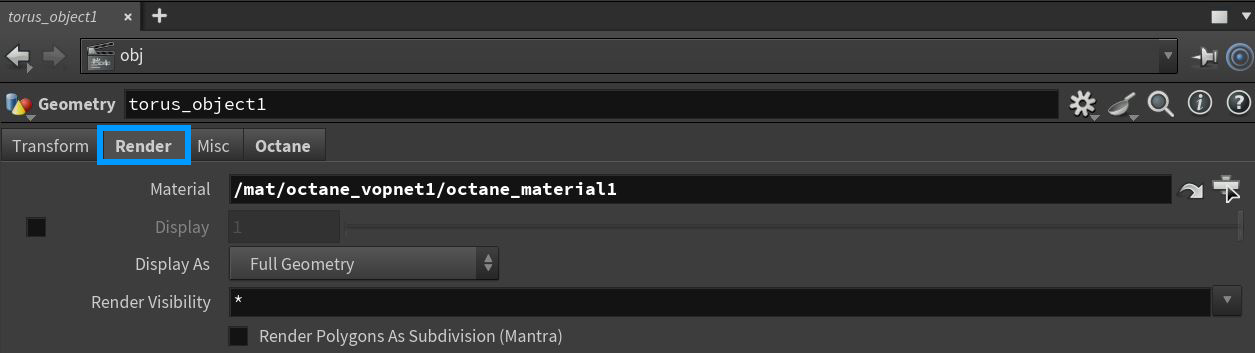
Figure 4: Adding a Material to a volume rendering
The Medium Volume VOP node handles volumetrics shading when you link it to the Medium input in the Octane material's Output VOP (Figure 5).
|
|
Volume Shading
|
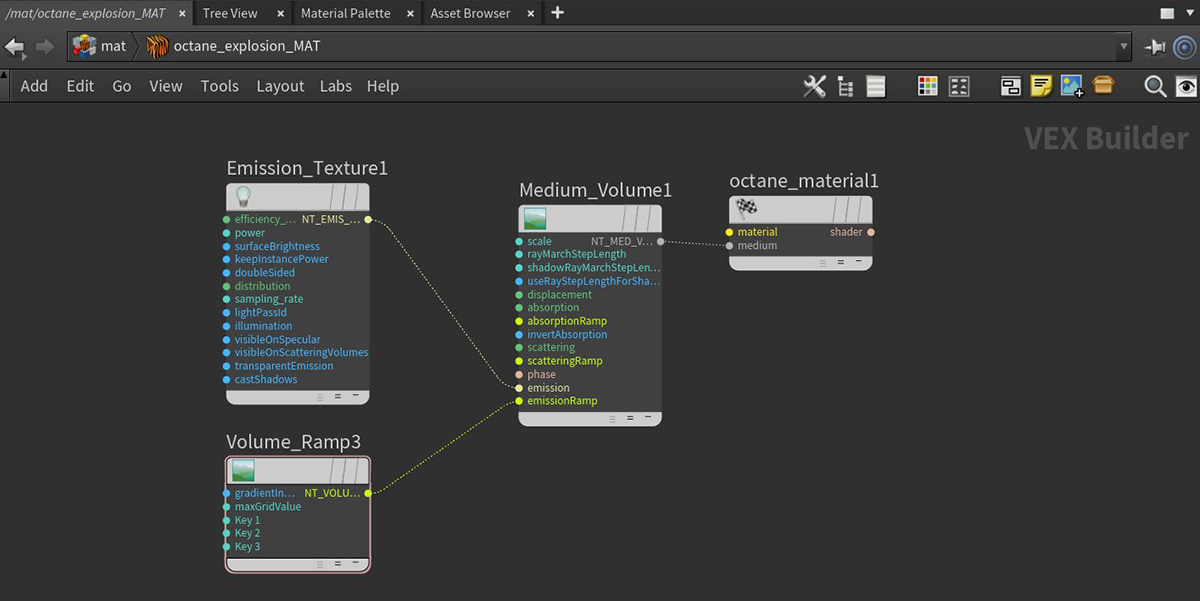
Figure 5: Setting up a typical shading network for volume rendering
Similar to the Medium node, volumes can have Scattering, Emission, and Absorption settings. These colors have a huge influence on the volume's appearance. The Phase Function also affects a volume as it would affect a Medium node, and modifying the volume's Scale value scales the density values of the volume linearly. This also increases Emission, as Absorption values are also used as particle density.
The Medium Volume node's Volume Step % parameter has a default value of 1. If your volume is smaller than this, decrease the Volume Step %. Decreasing this value reduces the render speed. Increasing this value causes the ray marching algorithm to take longer steps. If the Step % exceeds the volume’s dimensions, then the ray marching algorithm takes a single step through the whole Volume. To get the most accurate results, keep the Step % as small as possible.
Volumes are rendered in an unbiased way, so they can scatter multiple times. They can also cause self-shadowing effects. To reduce the maximum scatter events in a volume, reduce the Diffuse Depth parameter in the Kernel node.
A Blackbody or Texture emission node configures the shading of the emission grids. When using the Blackbody node, make sure that the data used for the Emission grid contains temperatures in Kelvin. It is common to find VDBs that have unitless temperatures with arbitrary ranges such as 0 - 1, or even 0 - 45, as is the case with some sample VDBs from openvdb.org.
Typical temperature values range between 0 to 6500, where lower values tend towards longer wavelengths (red colors), and higher values tend towards blue or white. In order to get realistic results from the Blackbody emission for volumes, disable Normalize in the Emission node. Lower temperatures give off less light than higher temperatures, but when normalized, the radiance emitted by all temperatures is equal.
When using the Texture node, the input temperature grid is interpreted as emission power, not emission temperature. This is more linear in that the higher the temperature value, the more light is given off at that point. If you use Volume Gradients, you have more precise control of the color.
Using the Medium Volume node, you can apply Volume Ramps independently to the Absorption, Scattering, and Emission parameters (Figure 6).
|
|
Volume Shading
|
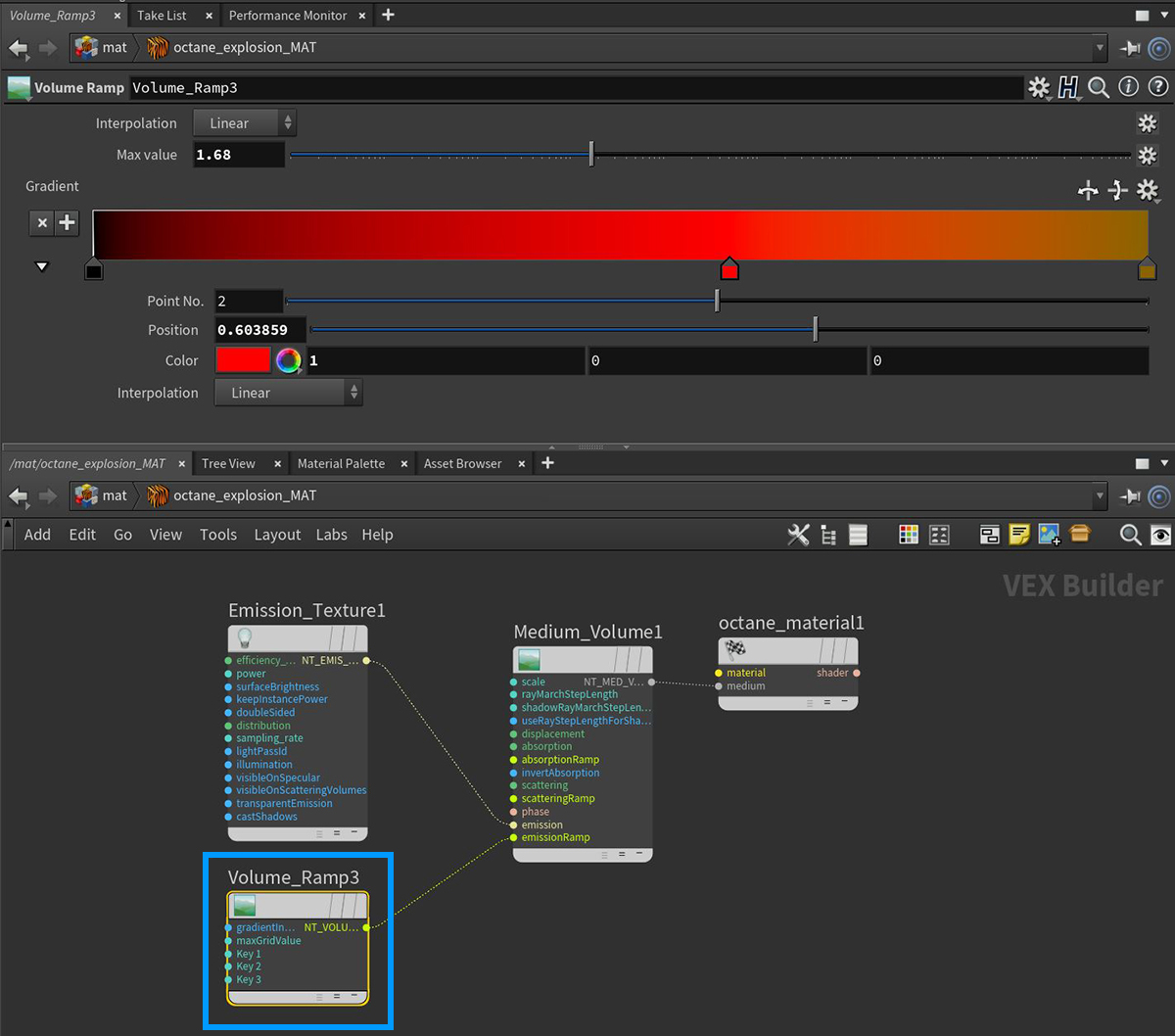
Figure 6: Applying a Volume Ramp to the Ramp inputs on a Volume medium node
|
IMPORTANT Volume ramps are restricted to static colors for performance reasons - it is not possible to attach a series of other texture mappings or generators to colors in the ramps. |