Texture Image Alpha
The Alpha Image texture utilizes an image's native alpha channel to provide transparency (figure 1). This image type accepts PNG, TIF, and .EXR files.
|
|
Image Alpha
|
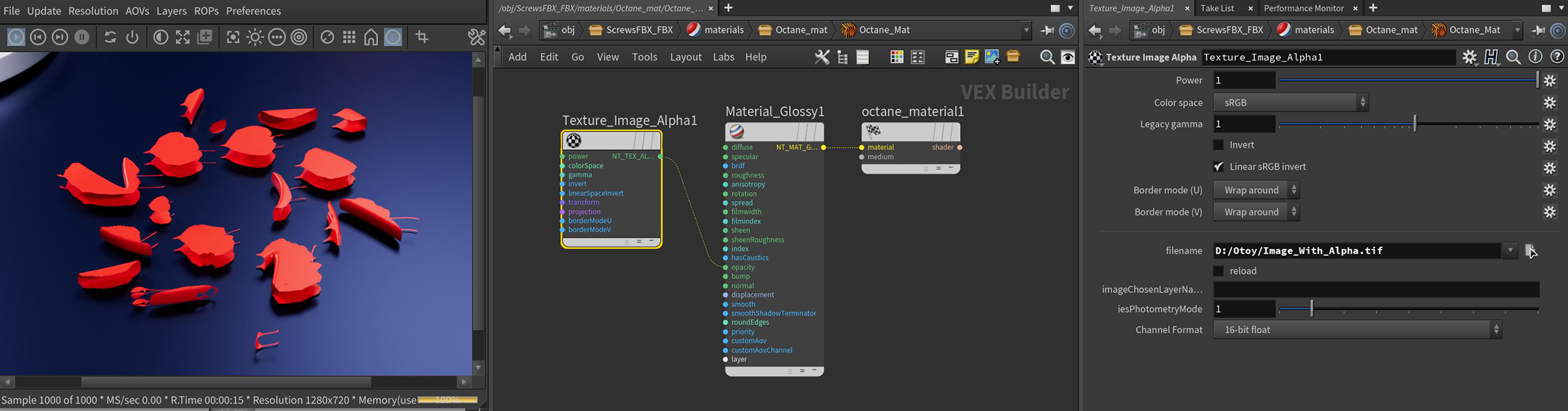
Figure 1: The Alpha image parameters
Alpha Image Parameters
Power - Controls image brightness. Lowering the value makes the image look darker.
Color Space - This menu was added to support the ACES color management system and sets the color space of the image texture: A few but not all notable options are listed below.
- Non-Color Data — Use this option for data maps (such as Normal maps). Any map set to this value will use a gamma value of 1.0.
- sRGB — For any image using the sRGB color space. This option has a non-linear response curve applied, with a gamma of 2.2, per the definition of sRGB. Note that the gamma value is ignored with this setting as a result.
- Linear sRGB + Legacy Gamma — This is the default option, for backwards compatibility with previous versions of Octane. For true linear images, however, make sure that the gamma value is set to 1.0. Use this option if you wish to manually adjust the gamma value of your image.
- ACES2065-1 — The ACES archival color space (widest gamut).
- ACEScg — The ACEScg color space, which is a smaller gamut than ACES2065-1; if you have ACES images coming from outside sources, this may be the best option.
Legacy Gamma - Controls input image luminance, and tunes or color-corrects images if needed, however, this parameter is only used when the Color Space is set to Linear sRGB+Legacy.
Invert - Inverts the image, which is useful for Bump and Opacity maps.
Linear sRGB Invert - Inverts the image after conversion to linear color space.
Transform Input - Accepts any of the transform nodes to alter the position, rotation, and scale the surface texture.
Projection Input - Accepts projection nodes. If nothing is connected to this input, the image texture uses the surface's UV texture coordinates by default. This also changes the UV set if the original surface contains more than one UV set. For more details, see the Octane Projections topic in this manual.
Border Mode U/V - Sets the behavior of the space around the image if it doesn't cover the entire geometry. Wrap Around is the default behavior, which repeats the image in the areas outside the image's coverage. If you set this parameter to White Color or Black Color, the area outside the image turns to white or black, respectively.
Filename - Specifies the path to the image file.
Reload - Should be activated if the file needs a reload or the preference of the image file has been changed.
Image Chosen Layer Name - Indicates the chosen layer name, if the current image has multiple layers.
IES Photometry Mode - Can be used to adjust the normalization of data from an IES file.
Virtual Texturing Mode - Activates virtual texture mode.
Virtual Texture ID - Explicit image ID to identify cached virtual textures, used when an image is set up directly via image attributes. In order to successfully match cached files, ensure that other image load preferences are set to the same values.
Channel Format - Determines the proper format of the imported texture.