Plugin Options
Clicking over the Options icon in the Octane Shelf opens the Octane Plugin Options window (Figure 1). Houdini® stores these options in the Houdini User Options folder, so they are global to all the OctaneRender® scenes.
|
|
Plugin Options
|


Figure 1: Accessing the plugin Options from the Octane Shelf
Licensing
The Licensing tab opens the License Management panel (Figure 2).
|
|
Licensing
|

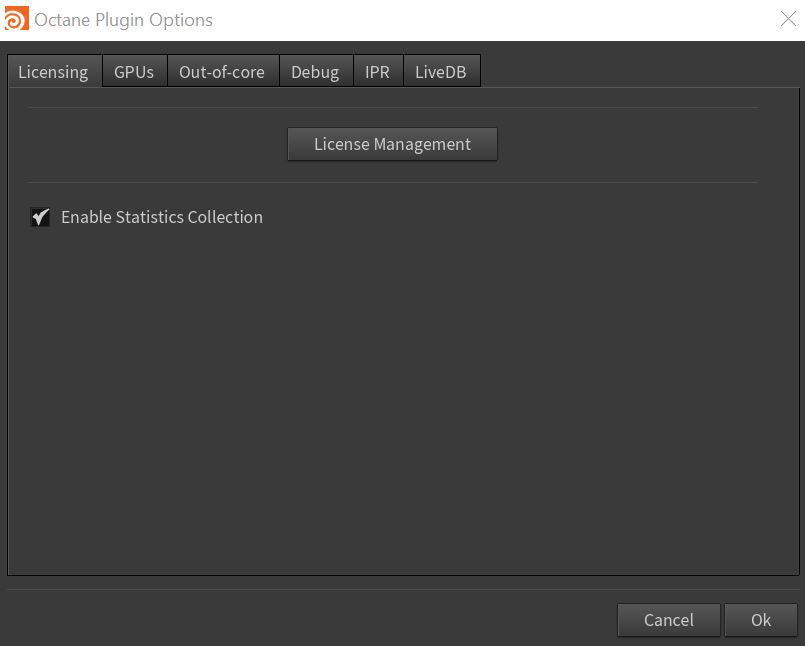
Figure 2: The License Magement tab
OctaneRender sends statistical data to a server to understand how you use the plugin, which helps our development team make informed decisions for future developments. The statistics gathered are anonymous and independent of the OctaneRender LiveTM license server. These are the types of events sent in the statistical data:
- SessionStart and SessionEnd events, which indicate one OctaneRender session.
- Render event is sent if the rendering progresses more than 30 seconds or 1000 samples/pixel
The events above are sent along with statistical information like the geometry size, kernel, GPU count, and Render Node count. You can choose to opt out from sending these statistics.
GPUs
OctaneRender is a GPU-based render engine, so it is important to manage the GPUs that you use for rendering. The GPUs tab shows supported GPUs, and you can enable GPUs with a supported compute model (Figure 3).
This tab lets you select GPUs for rendering if more than one GPU is installed. The Render Priority option can throttle rendering on one or more GPUs to improve system responsiveness, which is useful when rendering on a GPU used for the display (Figure 3).
There are also toggles to activate compositing output AOVs on the GPU, enabling NVLink, and setting the texture cache size. Additionally, tone mapping and denoising can be set for specific devices, which are enabled by default.
|
|
GPU Options
|

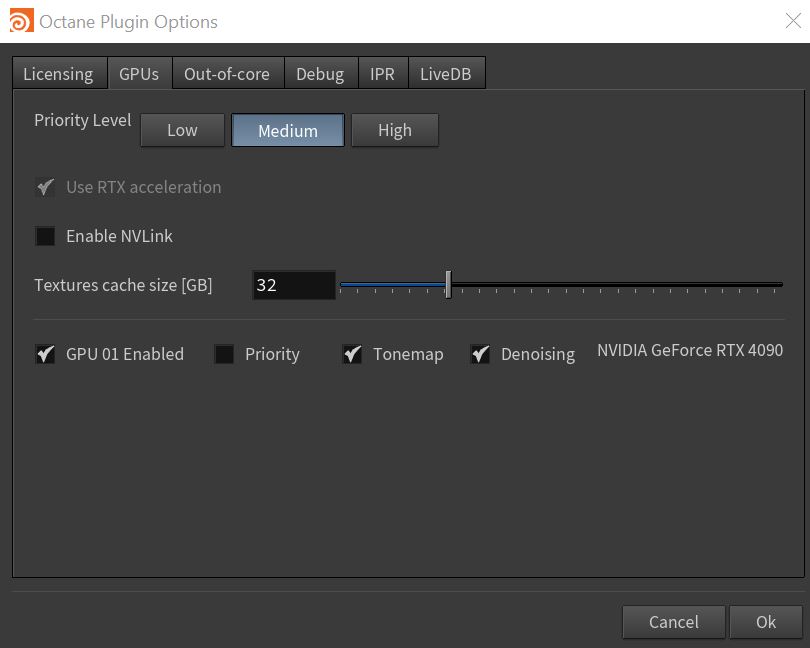
Figure 3: The GPU options found in the Octane Plugin Options window
Out-Of-Core
Out-of-core textures allow you to use more textures than what would fit in the graphic memory by keeping them in the host memory. The data goes to the GPU while rendering, which slows down the rendering. If you don’t use out-of-core textures while rendering, speed is not affected.
Out-of-core textures come also with another restriction - you must store them in non-swappable memory, which is limited. When you use up all your host memory for out-of-core textures, bad things will happen, since the system can’t make room for other processes. Since out-of-core memory is shared between GPUs, you can’t turn devices on or off while using out-of-core textures.
In the Out-Of-Core tab, you can enable this feature and set the CPU RAM Usage Limit and the GPU Head Room (Figure 4).
|
|
Out-Of-Core Options
|

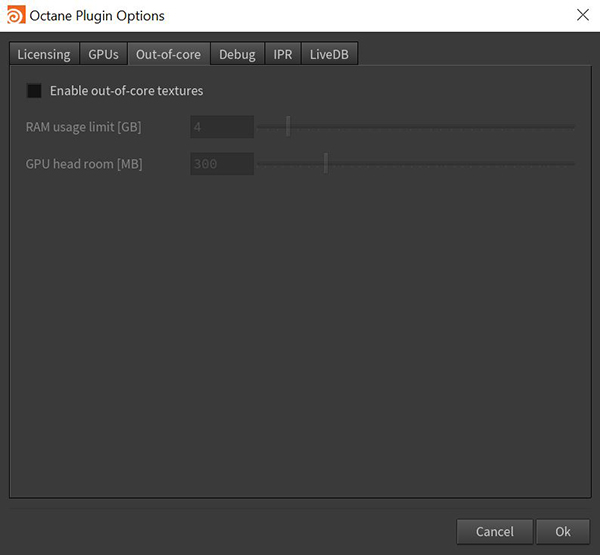
Figure 4: The Out-Of-Core options found in the Octane Plugin Options window
Debug
OctaneRender for Houdini has a log system to track possible problems or bugs. In the Debug tab, you can enable the rendering log to the Houdini console and set the output path for the log file. The rendering logs can be large, especially in Debug mode. The output to the console can also be very slow, so enable the log just for debug purposes. It is suggested to have set to Warning as it will show more helpful messages for troubleshooting (Figure 5).
|
|
Debug Options
|

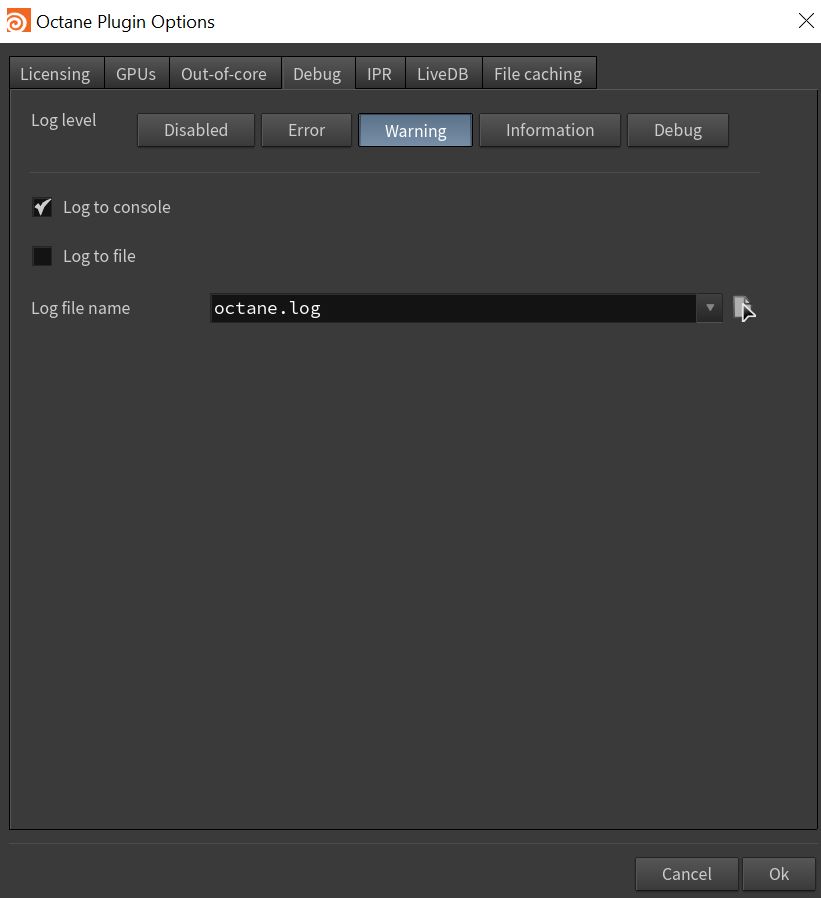
Figure 5: The Debug options found in the Octane Plugin Options window
IPR Options
In this tab, you can set the IPR window preferences (Figure 6).
IPR Window Mode - The IPR can work in a custom high-performance OpenGL window, the Houdini MPlay application, or the Qt5 window. In macOS®, only the MPlay IPR is available.
IPR Window Size - Configures the IPR window's default size. You can use the default size, the current render resolution or a custom size, that can be set using the available Width and Height parameters.
IPR Font Size - Set the IPR base font size. Select 12 or 18 if you are working with 4k monitors.
IPR camera multiplier - Adjust the IPR resolution in Camera IPR Size mode.
IPR custom gamma - Adjusts the gamma correction for the IPR window.
|
|
IPR Options
|

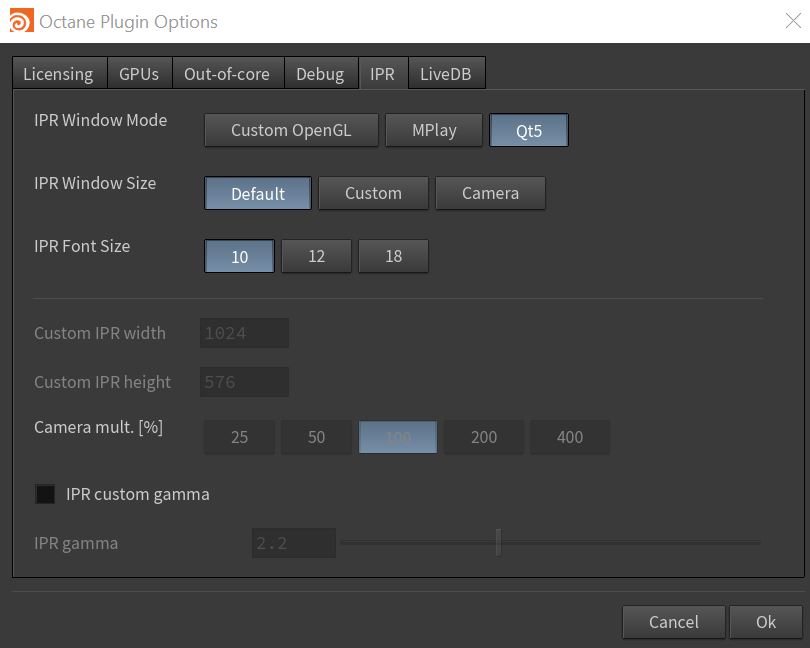
Figure 6: The IPR options found in the Octane Plugin Options window
Live DB
Provides options for selecting the folder to store LiveDB's downloaded media and the folder used by the LocalDB feature (Figure 7).
|
|
Live DB Options
|

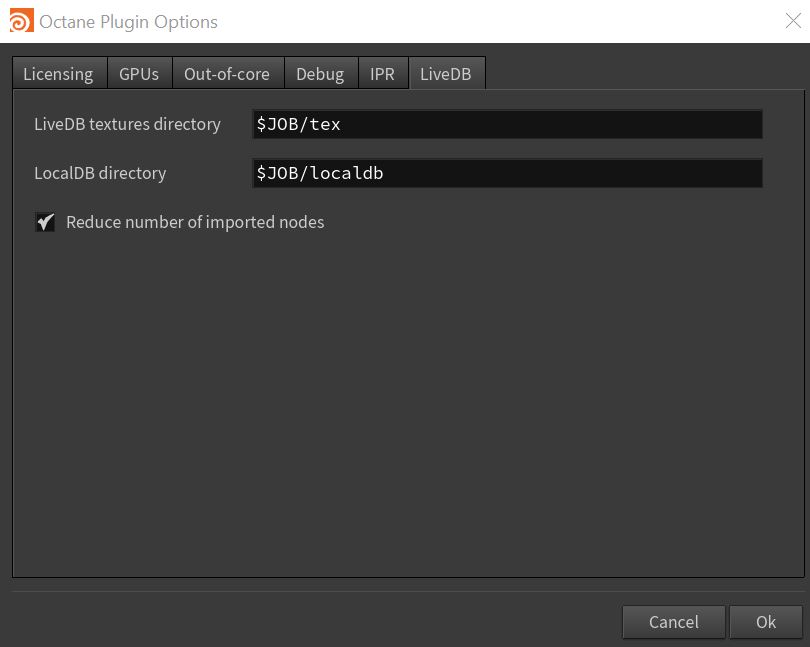
Figure 7: The LiveDB options found in the Octane Plugin Options window
File Caching
Provides options for Texture, Virtual textures and Meshlet caching. Virtual textures and meshlets are new features in Octane 2026 helping to optimize massive textures and 3d models. The Clear button will clear the meshlet cache which can be used to delete the meshlet cache and force a rebake of the meshlets in the scene (figure 8).
|
|
File Caching
|

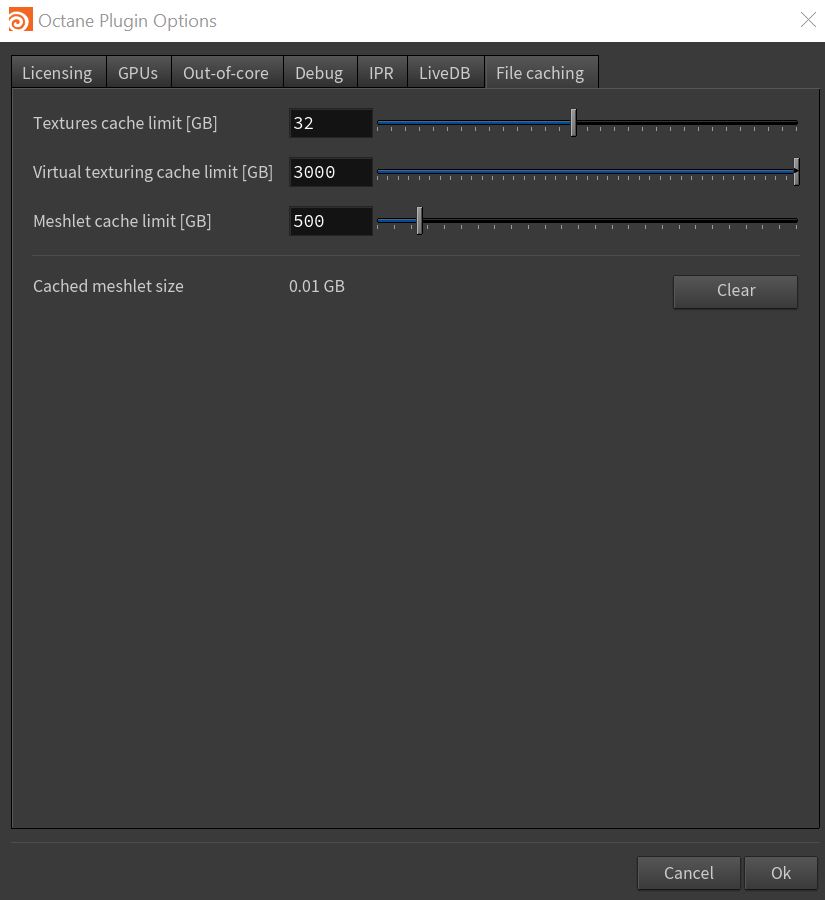
Figure 8: Clearing the meshlet file cache