Octane Server
Located in Render Properties, the Octane Server rollout provide general controls on handling the render resources (Figure 1).
|
|
Octane Server
|

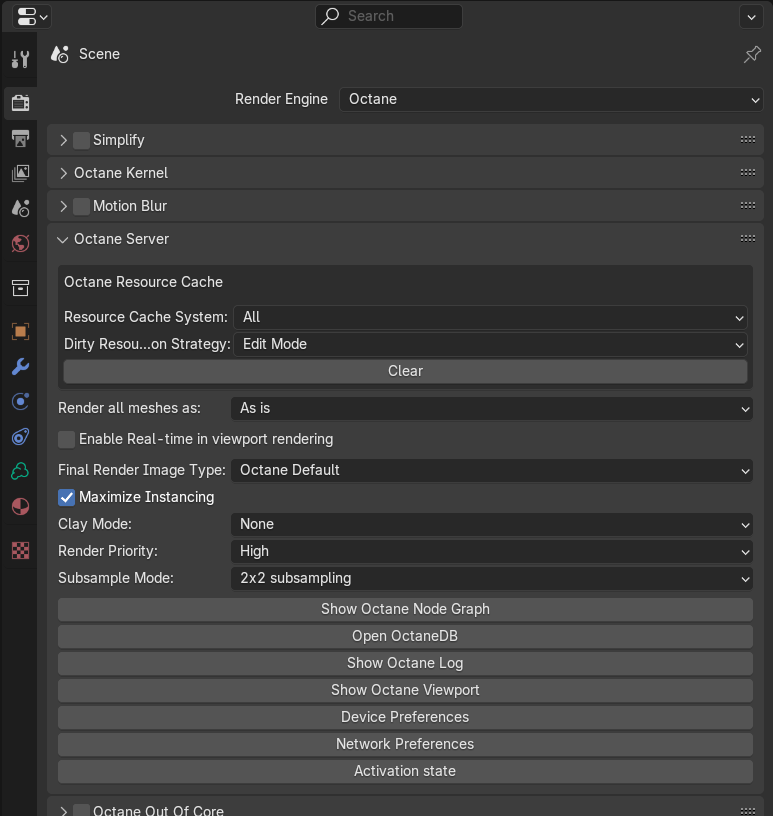
Figure 1: Octane Server Parameters
Octane Server Parameters
Resource Cache System - Cache the textures and geometries in RAM so to make the viewport rendering initialization faster.
Dirty Resource Detection Strategy - The strategy used in detecting whether a mesh is dirty so a reloading is required. A mesh will be marked as dirty and reloaded once the edit mode is on.
Clear - Clear the Resource Cache.
Render all meshes as - Overrides the Object Type for all meshes during rendering.
Enable Real-time in viewport rendering - A faster viewport rendering mode.
Final Render Image Type - Render(F12) as LDR or HDR image if applicable.
Maximize Instancing - If enabled, Octane will try to collect and group instances into scatter as much as possible.
Clay Mode - Renders the image in either a Gray clay or color clay mode.
Render Priority - Render priority that should be used for rendering.
Subsample Mode - Controls rendering speed by using a larger or smaller set of sampling.
Show Octane Node Graph - Show Octane NodeGraph (VIEW Mode Only. Please DO NOT ADD or DELETE nodes.).
Open OctaneDB - Shows the Local and Live DB.
Show Octane Log - Octane Log for system tracking.
Show Octane Viewport - Show Octane Viewport (Suggest VIEW Mode Only. Camera navigation in the viewport would not synchronize to Blender viewport.).
Device Preferences - Show the GPU resources and settings.
Network Preferences - Opens the panel to setup network rendering.
Activation state - Allows you to sign in or sign out an Octane license.