Installing on Windows Systems
Installing the Octane Server consists of extracting the files from the downloaded zipped file (figure 1).
|
|
Windows Install
|

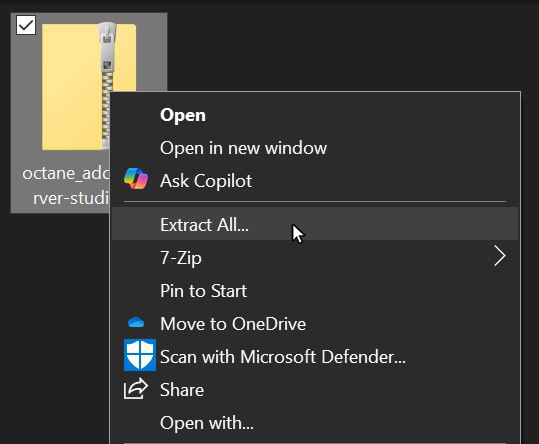
Figure 1: Extracting the Octane Server files
The extracted Octane Server folder contains the OctaneServer.exe file which needs to be run before opening Blender (figure 2).
|
|
Windows Install
|

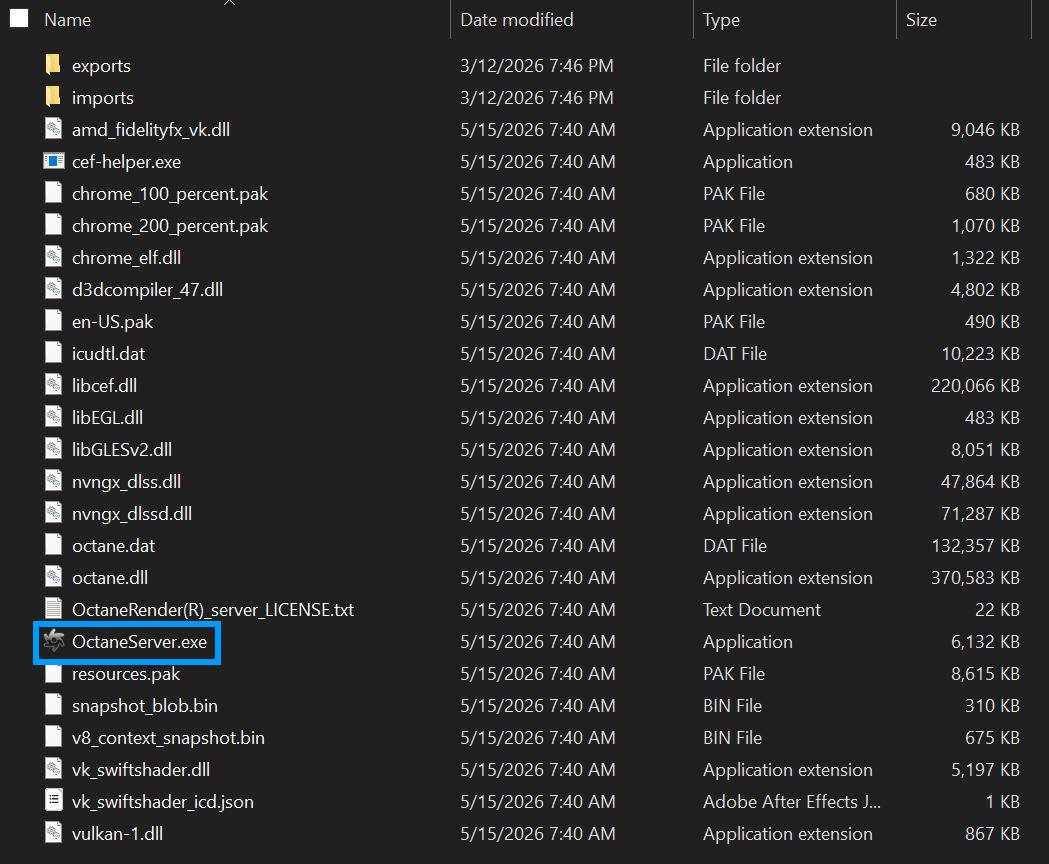
Figure 2: Running the Octane Server
Once the Octane Server is running, open Blender and go to the Add-ons section of the Preferences window and choose Install from Disk and choose the zipped Blender Add-on file (figure 3).
|
|
Windows Install
|

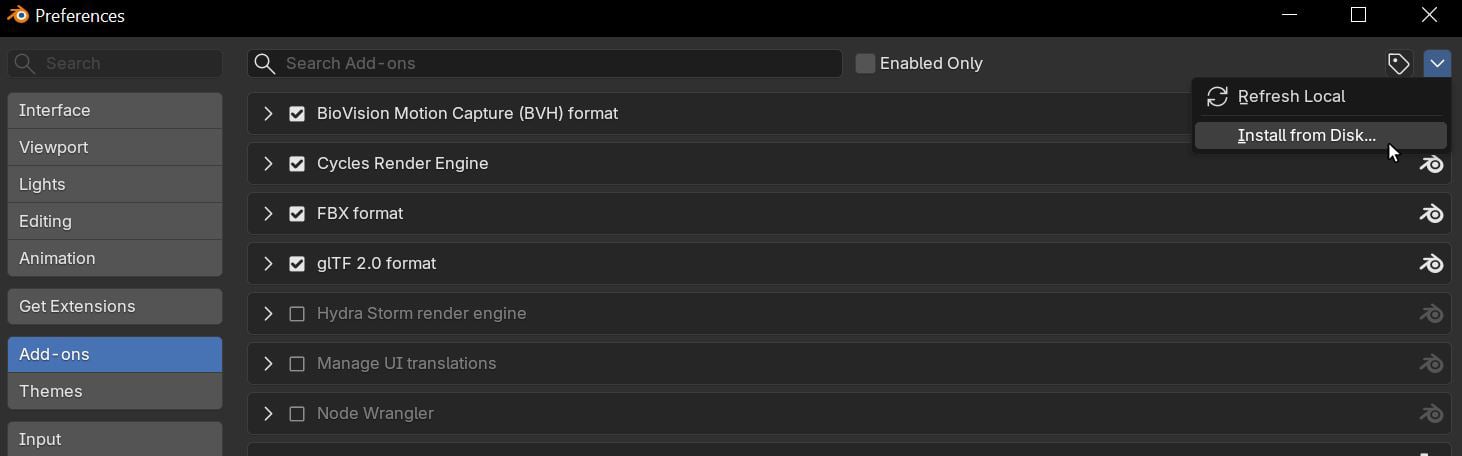
Figure 3: Installing the Blender Add-on
|
NOTE The downloaded Blender Add-on file must remained zipped. Do not extract this zipped file otherwise it will not install properly. |
The Blender Add-on will now be visible in the Add-ons window (figure 4).
|
|
Windows Install
|

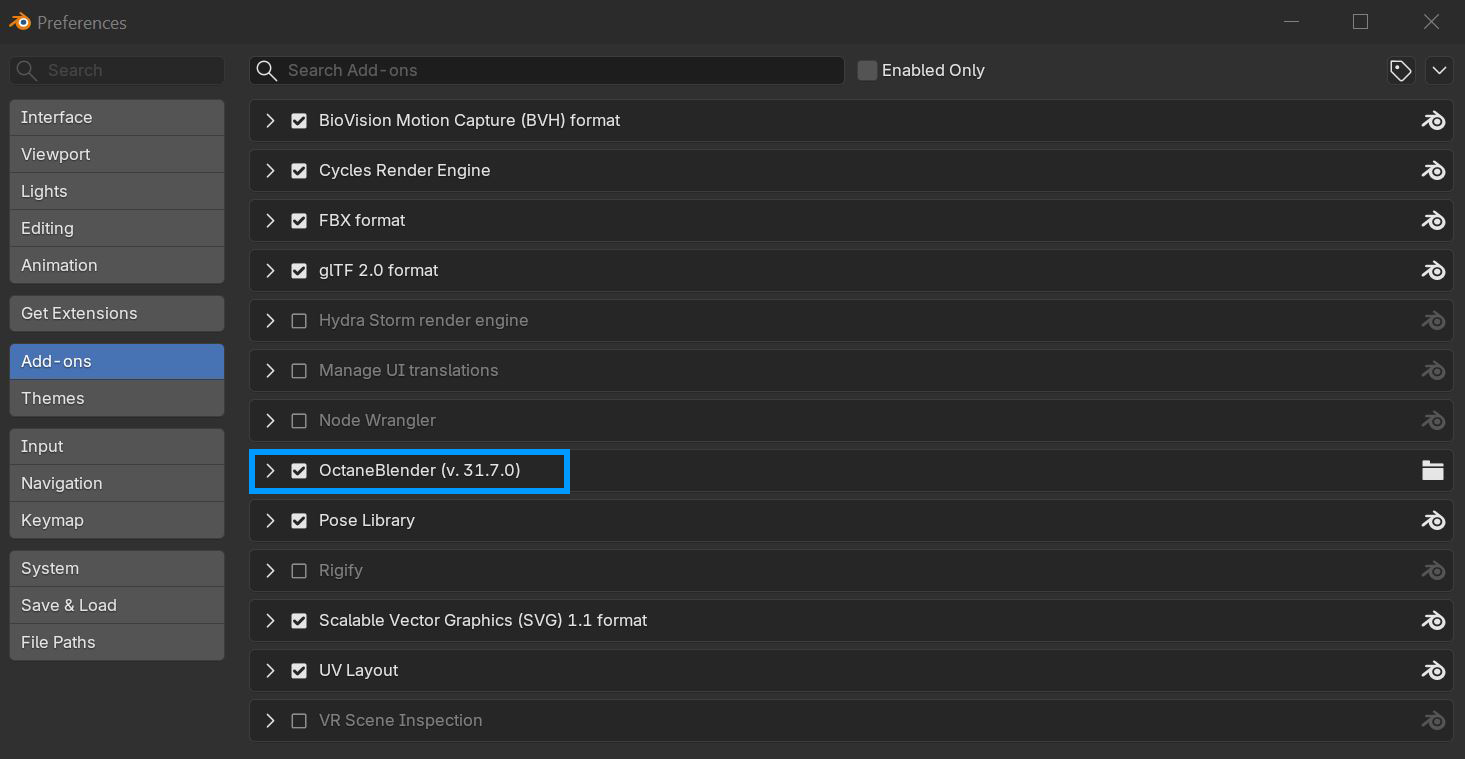
Figure 4: Accessing the Octane Add-on in the Preferences window