Color Management Settings
Octane is a spectral render engine, meaning it does not have a working color space. Instead of using a gamut, white point, and transfer function; Octane directly calculates the physical properties of light spectra. This is part of what gives Octane its beautiful, realistic, signature look. However, since Octane's calculations cover the entirety of the visible spectrum, rendered data can be converted to any color space..
The Color Management options allow for display color management to be activated or deactivated. There are numerous preset that can be selected from the Display Color Profile drop box for each monitor connected to the system (Figure 1). Additionally, OctaneRender® has implemented the Academy Color Encoding System (ACES), which uses the Open Color IO (OCIO) color management standard.
|
|
Color management
|

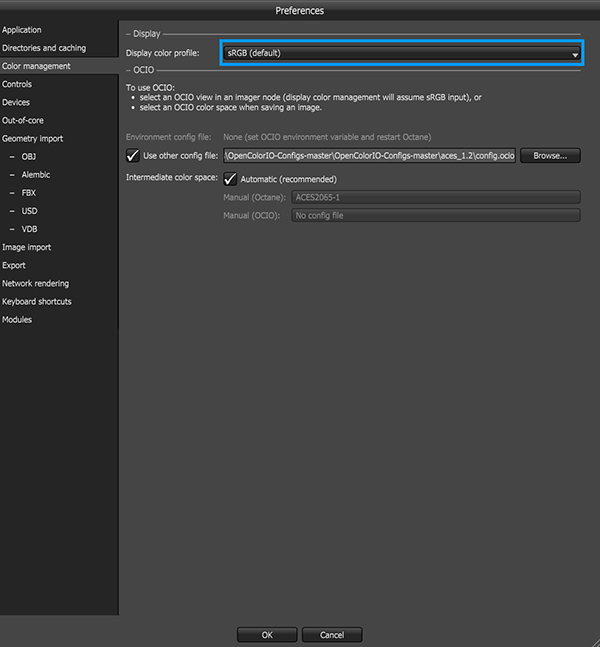
Figure 1: Accessing the Display Color Management options.
Octane now has an option to select a built-in ACES color space. This can be enabled in the Tone Mapping section under the camera Imager parameters (figure 2).
|
|
Built-In ACES Tone Mapping
|

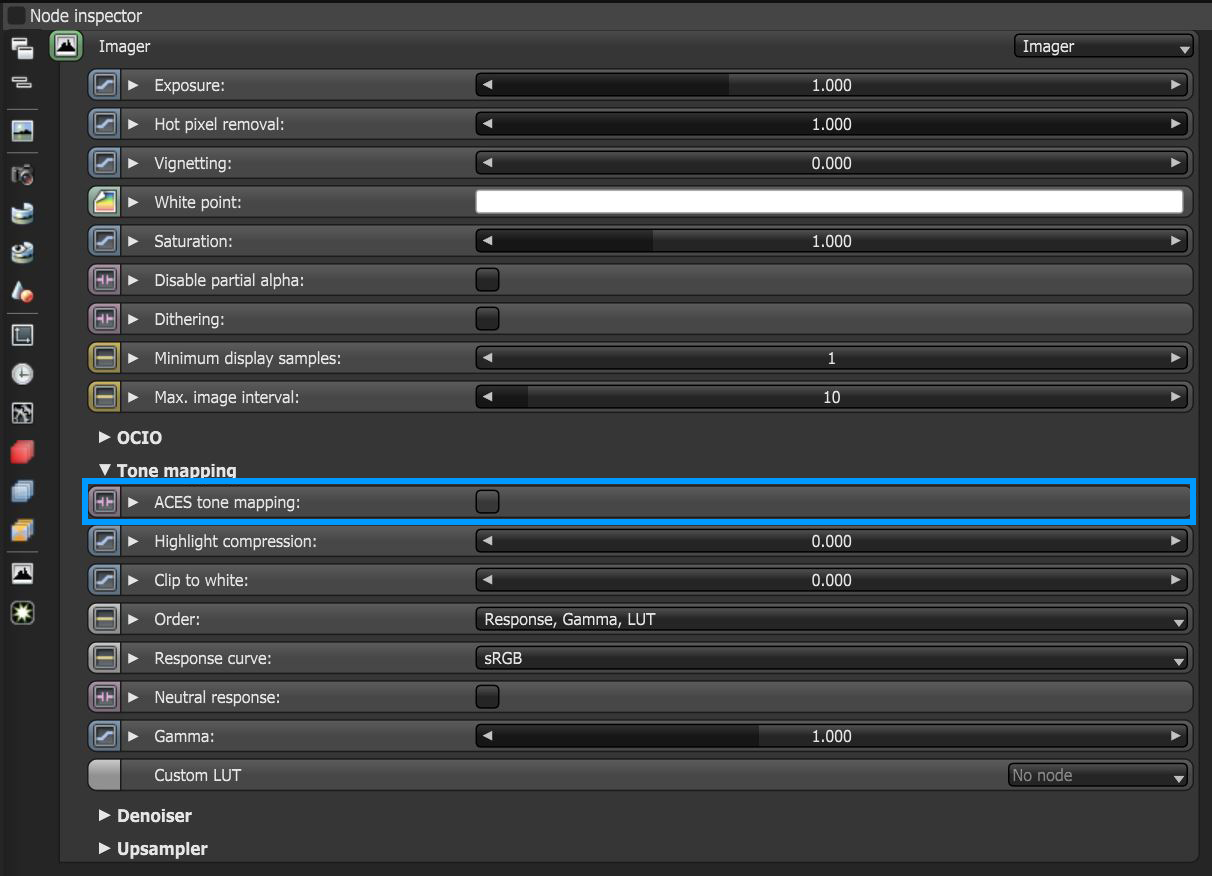
Figure 2: Enabling the built-in ACES tone mapping
Custom OCIO color profiles can be loaded as OCIO config files from the Use Other Config Files option in the Color Management preferences (figure 3).
|
|
Importing OCIO Config Files
|

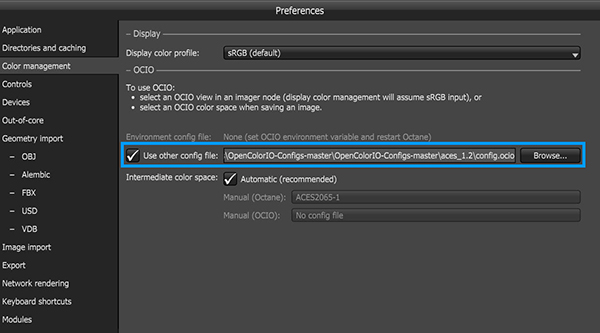
Figure 3: Importing custom OCIO config files
The ACES profiles contained in the imported OCIO config file will be available in the camera Imager node under the OCIO settings (figure 4).
|
|
Choosing Custom OCIO Profiles
|

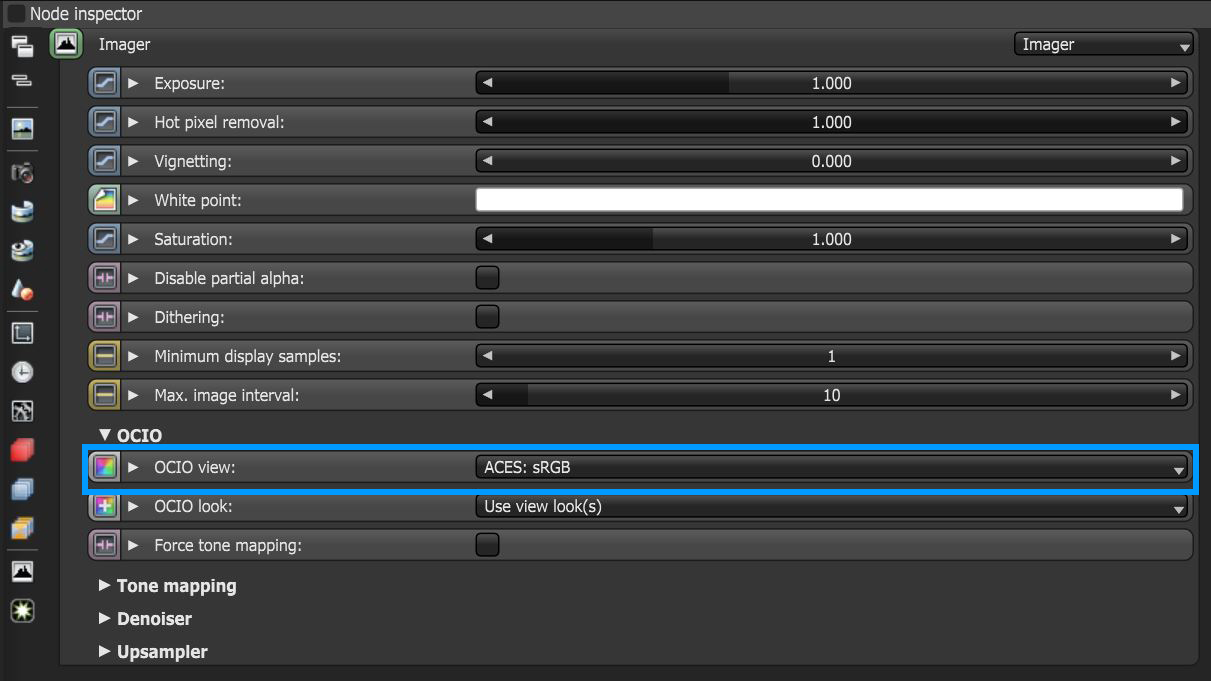
Figure 4: Selecting ACES color profiles in the camera Imager node